How Do I Sync My Phone to My Car System Made Simple
Syncing your phone to your car system is easier than you think. Whether you use Bluetooth, a USB cable, Apple CarPlay, or Android Auto, this guide walks you through every method. You will learn how to connect, troubleshoot issues, and get the most out of your car’s infotainment system. Phone-to-car sync lets you stream music, make hands-free calls, and use navigation apps safely. By the end, you will feel confident connecting any device to any vehicle.
There is nothing quite like hopping in your car and having your favorite music, contacts, and maps ready to go. Syncing your phone to your car system makes this possible in just a few simple steps. Whether your vehicle is brand new or a few years old, you have options that work for your lifestyle. This guide breaks down every method, so you can pick what fits best.
Many people avoid syncing because they think it is complicated. The truth is, modern phones and cars are built to work together. Bluetooth pairing alone takes less than a minute once you know the steps. And if Bluetooth is not your thing, you can always plug in with a cable or use smart systems like Apple CarPlay or Android Auto. Let us walk through it all.
Key Takeaways
- Bluetooth is the most popular wireless sync method and works with nearly all modern cars.
- USB cables offer a stable, charge-while-connected option for audio and data transfer.
- Apple CarPlay and Android Auto bring your phone’s screen to your car display for seamless navigation and media.
- Troubleshooting sync issues is usually simple — just toggle Bluetooth, restart devices, or update software.
- Hands-free calling and voice commands keep you safe while driving with your phone connected.
- Older cars can use FM transmitters or aux cables as affordable alternatives for phone sync.
📑 Table of Contents
- Why Syncing Your Phone to Your Car System Matters
- How to Sync Your Phone via Bluetooth
- Syncing with a USB Cable
- Apple CarPlay and Android Auto Explained
- Troubleshooting Common Sync Problems
- Syncing Older Cars Without Smart Infotainment
- Maximizing Your Synced Phone Experience
- Expert Insights on Phone-to-Car Sync
- Key Takeaways
- Conclusion
Why Syncing Your Phone to Your Car System Matters
Connecting your phone to your car is about more than just playing music. It transforms your driving experience in ways you might not expect. When your devices talk to each other, everything becomes smoother and safer.
Hands-free calling is one of the biggest benefits. You can answer calls without taking your hands off the wheel or your eyes off the road. Most systems also support voice commands, so you can send texts or change songs just by talking. This is a huge safety boost.
Another big reason to sync is navigation. Apps like Google Maps and Waze work great on your phone, but seeing them on your car’s display is a game changer. You get turn-by-turn directions on a bigger screen with better sound. Media streaming is also much better when your phone connects wirelessly to your car audio system.
Let us not forget about convenience. When your phone is synced, your contacts, playlists, and recent calls are all right there. You do not have to dig through your phone while driving. Smartphone integration keeps everything within arm’s reach — or rather, within voice reach.
The Safety Angle
Distracted driving is a serious problem, and mobile device pairing helps reduce it. Laws in many places now ban handheld phone use while driving. When your phone syncs with your car, you stay legal and focused. Voice-activated controls let you interact with your phone without ever touching it.
Studies show that wireless car connectivity reduces the cognitive load on drivers. You stay more aware of your surroundings. That alone is worth the few minutes it takes to set things up.
How to Sync Your Phone via Bluetooth
Bluetooth pairing is the go-to method for most drivers. It is wireless, convenient, and works with almost every car made in the last decade. If you have not tried it yet, you are missing out on one of the simplest car connectivity solutions out there.
Step-by-Step Bluetooth Sync Guide
Here is how to sync your phone to your car system using Bluetooth. Follow these steps and you will be connected in no time.
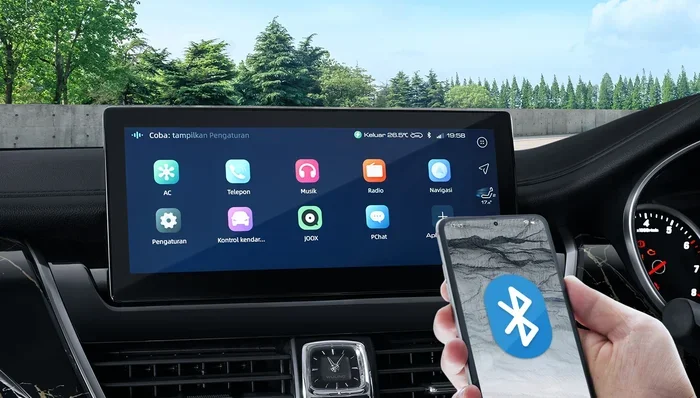
- Turn on Bluetooth on your phone. Go to Settings, find Bluetooth, and switch it on.
- Put your car in pairing mode. This usually means going to the infotainment menu and selecting “Add Device” or “Pair New Device.”
- Wait for your car to appear on your phone’s Bluetooth list.
- Tap on your car’s name on your phone. You may see a pairing code — confirm it matches on both screens.
- Accept permissions on your phone. Allow contacts, calls, and media access for the full experience.
- Test the connection. Play a song or make a call to make sure everything works.
That is it! Your mobile device pairing is complete. Most cars will remember your phone and connect automatically the next time you get in.
Quick Tips for Better Bluetooth Sync
- Keep your phone close to the car’s infotainment system during pairing.
- Turn off other Bluetooth devices nearby that might interfere.
- Restart both devices if the connection fails the first time.
- Update your phone’s software before pairing for the best compatibility.
- Delete old pairings from your car if you are having trouble connecting.
Syncing with a USB Cable
Not every phone-to-car sync needs to be wireless. A USB cable connection can be just as effective, and it has some perks that Bluetooth does not offer.
When you plug in your phone with a USB cable, you get a few advantages right away. First, your phone charges while you drive. Second, the connection is more stable. Third, some car systems work better with a wired connection for media streaming and navigation apps.
How to Connect via USB
- Plug your USB cable into your phone and then into your car’s USB port.
- Wait for the car display to recognize your device.
- Select “Phone” or “Media” on your car’s infotainment screen.
- Allow access when prompted on your phone.
- Start playing music or open your navigation app.
Some cars use USB ports just for charging and do not support data transfer. If this happens, try a different USB port or use Bluetooth instead. Device compatibility can vary, so it is always good to check your car’s manual.
USB vs Bluetooth: Which Is Better?
Both methods have their strengths. Here is a quick look at how they compare.
| Feature | Bluetooth | USB Cable |
|---|---|---|
| Wireless | Yes | No |
| Charges Phone | No | Yes |
| Stability | Good | Excellent |
| Setup Time | Under 2 minutes | Under 1 minute |
| Hands-Free Calling | Yes | Yes |
| Media Streaming | Yes | Yes |
For most people, Bluetooth wireless connection is the easiest choice. But if you want reliability and charging, USB is hard to beat.
Apple CarPlay and Android Auto Explained
If you want the best smartphone car link experience, Apple CarPlay and Android Auto are the gold standards. These systems mirror your phone’s interface onto your car’s display. They make navigation, messaging, and music feel native to your vehicle.
What Is Apple CarPlay?
Apple CarPlay works with iPhones and brings a simplified version of your phone’s interface to your car. You get access to Maps, Music, Messages, Phone, and third-party apps. It supports voice commands through Siri, so you can keep your hands on the wheel.
To use CarPlay, you need a compatible iPhone and a car that supports it. Most cars made after 2016 offer CarPlay either through the infotainment system or via an aftermarket adapter. Wireless CarPlay is now available on many newer models, eliminating the need for a cable entirely.
What Is Android Auto?
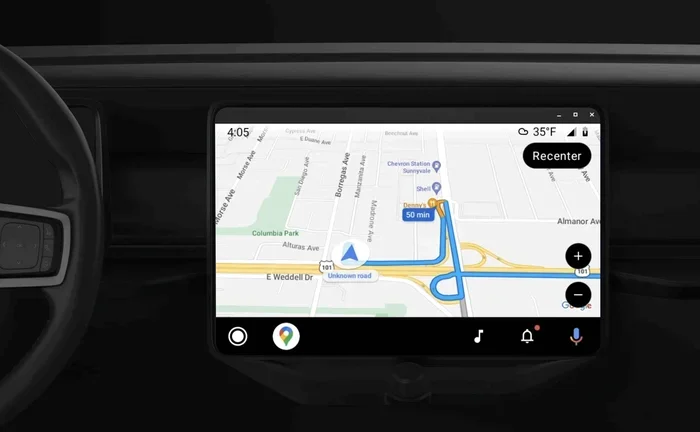
Android Auto is Google’s answer to CarPlay. It works with Android phones and offers a clean, driver-friendly interface. You get Google Maps, Spotify, Podcasts, and voice assistance through Google Assistant.
Like CarPlay, Android Auto can connect wirelessly or through a USB cable. Wireless Android Auto has become widely available, making phone mirroring effortless. Just pair once, and your phone connects automatically next time you get in the car.
CarPlay vs Android Auto: Quick Comparison
| Feature | Apple CarPlay | Android Auto |
|---|---|---|
| Compatible Devices | iPhone only | Android phones only |
| Voice Assistant | Siri | Google Assistant |
| Wireless Support | Yes (newer models) | Yes (newer models) |
| Navigation | Apple Maps, Google Maps | Google Maps |
| App Selection | Growing list | Growing list |
| Setup | Plug in or pair wirelessly | Plug in or pair wirelessly |
Both systems make smartphone integration a breeze. The choice mostly comes down to which phone you use. Either way, you get a safer, more connected driving experience.
Troubleshooting Common Sync Problems
Even with the best technology, things can go wrong. Sync troubleshooting is a normal part of the process. Most issues have simple fixes that take just a few minutes.
Phone Won’t Connect via Bluetooth
This is the most common car audio system complaint. Try these steps first:
- Turn Bluetooth off and on again on both your phone and your car.
- Restart both devices. A quick reboot fixes many connection issues.
- Remove old pairings from your car’s Bluetooth memory.
- Check for software updates on your phone and in your car’s system.
- Move closer to the car’s console during pairing.
Audio Cuts Out or Sounds Poor
If your connection drops or sound quality is bad, a few things could be at play. Interference from other Bluetooth devices is a common culprit. Try turning off nearby devices and see if that helps.
Also check that your car connectivity software is up to date. Many manufacturers release updates that improve wireless car connectivity and fix audio glitches. A factory reset of the car’s infotainment system can also work wonders as a last resort.
Car Does Not Recognize My Phone
When your car does not detect your phone at all, try a different USB cable or port. Some cables are charge-only and do not transfer data. Use the cable that came with your phone for the best results.
If you are using Apple CarPlay or Android Auto, make sure the app is installed and updated on your phone. A simple app update often solves recognition problems.
Quick Troubleshooting Checklist
- Restart your phone and car infotainment system.
- Toggle Bluetooth off and on.
- Forget the device and re-pair.
- Update phone and car software.
- Try a different cable or port.
- Reset car infotainment to factory settings as a last step.
Syncing Older Cars Without Smart Infotainment
Not every vehicle has a fancy infotainment system. If your car was made before the smartphone era, you can still enjoy phone-to-car sync with a few affordable accessories.
FM Transmitters
An FM transmitter plugs into your car’s cigarette lighter and broadcasts your phone’s audio to an open FM frequency. You tune your car radio to that frequency, and your phone’s sound plays through your speakers. It is not the highest quality, but it works well and costs very little.
Auxiliary Cables
If your car has an AUX input, you are in luck. A simple aux cable connects your phone’s headphone jack to your car stereo. You get decent sound quality without any pairing or setup. Just plug in and play.
Bluetooth Receivers
A Bluetooth receiver is a small device that plugs into your car’s AUX port or cigarette lighter. It pairs with your phone wirelessly and streams audio to your car speakers. This is a great option for older cars that lack built-in Bluetooth. Look for models that also support hands-free calling for the full hands-free calling experience.
Maximizing Your Synced Phone Experience
Once your phone is connected, there are a few things you can do to get the most out of the setup. Optimizing your car-phone connection makes every drive more enjoyable.
Set Up Voice Commands
Take a few minutes to set up voice commands on your phone and car system. Learn how to activate Siri, Google Assistant, or your car’s built-in voice control. Practice saying commands like “Call [contact name]” or “Play .” Over time, this becomes second nature and makes driving much safer.
Organize Your Car’s Display
Most infotainment systems let you choose which apps appear on the home screen. Put your most-used apps front and center. Navigation and media streaming apps should be easy to access. Some systems let you create folders or customize the layout. Take advantage of these features.
Keep Your Software Updated
Software updates are crucial for smooth device compatibility. Both your phone and your car’s infotainment system benefit from regular updates. Manufacturers often release fixes for connection issues and add new features. Set a reminder to check for updates once a month.
Use a Quality Cable
If you rely on USB connections, invest in a good cable. Cheap cables can cause connection drops, slow charging, and data transfer issues. A high-quality USB cable makes a noticeable difference in reliability and performance.
Manage Permissions Wisely
When you first pair your phone, your car will ask for permissions. Allow access to contacts, calls, and media for the full experience. But review these permissions regularly. You want smartphone integration to be convenient without compromising your privacy.
Expert Insights on Phone-to-Car Sync
Automotive technology experts agree that phone-to-car sync has become one of the most important features in modern vehicles. According to industry reports, over 80 percent of new car buyers consider smartphone integration a key factor in their purchase decision.
Experts also emphasize that wireless connection technology is evolving rapidly. What required a cable five years ago is now done effortlessly through Bluetooth or Wi-Fi. The trend is moving toward fully wireless smartphone car link experiences that require zero cables at all.
Another expert tip: always pair your phone before you start driving. Setting up Bluetooth pairing while parked is safer and ensures a smoother connection from the moment you pull out of the driveway.
Key Takeaways
- Bluetooth wireless connection is the easiest and most popular way to sync your phone to your car system.
- USB cables offer stability and charging, making them ideal for long drives.
- Apple CarPlay and Android Auto bring your phone’s interface to your car display for seamless navigation and media.
- Most sync problems have simple fixes — restart devices, toggle Bluetooth, or update software.
- Older cars can use FM transmitters, aux cables, or Bluetooth receivers to enjoy phone sync.
- Hands-free calling and voice commands keep you safe and focused while driving.
- Regular software updates ensure the best device compatibility and connection quality.
Conclusion
Syncing your phone to your car system is one of the simplest upgrades you can make to your daily drive. It keeps you connected, entertained, and most importantly, safe on the road. Whether you choose Bluetooth pairing, a USB cable, or Apple CarPlay and Android Auto, the process is straightforward and rewarding.
Start with the method that suits your car and your needs. Follow the steps in this guide, and you will be connected in minutes. If you run into issues, the troubleshooting tips will help you get back on track quickly.
The beauty of modern car connectivity is that it keeps getting better. As wireless car connectivity technology advances, syncing becomes even more seamless. Stay curious, keep your software updated, and enjoy the ride. Your phone and your car are meant to work together — now you know exactly how to make it happen.
Frequently Asked Questions
How long does it take to sync my phone to my car system?
Bluetooth pairing usually takes less than two minutes. USB connections are even faster. Apple CarPlay and Android Auto take about the same time once you have done it once. After the initial setup, your phone connects automatically every time you get in the car.
Why won’t my phone connect to my car via Bluetooth?
The most common reasons are outdated software, interference from other devices, or a full Bluetooth memory on your car. Toggle Bluetooth off and on, restart both devices, and delete old pairings. These steps fix the issue in most cases.
Can I sync my phone to any car?
Most cars made after 2015 support Bluetooth wireless connection and some form of smartphone integration. Older cars may need an FM transmitter or Bluetooth receiver. Device compatibility is rarely an issue — almost all modern phones work with modern car systems.
Is wireless CarPlay or Android Auto as good as wired?
Wireless CarPlay and Wireless Android Auto have come a long way. They offer nearly the same performance as wired connections for most users. The main difference is that wired connections may charge your phone while connected, whereas wireless does not. Overall, wireless sync is incredibly convenient.
Does syncing my phone drain my car battery?
Bluetooth connection uses very little power and should not noticeably affect your car battery. USB syncing draws a bit more power, but it is still minimal. If you are concerned, you can disconnect your phone when the car is off to avoid any drain.
Can I sync more than one phone to my car system?
Yes, most car infotainment systems can remember multiple mobile device pairings. When a second phone connects, the car may ask which device you want to use. Some systems automatically connect the phone that is closest or was last used. Check your car’s manual for specific details.