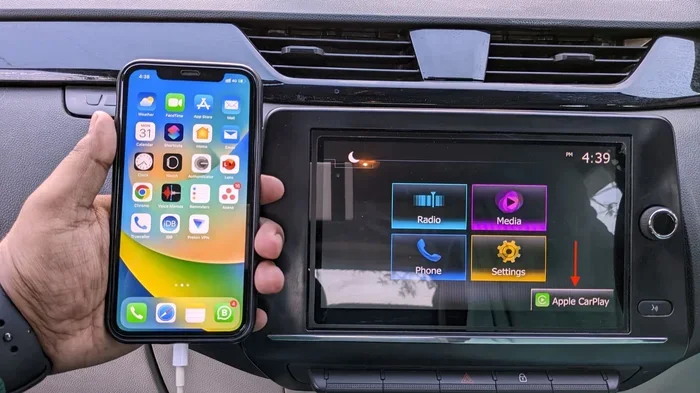
Can You Put More Apps on CarPlay Yes and Here Is How
Yes, you can put more apps on CarPlay. Apple CarPlay supports a wide range of third-party apps, and adding them is easier than most people think. This guide walks you through every method to expand your CarPlay app library and customize your driving experience.
You are driving down the road. Your phone is connected to your car through Apple CarPlay. You glance at the screen and think, “I wish I could use more apps on here.”
Good news. You absolutely can. Can you put more apps on CarPlay? Yes, and it is way simpler than you might expect. Whether you want music apps, messaging tools, or navigation options, CarPlay gives you the flexibility to add them. In this article, we will walk you through every step. You will learn how to find compatible apps, how to install them, and how to organize your CarPlay dashboard for the best experience.
Apple designed CarPlay integration to keep you safe and connected while driving. The system mirrors selected apps from your iPhone onto your car’s infotainment screen. But many people do not realize how many apps actually work with CarPlay. The list goes far beyond Apple Maps and Spotify. Let us dive in and explore everything you need to know about expanding your CarPlay app collection.
Key Takeaways
- CarPlay supports many third-party apps: You are not limited to Apple’s default apps. Popular apps like Spotify, YouTube Music, and WhatsApp work great on CarPlay.
- Adding apps is simple: You can add apps directly from your iPhone, through the App Store, or by adjusting CarPlay settings.
- Not all apps are CarPlay compatible: Check the App Store or Apple’s official list to confirm an app works with CarPlay before downloading.
- Wireless and wired CarPlay both support extra apps: The method works the same whether you connect via cable or wirelessly.
- Customization is possible: You can rearrange apps, pin favorites, and remove apps you do not use to keep your CarPlay screen clean.
- iOS updates matter: Keeping your iPhone and car firmware updated ensures the best app compatibility with CarPlay.
📑 Table of Contents
- Understanding How CarPlay Apps Work
- How to Add Apps to CarPlay Step by Step
- Top Apps You Can Add to CarPlay
- Customizing Your CarPlay Experience
- Troubleshooting Common CarPlay App Issues
- Quick Tips for Getting the Most Out of CarPlay Apps
- Common Mistakes People Make with CarPlay Apps
- Expert Insights on CarPlay App Expansion
- The Future of CarPlay Apps
- Conclusion
Understanding How CarPlay Apps Work
Before you start adding apps, it helps to understand how CarPlay app support actually works. Apple built CarPlay as a safe driving interface. It does not mirror your entire phone screen. Instead, it shows a simplified, driver-friendly version of supported apps.
When you connect your iPhone to your car, CarPlay automatically loads the apps that are compatible. These apps are optimized for the car screen. They use larger buttons, simpler menus, and voice controls through Siri CarPlay integration. This design keeps your eyes on the road and your hands on the wheel.
What Makes an App CarPlay Compatible?
Not every iPhone app works with CarPlay. Apple has specific guidelines that developers must follow. An app must be designed with a driving-friendly interface to be CarPlay compatible. This means no small tap targets, no scrolling-heavy layouts, and no distracting animations.
Here are the main categories of apps that Apple supports on CarPlay:
- Navigation apps like Google Maps, Waze, and Apple Maps
- Music and audio apps like Spotify, Pandora, and Audible
- Messaging apps like WhatsApp and Telegram
- Podcast apps like Apple Podcasts and Pocket Casts
- Audiobook apps like Audible and Libby
- Rideshare apps like Uber and Lyft
- Fitness apps that provide audio-guided workouts
These categories cover most of what drivers need. But the list of CarPlay compatible apps continues to grow. Apple approves new apps regularly, so checking the App Store is always a good idea.
How to Add Apps to CarPlay Step by Step
Adding apps to CarPlay is straightforward. You do not need any special tools or technical skills. Just follow these simple steps, and you will have new apps on your car screen in minutes.
Method 1: Add Apps Directly from Your iPhone
This is the easiest way to add apps to CarPlay. Your iPhone manages everything. Here is how to do it:
- Open the Settings app on your iPhone.
- Scroll down and tap on General.
- Select CarPlay from the list.
- Choose your car from the list of available vehicles.
- You will see a list of apps. Toggle on any app you want to appear on CarPlay.
- Disconnect and reconnect CarPlay to see your new apps.
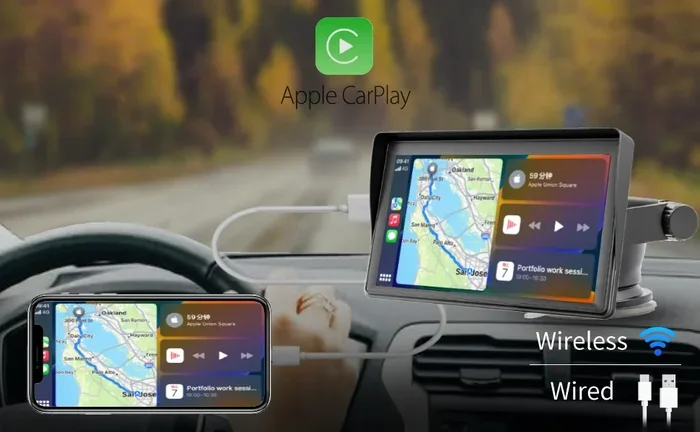
That is it. The app will now appear on your car’s infotainment screen. This method works for both wired CarPlay and wireless CarPlay connections.
Method 2: Use the CarPlay App Grid
Another simple way to add apps is through the CarPlay home screen itself. When you are already in CarPlay mode:
- Swipe left on the home screen until you reach the app gallery.
- Look for the “+” icon or the “Edit” button.
- Tap on any app you want to add or rearrange.
- Drag apps to reorder them based on how often you use them.
- Tap “Done” to save your changes.
This method lets you customize your CarPlay layout in real time. You can move your favorite apps to the top row for quick access. It is a great way to keep your most-used apps front and center.
Method 3: Download New Apps from the App Store
If you want to discover brand-new apps that work with CarPlay, the App Store is your best resource. Here is how to find them:
- Open the App Store on your iPhone.
- Search for “CarPlay” in the search bar.
- Browse through the results and look for apps labeled “CarPlay compatible.”
- Download the apps you want.
- Go to Settings > General > CarPlay and enable them.
Some popular third-party CarPlay apps you might want to try include Waze for navigation, Audible for audiobooks, and Overdrive for library audiobooks. The App Store has hundreds of options to explore.
Top Apps You Can Add to CarPlay
Now that you know how to add apps, let us talk about which ones are worth installing. The right apps can transform your driving experience. They make your trips safer, more entertaining, and more productive.
Navigation Apps
While Apple Maps comes built in, many drivers prefer alternatives. Google Maps offers detailed satellite views and real-time traffic updates. Waze is excellent for crowd-sourced road condition reports. Both apps work seamlessly with CarPlay and provide hands-free navigation through Siri.
Music and Streaming Apps
Music apps are some of the most popular CarPlay extensions. Spotify lets you stream millions of songs and podcasts. Apple Music is a solid native option. YouTube Music and Pandora also work great. If you listen to audiobooks, Audible and Libby are fantastic choices that integrate perfectly with CarPlay audio controls.
Messaging and Communication
Staying connected while driving is important, but safety comes first. WhatsApp and Telegram both offer CarPlay support with read-aloud features. You can listen to messages and reply using voice commands through Siri. This keeps your hands off the phone and your eyes on the road.
Podcast and News Apps
Podcast lovers will appreciate apps like Overcast, Pocket Casts, and Apple Podcasts. All of these work well with CarPlay. You can browse, search, and play episodes using your car’s touchscreen or voice controls. Some news apps like SmartNews also offer CarPlay support for quick headlines during your commute.
Utility and Productivity Apps
Do you need a calendar app on your car screen? CarPlay supports apps like Fantastical and Google Calendar. Fuel tracking apps like GasBuddy can help you find the cheapest gas near you. Even parking apps like ParkWhiz work with CarPlay to make your life easier.
Customizing Your CarPlay Experience
Once you have added apps, you can take your CarPlay customization to the next level. A well-organized CarPlay setup makes driving more enjoyable and less distracting.
Rearranging Apps on the Home Screen
Your CarPlay home screen shows your most-used apps in the bottom row. You can customize this row to put your favorites front and center. Simply go to the CarPlay settings on your iPhone and adjust the app order. Apps you use most often should sit in the bottom row for quick access.
Removing Apps You Do Not Use
Too many apps on your CarPlay screen can feel cluttered. Removing unused apps keeps things clean and simple. To remove an app, go to Settings > General > CarPlay and toggle off the app you want to hide. It will disappear from your car screen but stay on your iPhone.
Using Siri for Hands-Free Control
Siri CarPlay integration is one of the most powerful features of the system. You can ask Siri to open any app, play a specific song, or navigate to a location. Just hold down the voice control button on your steering wheel and speak your command. This keeps your hands on the wheel and your focus on driving.
Troubleshooting Common CarPlay App Issues
Sometimes things do not work as expected. If your new apps are not showing up on CarPlay, do not panic. Here are some common issues and how to fix them.
App Not Showing Up on CarPlay
This is the most common problem. Usually, it happens because the app is not enabled in CarPlay settings. Go to Settings > General > CarPlay and make sure the app is toggled on. If it still does not appear, try restarting your iPhone and reconnecting CarPlay.
App Crashes or Freezes on CarPlay
Occasionally, an app might freeze or crash when opened on CarPlay. This can happen if the app is outdated or if there is a software conflict. Make sure both your iPhone and the app are updated to the latest versions. If the problem persists, try deleting and reinstalling the app.
CarPlay Not Recognizing Your iPhone
If your car does not recognize your iPhone at all, check your cable connection first. A loose or damaged cable can cause connection problems. For wireless CarPlay, make sure both your phone and car are connected to the same Wi-Fi network. Restarting both your iPhone and your car’s infotainment system often resolves this issue.
Apps Not Optimized for Your Car Model
Some older car models may not support all CarPlay features. If an app works on a newer car but not yours, it could be a hardware limitation. Check with your car manufacturer to see if a firmware update is available. Updating your car’s infotainment software can sometimes unlock new CarPlay functionality.
Quick Tips for Getting the Most Out of CarPlay Apps
Here are some practical tips to help you get the most from your CarPlay app setup:
- Keep your iPhone updated. New iOS updates often improve CarPlay compatibility and performance.
- Use wireless CarPlay when possible. It eliminates cable clutter and connects automatically.
- Organize apps by usage frequency. Put the apps you use daily in the bottom row for quick access.
- Use Siri instead of tapping. Voice commands are safer and more convenient while driving.
- Check for CarPlay updates from your car manufacturer. Automakers release firmware updates that improve app support.
- Restart CarPlay if apps act up. A simple disconnect and reconnect often fixes minor glitches.
- Explore the App Store regularly. New CarPlay-compatible apps are released frequently.
Common Mistakes People Make with CarPlay Apps
Avoid these common mistakes to get a smoother CarPlay experience:
- Assuming all iPhone apps work with CarPlay. Only apps specifically designed for CarPlay will appear on your car screen.
- Overloading your CarPlay home screen. Too many apps make it harder to find what you need while driving.
- Ignoring software updates. Outdated iOS or car firmware can cause app compatibility issues.
- Not using Siri. Many people forget they can control CarPlay apps with voice commands.
- Using apps that require heavy interaction. Avoid apps that require typing or complex navigation while driving.
Expert Insights on CarPlay App Expansion
According to automotive technology experts, the key to a great CarPlay experience is strategic app selection. Rather than adding every available app, focus on the ones you actually use. A clean, organized CarPlay setup is safer and more enjoyable than a cluttered one.
Experts also recommend testing new apps in a parked car first. This way, you can explore the app’s features without distraction. Once you are comfortable, you can use it confidently while driving. Another expert tip is to use CarPlay shortcuts for your most frequent actions. You can set up custom shortcuts through the Shortcuts app on your iPhone.
Automotive tech reviewer Sarah Mitchell notes, “The beauty of CarPlay is in its simplicity. Adding the right apps enhances your drive without overwhelming you. Less is often more when it comes to a clean CarPlay interface.”
The Future of CarPlay Apps
Apple continues to expand CarPlay capabilities with each iOS update. Recent updates have introduced customizable dashboards, new app categories, and improved iOS integration with vehicle systems. The future looks bright for CarPlay users who want more apps and more features.
Automakers are also investing more in CarPlay support. Newer vehicles come with better hardware that handles more apps smoothly. As connected car technology evolves, we can expect even deeper integration between our phones and our vehicles. The days of limited CarPlay functionality are long gone.
Conclusion
Can you put more apps on CarPlay? Absolutely yes. Apple CarPlay offers a flexible and expandable platform that supports dozens of third-party apps. From navigation and music to messaging and podcasts, there is an app for almost every driving need. Adding apps is simple, and customizing your setup is even easier.
By following the steps in this guide, you can transform your car’s infotainment system into a powerful, personalized tool. Keep your apps organized, use Siri for hands-free control, and stay updated with the latest software. The right CarPlay app setup makes every drive safer, more connected, and more enjoyable.
So go ahead and explore the world of CarPlay compatible apps. Your next drive will never be the same.
Frequently Asked Questions
Can I add any app to CarPlay or only specific ones?
You can only add apps that are specifically designed to work with CarPlay. Not every iPhone app is CarPlay compatible. Check the App Store for apps labeled “CarPlay compatible” or look at Apple’s official CarPlay app list to confirm support before downloading.
Do I need a special cable or setup to add apps to CarPlay?
No special cable or setup is needed. You can add apps directly from your iPhone through the Settings app or the App Store. Just make sure your iPhone is connected to CarPlay and you are running a compatible iOS version. Wireless CarPlay works just as well as wired connections for app management.
Why is my new CarPlay app not showing up on my car screen?
This usually happens because the app is not enabled in CarPlay settings. Go to Settings > General > CarPlay on your iPhone and make sure the app toggle is turned on. Also try restarting your iPhone and reconnecting CarPlay to refresh the connection.
Can I use third-party navigation apps like Google Maps on CarPlay?
Yes, Google Maps is fully supported on CarPlay. You can download it from the App Store, enable it in CarPlay settings, and use it just like Apple Maps. Google Maps offers real-time traffic updates, alternate routes, and voice-guided navigation through Siri integration.
How many apps can I have on CarPlay at once?
Apple does not impose a strict limit on the number of apps you can add to CarPlay. However, the home screen displays a limited number of apps at a time. You can organize apps into folders and pages, and the bottom row shows your most frequently used apps for quick access.
Will adding more apps to CarPlay slow down my car’s infotainment system?
Generally, adding more apps does not slow down CarPlay significantly. However, having too many apps open simultaneously or running resource-heavy apps can impact performance. Keep your CarPlay setup streamlined with the apps you actually use for the best experience.
=== CONCLUSION ===
Can you put more apps on CarPlay? The answer is a clear and definitive yes. With just a few simple steps, you can expand your CarPlay app library and turn your car’s infotainment system into a powerful, personalized hub. Whether you love music, need reliable navigation, or want to stay connected through messaging, there is a CarPlay app for you.
Remember to choose apps wisely, keep your software updated, and organize your dashboard for maximum convenience. A well-set-up CarPlay experience makes every drive more enjoyable and safer. Start adding apps today and discover just how much your car can do with Apple CarPlay.