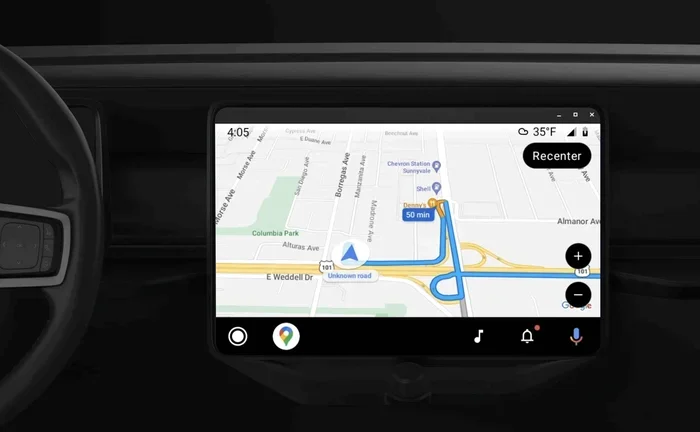
How Do I Get Google Maps to Connect to My Car Today
Connecting Google Maps to your car is easier than you think. Whether you use Android Auto, Apple CarPlay, or a simple Bluetooth pairing, this guide walks you through every method. You will learn how to set up wireless navigation, fix common connection problems, and enjoy hands-free driving with real-time traffic updates.
Have you ever hopped in your car and wished your phone could talk to your dashboard? You are not alone. Millions of drivers want to know how to get Google Maps to connect to their car. The good news is that it is simpler than most people think. Whether you drive a new SUV or an older sedan, there is a way to make it work.
Google Maps has become one of the most popular navigation apps in the world. It gives you live traffic updates, voice-guided directions, and points of interest along the way. But the real magic happens when you mirror that experience onto your car screen. This means you can see your route, hear turn-by-turn directions, and even respond to messages without taking your eyes off the road. In this guide, we will walk you through every method step by step.
Key Takeaways
- Android Auto and Apple CarPlay are the two most popular ways to get Google Maps running on your car screen.
- Bluetooth pairing offers a wireless option if your car supports it without a USB cable.
- Wireless connections require both your phone and car infotainment system to support Wi-Fi or mirror link technology.
- Troubleshooting steps like updating apps, clearing cache, and restarting devices solve most connection issues.
- Voice commands let you control Google Maps safely while driving without touching your phone.
- Regular app updates keep your navigation running smoothly and prevent future bugs.
📑 Table of Contents
- Why Connecting Google Maps to Your Car Makes Driving Better
- How to Connect Google Maps via Android Auto
- How to Connect Google Maps via Apple CarPlay
- Connecting Google Maps Through Bluetooth
- Using a USB Cable for a Stable Connection
- Wireless Google Maps Connection: What You Need to Know
- Troubleshooting Common Google Maps Connection Issues
- Expert Tips for the Best Google Maps Car Experience
- Final Thoughts
Why Connecting Google Maps to Your Car Makes Driving Better
Using your phone alone while driving is risky. You have to hold it, swipe it, and squint at a small screen. That is a distraction no one needs. Connecting Google Maps to your car infotainment system solves all of that. Your route shows up on a bigger display. You get clearer audio through your car speakers. And you can use voice commands to stay focused on the road.
Here is why this matters so much. Hands-free driving reduces accidents. Studies show that distracted driving causes thousands of crashes every year. When your navigation lives on your car screen, you keep both hands on the wheel. You also keep your eyes where they belong, on the road ahead. This is not just about convenience. It is about safety.
Another big benefit is real-time traffic updates. Google Maps constantly checks road conditions and reroutes you when there is a jam. When this data flows through your car system, you get instant alerts without fumbling with your phone. You also get access to places like gas stations, restaurants, and parking lots right on your dashboard. It all adds up to a smoother, smarter drive.
Top Benefits of Car-Connected Navigation
- Larger display screen makes routes easy to see from a distance.
- Voice-guided directions through your car speakers sound clearer than phone speakers.
- Hands-free operation keeps you safe and focused on driving.
- Real-time traffic data helps you avoid delays and save fuel.
- Seamless smartphone integration means fewer cables and less hassle.
- Access to places and reviews right from your car infotainment system.
How to Connect Google Maps via Android Auto
If you have an Android phone, Android Auto is your best friend. It is a free app from Google that mirrors your phone onto your car screen. Most new cars come with Android Auto built in. If your car does not have it, you can download the app from the Google Play Store and plug in your phone.
Setting it up is straightforward. First, make sure your car is parked and the engine is off. Then download Android Auto on your phone if you have not already. Connect your phone to your car using a USB cable. Your car screen should recognize the phone and display the Android Auto home screen. From there, tap the Google Maps icon and you are good to go.
Step-by-Step Android Auto Setup
- Download Android Auto from the Google Play Store on your phone.
- Open the app and follow the on-screen setup instructions.
- Plug your phone into your car using a compatible USB cable.
- Accept the permissions when prompted, including location access.
- Open Google Maps from the Android Auto home screen.
- Enter your destination and start navigating.
One thing to keep in mind. Android Auto works best with a high-quality USB cable. Cheap or damaged cables can cause connection drops. If your car supports wireless Android Auto, you can skip the cable entirely. Just make sure your phone and car are both on the same Wi-Fi network or use the wireless pairing feature during initial setup.
Tips for a Smooth Android Auto Experience
- Keep your phone charged by using a USB cable that supports fast charging.
- Enable wireless Android Auto in your phone settings for a cable-free experience.
- Update both Android Auto and Google Maps regularly to avoid bugs.
- Use voice commands to search for destinations while driving.
- Adjust the screen brightness in Android Auto settings for nighttime driving.
How to Connect Google Maps via Apple CarPlay
For iPhone users, Apple CarPlay is the go-to option. It works very much like Android Auto but is designed for Apple devices. CarPlay projects your phone interface onto your car screen, and Google Maps is fully supported. You can get directions, hear traffic alerts, and use Siri to control everything hands-free.
The setup process is just as simple. Plug your iPhone into your car using a Lightning or USB-C cable. If your car supports wireless CarPlay, you can pair it without any cables at all. Once connected, tap the Google Maps icon on your car display. Your map will load just like it does on your phone.
Step-by-Step Apple CarPlay Setup
- Check that your car supports Apple CarPlay. Most cars made after 2016 do.
- Plug your iPhone into the car USB port using an original or MFi-certified cable.
- Tap CarPlay on your car screen if it does not open automatically.
- Select Google Maps from the CarPlay home screen.
- Allow location permissions when asked.
- Start navigating and use Siri for voice commands.
Apple CarPlay also supports wireless connections. To set this up, go to your iPhone settings, tap CarPlay, and select your car. Your phone and car will pair automatically each time you get in the vehicle. This is incredibly convenient and eliminates the need to dig for cables every morning.
Making the Most of CarPlay with Google Maps
- Use Siri voice commands to search for destinations without touching your phone.
- Enable real-time traffic in Google Maps settings for the best route suggestions.
- Switch between day and night mode in Google Maps for better visibility.
- Use Siri Suggestions to get Google Maps to open automatically when you start driving.
- Keep your iPhone updated to the latest iOS version for the best CarPlay compatibility.
Connecting Google Maps Through Bluetooth
Not all cars support Android Auto or CarPlay. In that case, Bluetooth is your fallback option. Bluetooth lets your phone send audio to your car speakers, which means you can hear Google Maps directions through your dashboard. The map itself will still show on your phone screen, but the audio experience is much better than using phone speakers.
To connect Google Maps via Bluetooth, you first need to pair your phone with your car. Go to your car infotainment settings, find the Bluetooth menu, and put your phone in pairing mode. Once connected, open Google Maps on your phone and start navigating. The voice directions will play through your car speakers automatically.
How to Pair Your Phone via Bluetooth
- Go to your car infotainment settings and select Bluetooth.
- Turn on Bluetooth on your phone and make it visible to other devices.
- Select your car from the list of available devices on your phone.
- Enter the pairing code if your car asks for one.
- Open Google Maps and start navigation.
- Check audio output settings to make sure sound routes through your car speakers.
Bluetooth is not perfect for navigation, though. You will still need to look at your phone screen for visual directions. This is why Android Auto and CarPlay are better options when available. Bluetooth works best as a backup or for older cars that do not have smart infotainment systems.
Bluetooth vs. Wired Connection for Google Maps
| Feature | Bluetooth | USB Cable (Android Auto / CarPlay) |
|---|---|---|
| Visual map on car screen | No | Yes |
| Audio through car speakers | Yes | Yes |
| Hands-free voice commands | Limited | Full support |
| Setup complexity | Easy | Easy |
| Works with older cars | Yes | No (needs compatible system) |
Using a USB Cable for a Stable Connection
A USB cable connection is the most reliable way to get Google Maps on your car screen. It provides a stable data link between your phone and your car infotainment system. This means fewer dropped signals, smoother map loading, and better overall performance. If you want the best experience, a USB cable is the way to go.
When choosing a cable, quality matters a lot. Not all USB cables are created equal. A cheap cable might charge your phone but fail to transfer data properly. Look for cables that are certified by the manufacturer, such as MFi-certified cables for iPhones or Google-certified cables for Android devices. A good cable also lasts longer and reduces wear on your phone and car ports.
Best Practices for USB Connections
- Use the cable that came with your phone or buy a certified replacement.
- Plug into the car USB port labeled for data rather than a charge-only port.
- Keep your cable away from moving parts in the car to prevent damage.
- Clean your phone and car USB ports regularly to remove dust and debris.
- Avoid stretching the cable across tight spaces, which can cause internal damage.
If your car has multiple USB ports, try different ones if the connection fails. Some ports are designed only for charging and will not support data transfer for apps like Google Maps. This is a common issue that trips up many drivers, so do not get frustrated if the first port does not work.
Wireless Google Maps Connection: What You Need to Know
Wireless connections are the future of car navigation. Instead of plugging in a cable, your phone connects to your car screen over Wi-Fi. This is incredibly convenient because you never have to fumble with cords. Both Android Auto and Apple CarPlay now offer wireless options, and more car manufacturers are adding this feature every year.
To use a wireless connection, both your phone and your car must support it. Newer cars from brands like Ford, Toyota, Honda, and BMW often include wireless CarPlay or Android Auto as standard. On the phone side, you need a relatively recent model that supports Wi-Fi Direct or the same Wi-Fi protocol as your car system.
Setting Up a Wireless Google Maps Connection
- Check your car manual to confirm wireless support.
- Enable wireless Android Auto or CarPlay in your phone settings.
- Park your car and turn on the infotainment system.
- Select your car from the phone screen when it appears as an available device.
- Accept the connection prompt on both devices.
- Open Google Maps and start navigating wirelessly.
One thing to watch out for is battery drain. Wireless connections use more power than a simple USB cable because your phone is constantly sending data over Wi-Fi. If you notice your phone battery dropping fast, consider switching to a USB cable for longer trips. You can also invest in a wireless car charger to keep your phone powered while connected.
Quick Tips for Wireless Connections
- Keep your phone software updated for the best wireless compatibility.
- Restart both your phone and car system if the wireless connection drops.
- Use a Wi-Fi hotspot app if your car needs a dedicated connection channel.
- Position your phone close to the car antenna for a stronger signal.
- Disable battery saver mode on your phone, as it can interfere with wireless data transfer.
Troubleshooting Common Google Maps Connection Issues
Even with the best setup, things can go wrong. Maybe Google Maps will not open on your car screen. Maybe the audio cuts out mid-route. Or perhaps your phone simply will not connect to your car at all. These issues are frustrating but usually easy to fix. Let us walk through the most common problems and their solutions.
Google Maps Will Not Open on My Car Screen
This is often a permissions issue. Go to your phone settings and make sure Google Maps has permission to access your location and your car’s infotainment system. On Android, go to Settings, then Apps, then Google Maps, then Permissions. On iPhone, go to Settings, then Privacy, then Location Services, and make sure Google Maps is set to Always.
The Connection Keeps Dropping
Unstable connections are usually caused by a poor cable or a weak Bluetooth signal. If you are using a USB cable, try a different one. If you are using Bluetooth, move your phone closer to the car antenna. Restarting both devices often fixes temporary glitches that cause dropouts.
Google Maps Is Slow or Unresponsive
Slow performance can happen when your phone or car system is low on memory. Close other apps running in the background. Clear the Google Maps cache on your phone. On Android, go to Settings, then Apps, then Google Maps, then Storage, and tap Clear Cache. On iPhone, you may need to delete and reinstall the app.
No Audio from Google Maps Through Car Speakers
Check your car audio output settings. Sometimes the sound defaults to the phone speaker instead of the car system. On Android Auto, pull down the notification shade and select the car audio output. On CarPlay, check your car’s audio settings to make sure the input source is set to CarPlay.
Quick Troubleshooting Checklist
- Restart your phone and your car infotainment system.
- Update Google Maps to the latest version.
- Update your car firmware if a system update is available.
- Try a different cable or USB port.
- Clear Google Maps cache to remove corrupted temporary files.
- Re-pair Bluetooth by deleting the old connection and creating a new one.
Expert Tips for the Best Google Maps Car Experience
Getting Google Maps to connect to your car is only half the battle. Making it work well is where the real skill comes in. These expert tips will help you get the most out of your setup every time you drive.
First, set up your favorites before you start driving. Save your home, work, and frequently visited places in Google Maps. This way, you can jump right into navigation with a single tap. You can also star your favorite routes so Google Maps learns your habits and suggests the best path automatically.
Second, use offline maps when you know you will be in an area with poor cell service. Google Maps lets you download entire regions for offline use. This is a game-changer for road trips through rural areas or mountain passes where GPS signal can be spotty. Just make sure you download the maps while connected to Wi-Fi before you hit the road.
Third, customize your navigation settings to match your preferences. You can choose to avoid tolls, highways, or ferries. You can set your preferred fuel type to find the most cost-effective routes. You can also adjust the voice guidance volume so it is loud enough to hear over your car speakers without being distracting.
Fourth, keep your phone mounted in a safe and legal position. A dashboard mount or windshield mount works great. Make sure the mount does not block your view of the road or airbags. A well-placed mount also helps your phone maintain a strong connection to your car system, especially for wireless setups.
Pro Tips from Seasoned Drivers
- Purchase a magnetic phone mount for quick and secure attachment to your dashboard or vent.
- Use a car charger with a high amperage output to keep your phone powered during long drives.
- Set Google Maps to avoid traffic by default in the app settings for every trip.
- Explore the Explore tab in Google Maps to discover gas stations, restaurants, and rest stops along your route.
- Share your trip status with family or friends so they can track your ETA in real time.
Final Thoughts
Getting Google Maps to connect to your car today is something every driver should know how to do. Whether you choose Android Auto, Apple CarPlay, Bluetooth, or a wireless connection, the process is straightforward and well worth the effort. You get a bigger screen, clearer audio, hands-free control, and real-time navigation that makes every trip safer and more enjoyable.
Start with the method that fits your car and phone best. If you have a newer vehicle, wireless Android Auto or CarPlay is the gold standard. If your car is older, Bluetooth or a USB cable will still get the job done. The key is to set it up once and then enjoy the benefits every time you drive.
Remember to keep your apps updated, use quality cables, and troubleshoot quickly when issues arise. With a little practice, connecting Google Maps to your car becomes second nature. You will wonder how you ever drove without it. So go ahead, set up your connection today, and enjoy a smarter, safer, and more connected driving experience.
Frequently Asked Questions
Can I use Google Maps on my car screen without Android Auto or CarPlay?
Yes, you can. If your car does not support Android Auto or Apple CarPlay, you can still use Google Maps on your phone and play the audio through your car speakers via Bluetooth. The map will appear on your phone screen, but the directions will be loud and clear through your dashboard. Some older cars also support a mirror link feature that can display your phone screen on the car display.
Why does Google Maps keep disconnecting from my car?
Disconnections usually happen because of a loose cable, a weak Bluetooth signal, or outdated software. Try using a different USB cable or switching to a wireless connection if your car supports it. Also make sure both your phone and your car infotainment system are running the latest software. Restarting both devices often resolves temporary disconnection issues.
Is it safe to use Google Maps while driving?
Yes, when you connect Google Maps to your car through Android Auto or Apple CarPlay, it is designed to be safe and hands-free. You can use voice commands to search for destinations and get directions. The large car screen makes it easy to see your route without staring at a small phone screen. Always set your destination before you start driving, though.
Do I need an internet connection to use Google Maps in my car?
Yes, Google Maps needs an internet connection to provide real-time traffic updates, rerouting, and search results. You can use your phone’s mobile data or connect to your car’s built-in Wi-Fi hotspot. You can also download offline maps in advance for areas where you know you will not have service.
Can I use Google Maps on multiple cars with the same phone?
Absolutely. You can pair your phone with different cars and switch between them easily. For Bluetooth, simply delete the old car pairing and connect to the new one. For Android Auto and CarPlay, the phone will automatically recognize a new car when you plug in or connect wirelessly. Your saved places and preferences stay the same across all cars.
What is the best USB cable for connecting Google Maps to my car?
The best cable is one that is certified by your phone manufacturer. For iPhones, use an MFi-certified Lightning or USB-C cable. For Android phones, look for cables that support data transfer and fast charging. Avoid cheap, uncertified cables as they often fail to transfer data properly and can cause connection drops with Google Maps.
=== CONCLUSION ===
Connecting Google Maps to your car is one of the simplest upgrades you can make to your daily drive. It brings bigger screens, clearer directions, and hands-free safety right into your vehicle. Whether you go the Android Auto route, Apple CarPlay route, Bluetooth fallback, or wireless connection, the process is quick and the rewards are immediate. Follow the steps in this guide, keep your apps and car system updated, and you will be navigating like a pro in no time. Your next drive is going to be smarter, safer, and a whole lot more enjoyable.