Does My Toyota Highlander Have Wi-Fi – Check It Out
Yes, many Toyota Highlander models come with built-in Wi-Fi, but it depends on the year and trim level. The Toyota Highlander Wi-Fi hotspot lets you connect your phone, tablet, and laptop to the internet while on the road. In this guide, we will walk you through how to check if your Highlander has Wi-Fi, how to set it up, and how to troubleshoot common problems.
Does your Toyota Highlander have Wi-Fi? This is a question a lot of Highlanders owners ask, especially if you rely on internet access during your daily commute or road trips. The short answer is that many Toyota Highlander models do include Wi-Fi, but the details depend on your specific year, trim level, and package.
Toyota has made big strides in making the Highlander a connected vehicle. From built-in Wi-Fi hotspots to seamless phone integration, the Highlander offers a range of connectivity features. But not every Highlander comes with the same tech. So how do you know if yours has it? And if it does, how do you use it?
In this article, we will cover everything you need to know about Toyota Highlander Wi-Fi. We will look at which models have it, how to set up the hotspot, what to do when things go wrong, and much more. Whether you just bought a Highlander or you have been driving one for years, this guide has something for you.
Key Takeaways
- Toyota Highlander Wi-Fi availability: Newer models and higher trims typically include built-in Wi-Fi connectivity.
- Wi-Fi hotspot setup: You can create a mobile hotspot using your Highlander’s infotainment system and a connected smartphone.
- Connectivity depends on your plan: Some Toyota models require a subscription for ongoing Wi-Fi access.
- Troubleshooting is straightforward: Most Wi-Fi issues can be fixed with simple resets and settings checks.
- Phone syncing is a great alternative: If Wi-Fi is not available, you can still connect your devices using Bluetooth or USB.
- Google Maps and apps work better with Wi-Fi: A connected Highlander gives you smoother navigation and streaming.
- Display refresh helps connectivity: Sometimes a simple display refresh fixes Wi-Fi connection problems.
📑 Table of Contents
- Does the Toyota Highlander Have Built-In Wi-Fi?
- How to Set Up Wi-Fi on Your Toyota Highlander
- Toyota Highlander Wi-Fi: What You Need to Know About Subscriptions
- Common Wi-Fi Problems and How to Fix Them
- Can You Add Wi-Fi to an Older Toyota Highlander?
- How Wi-Fi Enhances Your Toyota Highlander Experience
- Expert Tips for Getting the Most Out of Your Highlander’s Wi-Fi
- Final Thoughts
Does the Toyota Highlander Have Built-In Wi-Fi?
The Toyota Highlander Wi-Fi feature is available on many newer models, but it is not standard across every trim. Toyota offers connectivity through its Entune infotainment system, which varies depending on the model year and the package you selected.
Which Highlander Models Include Wi-Fi?
Generally, higher trims like the XLE, SE, XSE, and Limited come with Wi-Fi capabilities. The base L and LE trims may not include this feature as standard. However, Toyota often bundles connectivity packages that add Wi-Fi to lower trims as well.
Here are some key points to keep in mind:
- 2020 and newer Highlanders are more likely to have Wi-Fi built in.
- Toyota Connected Services often come with a trial period for Wi-Fi access.
- Aftermarket Wi-Fi options exist if your Highlander does not have built-in support.
- Wi-Fi hotspot range typically covers the cabin and a short distance outside the vehicle.
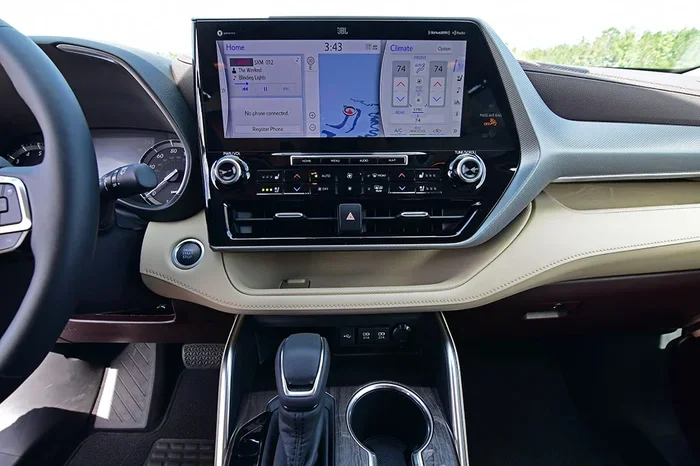
To find out for sure, check your owner’s manual or look at the infotainment system on your dashboard. If you see a Wi-Fi or hotspot icon, your Highlander likely supports it.
How to Set Up Wi-Fi on Your Toyota Highlander
Setting up Wi-Fi on your Toyota Highlander is not hard. Once you know your vehicle supports it, the process is pretty straightforward. Let us walk through the steps together.
Step 1: Check Your Entune System
First, make sure your Toyota Entune infotainment system is up to date. The Wi-Fi hotspot feature lives within the Entune platform. Go to the settings menu on your touchscreen and look for the connectivity or network section. If you see a Wi-Fi option there, you are in good shape.
Step 2: Connect Your Smartphone
You will need a smartphone with an active data plan to create a Wi-Fi hotspot through your Highlander. The Highlander itself does not have a built-in data plan. Instead, it uses your phone’s data connection to share the internet with other devices in the car.
To do this, follow these steps:
- Open your phone’s settings and turn on the mobile hotspot feature.
- On your Highlander’s infotainment screen, go to the Wi-Fi settings.
- Scan for available networks and select your phone’s hotspot.
- Enter the password when prompted.
- Once connected, other devices in the car can now join the same network.
Now your tablet, laptop, and passengers’ phones can all use the internet through your Highlander. This is one of the best things about having a Toyota Highlander Wi-Fi hotspot. It turns your SUV into a rolling internet hub.
Step 3: Test the Connection
After connecting, open a browser or an app like Google Maps on a secondary device to make sure everything is working. If the connection is slow or drops often, do not worry. We will cover troubleshooting later in this guide.
You might also want to learn how to sync your phone to your car system for the best experience with Bluetooth and audio streaming alongside your Wi-Fi connection.
Toyota Highlander Wi-Fi: What You Need to Know About Subscriptions
One thing that catches a lot of Highlander owners off guard is the subscription aspect. Toyota offers connected services through its Toyota Connected platform, and these services often come with a trial period. After the trial ends, you may need to pay for continued access.
What Does the Trial Include?
When you buy a new Highlander with Wi-Fi, Toyota typically includes a free trial of connected services. This trial might last 3 months, 1 year, or longer depending on the promotion. During the trial, you can use the Wi-Fi hotspot, get real-time traffic updates, and access other connected features.
Do You Need a Paid Plan?
After the trial period, you will need to subscribe to keep the Wi-Fi and connected services active. The cost varies, but most Toyota connected plans run between $10 and $50 per month depending on the features. Some plans are annual subscriptions that cost less over time.
Here is what you should know about the subscription:
- Wi-Fi hotspot access requires an active data plan through Toyota Connected.
- Some features like emergency assistance and remote start may continue without a subscription.
- You can cancel at any time if you decide the service is not worth it.
- Third-party hotspot devices can replace Toyota’s built-in service if you want to save money.
If you want to save money, consider using your phone as a hotspot instead of paying for Toyota’s subscription. This gives you full control over your data usage and costs.
Common Wi-Fi Problems and How to Fix Them
Even when everything is set up correctly, you might run into Wi-Fi issues with your Toyota Highlander. This is more common than you might think, and the good news is that most problems have simple fixes.
Wi-Fi Won’t Turn On
If the Wi-Fi option is grayed out or not showing up on your screen, try these steps:
- Restart the infotainment system by holding the power button for 10 seconds.
- Make sure your phone’s hotspot is turned on and visible.
- Check that your phone has a strong data signal.
- Try forgetting the network on your phone and reconnecting from scratch.
If none of these work, you might want to refresh your display to clear any temporary glitches in the infotainment system. A simple display refresh often resolves connectivity issues that seem complicated.
Slow Wi-Fi Speeds
Slow speeds are frustrating, especially when you are trying to stream music or use navigation. Here is what you can do:
- Move closer to your phone. The hotspot signal weakens with distance.
- Limit connected devices. Too many devices slow down the network.
- Check your phone’s data speed. If your phone’s data is slow, the Highlander’s Wi-Fi will be slow too.
- Switch to 5GHz if available. Some phones support faster 5GHz hotspot bands.
Wi-Fi Keeps Disconnecting
If your Highlander’s Wi-Fi keeps dropping, it could be a settings issue. Try this:
- Go to the Wi-Fi settings on your infotainment screen.
- Forget the network and reconnect.
- Make sure your phone is not set to automatically turn off the hotspot.
- Update your phone’s software and the infotainment system.
For more help with car connectivity, check out how to get Google Maps connected to your car. This guide covers navigation connectivity in detail and can help if your maps app is not working properly over Wi-Fi.
Can You Add Wi-Fi to an Older Toyota Highlander?
If your Highlander is an older model and does not have built-in Wi-Fi, you are not out of luck. There are several ways to add internet connectivity to your vehicle.
Mobile Hotspot Devices
You can buy a dedicated mobile hotspot device like a Verizon Jetpack or a similar product. These devices plug into your car’s power outlet and create a Wi-Fi network. They work with any vehicle, including older Highlanders that lack built-in Wi-Fi.
Phone Tethering
The simplest and cheapest option is to use your phone as a tethering device. Just turn on your phone’s hotspot and connect your other devices. This does not require any extra equipment, and it works with any Highlander model.
Aftermarket Infotainment Systems
If you want a more permanent solution, you can install an aftermarket infotainment system that includes Wi-Fi. Brands like Pioneer, Kenwood, and Alpine offer head units with built-in Wi-Fi and even 4G LTE connectivity. This is a bigger project, but it gives you a modern connected experience in an older vehicle.
No matter which option you choose, adding Wi-Fi to an older Highlander is totally doable. You just need to pick the solution that fits your budget and needs.
How Wi-Fi Enhances Your Toyota Highlander Experience
Having Wi-Fi in your Toyota Highlander changes the way you use your vehicle. It is not just about checking email or browsing the web. Wi-Fi opens up a whole world of features that make driving safer, more entertaining, and more convenient.
Better Navigation
With a Wi-Fi connection, your navigation apps can update maps in real time. You get live traffic data, alternative routes, and points of interest that update on the fly. This makes your trips smoother and helps you avoid delays.
Entertainment for Passengers
Long road trips with kids or friends are much better when everyone can stay connected. Wi-Fi lets passengers stream movies, listen to music, and browse the internet from their own devices. It turns your Highlander into a comfortable mobile living room.
Remote Features
Some Toyota connected services let you start your car remotely, lock the doors, and check your fuel level from your phone. These features work best with an active Wi-Fi or data connection.
If you are also interested in keeping your Highlander looking great, you might want to read about how to prepare your car for touch up paint. A clean, well-maintained exterior pairs perfectly with a high-tech connected interior.
Expert Tips for Getting the Most Out of Your Highlander’s Wi-Fi
Want to squeeze every bit of performance out of your Toyota Highlander Wi-Fi? Here are some expert tips that real-world Highlander owners swear by.
- Keep your infotainment system updated. Toyota releases software updates that improve Wi-Fi performance and fix bugs.
- Use a strong password. This keeps unauthorized users from hogging your data connection.
- Limit the number of connected devices. Three to four devices is the sweet spot for good speeds.
- Turn off the hotspot when not in use. This saves battery on your phone and data on your plan.
- Place your phone in a central location. This gives the Wi-Fi signal the best reach throughout the cabin.
- Use Wi-Fi for heavy tasks. Download large files or stream HD video when parked, not while driving.
These small habits make a big difference over time. Your Wi-Fi experience will be faster, more stable, and more enjoyable.
Final Thoughts
So, does your Toyota Highlander have Wi-Fi? If you have a newer model with a higher trim, the answer is very likely yes. Toyota has made connectivity a priority in the Highlander, and the Wi-Fi hotspot feature is a great addition for families, commuters, and road trippers alike.
Whether you are setting up your first hotspot, troubleshooting a connection issue, or looking for ways to add Wi-Fi to an older model, this guide has covered the essentials. The Toyota Highlander Wi-Fi feature is a powerful tool that keeps you connected on the road.
Remember to check your subscription status, keep your system updated, and do not be afraid to use your phone as a backup hotspot. With the right setup, your Highlander becomes more than just a vehicle. It becomes a connected hub that keeps you and your passengers entertained, informed, and safe.
If you are dealing with other tech questions about your Highlander, you can also learn how to customize your screen time on the infotainment display. This helps you balance connectivity with safe driving habits.
Stay connected, stay safe, and enjoy every mile in your Toyota Highlander.
Frequently Asked Questions
Do all Toyota Highlanders come with Wi-Fi?
No, not all Toyota Highlanders come with Wi-Fi. The feature is typically available on higher trims and newer model years. Check your owner’s manual or the infotainment system to confirm if your specific Highlander supports Wi-Fi.
Can I use Wi-Fi in my Toyota Highlander without a subscription?
Yes, you can use Wi-Fi without a Toyota subscription by using your phone as a mobile hotspot. The Highlander’s infotainment system can connect to your phone’s hotspot, which uses your phone’s data plan instead of a Toyota subscription.
How far does the Toyota Highlander Wi-Fi signal reach?
The Wi-Fi signal from your Highlander typically covers the cabin and a short distance outside the vehicle, usually about 15 to 30 feet. The range depends on your phone’s hotspot strength and any obstacles like the vehicle’s body and windows.
Why is my Toyota Highlander Wi-Fi not working?
Common reasons include an outdated infotainment system, a disconnected phone hotspot, or a weak data signal. Try restarting the infotainment system, refreshing your display, or reconnecting your phone’s hotspot to resolve the issue.
Can I connect more than one device to my Highlander’s Wi-Fi?
Yes, you can connect multiple devices to your Highlander’s Wi-Fi hotspot. However, connecting too many devices can slow down the connection. Three to four devices is the recommended limit for the best performance.
Is it safe to use Wi-Fi while driving my Toyota Highlander?
Using Wi-Fi for navigation or audio streaming while driving is generally safe, but avoid browsing or typing on devices while the vehicle is in motion. Set up your connections and downloads before you start driving for the safest experience.