How Do I Navigate With Apple CarPlay While Driving
Navigating with Apple CarPlay is simple and keeps your eyes on the road. This guide walks you through setting up Apple CarPlay navigation, using Apple Maps, and exploring top apps like Google Maps and Waze. You will learn Siri voice commands, hands-free navigation tips, and how to troubleshoot common issues. Whether you drive a CarPlay compatible car or are new to the car infotainment system, this guide has you covered.
Driving without a clear sense of direction can turn a simple trip into a stressful experience. How do I navigate with Apple CarPlay while driving? The answer is easier than you think. Apple CarPlay navigation brings your phone’s mapping power directly to your car’s screen, giving you real-time driving directions, traffic updates, and route planning tools. In this guide, we will walk you through everything you need to know about using CarPlay maps safely and effectively.
Whether you are a daily commuter or planning a long road trip, understanding Apple CarPlay navigation makes every drive smoother. You will learn how to set up CarPlay setup, use voice commands, pick the best apps, and solve common problems. By the end, you will feel confident using hands-free navigation every time you get behind the wheel.
Key Takeaways
- Apple CarPlay navigation gives you turn-by-turn directions right on your car screen, keeping your phone safely tucked away.
- Siri voice commands let you search for destinations, reroute, and control maps without touching your phone.
- You can use Apple Maps, Google Maps CarPlay, Waze, and other popular navigation apps.
- Setting up wireless CarPlay or a wired connection takes only a few minutes and works with most CarPlay compatible cars.
- Adjusting CarPlay settings before you drive helps you stay focused and safe on the road.
- Knowing common troubleshooting steps saves time when CarPlay navigation glitches occur.
📑 Table of Contents
What Is Apple CarPlay Navigation?
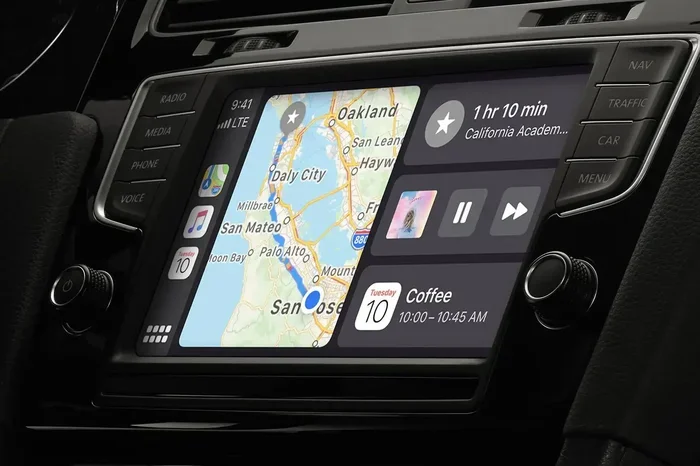
Apple CarPlay navigation is a system that mirrors your iPhone’s key features onto your car’s infotainment display. It lets you access maps, make calls, send messages, and listen to music without taking your hands off the wheel. Think of it as a safe bridge between your iPhone CarPlay and your vehicle’s car infotainment system.
How Apple CarPlay Works in Your Car
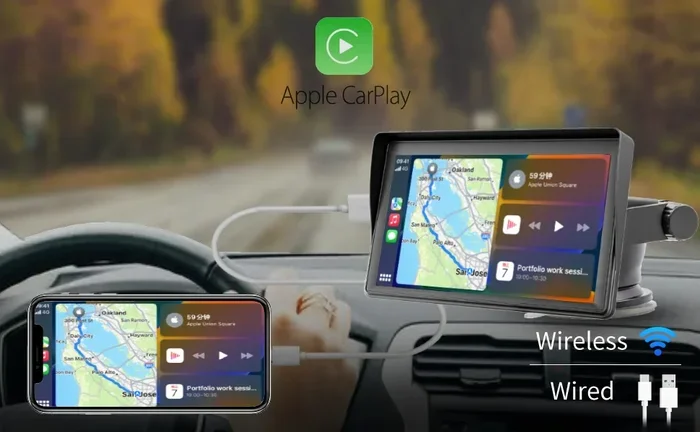
When you connect your iPhone to a CarPlay compatible car, the car screen becomes an extension of your phone. You see a clean, driver-friendly interface with large icons and simple menus. The system supports both wired and wireless CarPlay connections. Once connected, your CarPlay display shows your current location, upcoming turns, and estimated arrival time.
The beauty of Apple CarPlay navigation lies in its simplicity. The interface is designed to reduce distractions. Big buttons, clear fonts, and intuitive menus make it easy to find what you need in seconds. You do not need to be tech-savvy to get started.
Why Apple CarPlay Navigation Is a Game Changer
Before Apple CarPlay navigation, drivers relied on holding their phones or using small GPS devices. Now, your car’s screen does the heavy lifting. You get GPS navigation with live traffic data, voice-guided driving directions, and automatic rerouting when roads change. It is like having a personal navigator built into your dashboard.
For those who wonder about fuel efficiency on longer drives, keeping track of your trip distance matters. If you want to know how far your car can go on a single litre of fuel, check out this guide on 1 litre petrol how many km to plan your fuel stops better.
Setting Up Apple CarPlay for Navigation
Getting started with Apple CarPlay navigation is quick and straightforward. The setup process depends on whether your car supports wireless CarPlay or requires a wired connection. Either way, you will be up and running in just a few minutes.
Wired vs Wireless Connection
A wired CarPlay connection uses a USB cable to link your iPhone to the car. This method is reliable and works with almost all CarPlay compatible cars. Simply plug in your iPhone, and the CarPlay interface appears on screen. The downside is that a cable can be cumbersome, and your phone charges while connected.
Wireless CarPlay eliminates the cable entirely. Your phone connects through Bluetooth and Wi-Fi. This means no fumbling with cords every time you get in the car. However, not all cars support wireless CarPlay out of the box. Some may need a retrofit adapter. Check your car’s manual or visit the manufacturer’s website to confirm wireless CarPlay support.
Enabling Navigation in CarPlay Settings
Once connected, you need to make sure navigation is enabled in your CarPlay settings. On your iPhone, go to Settings, then General, then CarPlay. Select your car and make sure the desired apps are enabled. By default, Apple Maps is the primary navigation app, but you can change this anytime.
For drivers who want to understand how far they can travel on different fuel amounts, knowing your car’s mileage helps with route planning. You can read more about 1 liter petrol how many km to estimate your range before heading out.
Using Apple Maps with CarPlay
Apple Maps is the default navigation app for Apple CarPlay navigation. It comes pre-installed on every iPhone and offers a clean, integrated experience. Apple Maps provides turn-by-turn directions, lane guidance, speed limit alerts, and traffic updates in real time.
Getting Turn-by-Turn Directions
To start navigating with Apple Maps on CarPlay, simply say “Hey Siri, take me home” or tap the Maps icon on your CarPlay display. You can also type in a destination using the on-screen keyboard or dictate the address with Siri voice commands. Within seconds, Apple Maps calculates the best route and starts guiding you.
The turn-by-turn directions are spoken aloud through your car’s speakers. A visual arrow shows the next move on the CarPlay maps interface. If traffic builds up ahead, Apple Maps automatically suggests an alternate route to save time. This kind of smart route planning is what makes Apple CarPlay navigation so valuable for daily commutes.
Searching for Destinations
Finding a place to go is easy with Apple Maps on CarPlay. You can search by name, category, or address. Try saying “Find a gas station near me” or “Navigate to the nearest coffee shop.” Siri understands natural language, so you can speak just like you would to a friend.
You can also browse recent destinations, favorite locations, and saved addresses. The CarPlay maps interface keeps everything organized and within reach. This makes destination searching quick and distraction-free.
Third-Party Navigation Apps for CarPlay
While Apple Maps is excellent, Apple CarPlay navigation also supports many third-party apps. This flexibility lets you choose the navigation tool that fits your style best.
Google Maps on CarPlay
Google Maps CarPlay is one of the most popular alternatives to Apple Maps. It offers detailed satellite imagery, extensive business listings, and highly accurate GPS navigation. If you already rely on Google Maps on your phone, the CarPlay display version feels familiar and smooth.
Google Maps provides real-time traffic updates, estimated arrival times, and alternative route suggestions. The turn-by-turn directions are clear and easy to follow. Many drivers prefer Google Maps for its vast database of points of interest and detailed street-level views.
Waze and Other Popular Apps
Waze CarPlay is another strong option. It is a community-driven navigation app that relies on real-time reports from other drivers. You get alerts about accidents, road closures, speed traps, and heavy traffic. This makes Waze CarPlay a favorite among daily commuters who want the fastest route at any given moment.
Other apps like Sygic, Garmin, and TomTom also work with Apple CarPlay navigation. Each app brings its own strengths. Some focus on offline maps, while others excel in live traffic data. Exploring different CarPlay maps apps helps you find the one that suits your driving habits.
Tips for Safe Navigation While Driving
The main goal of Apple CarPlay navigation is to keep you safe while you drive. Here are some practical tips to make the most of hands-free navigation without compromising your focus on the road.
Voice Commands with Siri
Siri voice commands are the safest way to interact with CarPlay navigation while driving. Instead of tapping the screen, simply say what you need. Try these common commands:
- “Hey Siri, navigate to [destination].”
- “Hey Siri, find the nearest restaurant.”
- “Hey Siri, reroute me to avoid traffic.”
- “Hey Siri, what is my ETA?”
- “Hey Siri, mute navigation.”
Using Siri voice commands keeps your eyes on the road and your hands on the wheel. It is the safest way to control Apple CarPlay navigation while in motion.
Adjusting Settings Before You Drive
One of the best habits for safety while driving is setting up your CarPlay settings before you start the engine. Choose your destination, set your preferred route, and adjust the volume while the car is still parked. This way, you do not need to fiddle with the CarPlay display once you are on the road.
You can also set your home and work addresses in Apple Maps so that a simple “Take me home” command works instantly. Pre-setting your route planning preferences saves time and reduces distractions during your drive.
When you arrive at your destination, knowing where to park makes the final step of your trip smoother. If you are looking for a home with built-in parking, check out these 30 40 house plans with car parking east facing for great options that combine living space with convenient parking.
Troubleshooting Common CarPlay Navigation Issues
Even with a well-set-up Apple CarPlay navigation system, you may occasionally run into issues. Most problems are easy to fix with a few simple steps.
If your CarPlay display does not show up, try unplugging and reconnecting your cable. For wireless CarPlay, toggle Bluetooth off and back on. Restarting your iPhone can also resolve temporary glitches. Make sure your iPhone and car software are up to date, as outdated software can cause compatibility issues.
If navigation directions are not speaking aloud, check your car’s audio settings. Make sure the volume is turned up and that the correct audio source is selected. You can also adjust the voice guidance volume directly in the CarPlay settings on your iPhone.
For drivers who want to understand their vehicle’s overall fuel consumption over longer periods, this guide on 650 sq ft house plan with car parking includes useful tips on managing your daily commute efficiently, which ties directly into smart route planning and fuel savings.
Conclusion
How do I navigate with Apple CarPlay while driving? Now you know the answer. Apple CarPlay navigation transforms your car into a smart, connected space where GPS navigation feels natural and safe. From Apple Maps to Google Maps CarPlay and Waze, you have powerful CarPlay maps at your fingertips. Using Siri voice commands and hands-free navigation keeps your focus where it belongs: on the road ahead.
Take a few minutes to explore your CarPlay settings, try different apps, and practice voice commands. The more you use Apple CarPlay navigation, the more intuitive it becomes. Safe travels and happy navigating.
Frequently Asked Questions
Can I use Apple CarPlay navigation without an internet connection?
Yes, you can use Apple CarPlay navigation offline with Apple Maps. The app downloads map data in advance, so you can still get turn-by-turn directions without a signal. However, live traffic updates and real-time rerouting require an internet connection. Download offline maps before your trip if you expect to lose signal on the road.
Which navigation app works best with Apple CarPlay?
The best app depends on your personal preference. Apple Maps is the default and works seamlessly with CarPlay setup. Google Maps CarPlay offers excellent detail and satellite views. Waze CarPlay excels at live traffic alerts from other drivers. All three are excellent choices for GPS navigation on your CarPlay display.
Is wireless CarPlay as reliable as wired for navigation?
Wireless CarPlay is very reliable for navigation and offers the convenience of no cables. However, a wired connection can be slightly more stable in some vehicles. If you experience frequent disconnects with wireless CarPlay, try a wired connection for more consistent driving directions and route planning.
Can I use multiple navigation apps on Apple CarPlay?
Yes, you can install and use multiple navigation apps on Apple CarPlay navigation. The CarPlay settings let you choose which app opens by default. You can switch between apps anytime by pressing and holding the voice command button on your steering wheel and saying your preferred app name.
How do I change the voice guidance volume for CarPlay navigation?
You can adjust the voice guidance volume in two ways. First, use your car’s volume knob while navigation is active. Second, go to CarPlay settings on your iPhone and adjust the audio output. This ensures your turn-by-turn directions are always clear and easy to hear over music or radio.
Does Apple CarPlay navigation work in all cars?
Apple CarPlay navigation works in most modern vehicles that support the CarPlay compatible cars standard. Check your car’s manual or the manufacturer’s website to confirm support. If your car does not have CarPlay built in, you may be able to add it with an aftermarket car infotainment system from brands like Pioneer, Kenwood, or Alpine.