How to Exit Theater Mode in Tesla and Get Back to Driving
Exiting theater mode in Tesla is simple once you know the right steps. Whether your screen is stuck or you just want to resume driving, this guide walks you through every method. You will learn the touchscreen controls, steering wheel shortcuts, and app-based solutions to get back to driving fast.
Have you ever been in a Tesla and suddenly realized the big screen is stuck on a movie or game? You tap the screen, but nothing happens. The car is in theater mode, and you need to get back to driving. This happens more often than you might think.
Theater mode is a great feature for passengers. It lets everyone watch videos, play games, or browse the web while the car sits still. But when it is time to hit the road, you need to know exactly how to exit theater mode in Tesla. This guide will show you every way to do it. We will also cover common problems and quick fixes.
Whether you are a new Tesla owner or have been driving one for years, this article has something for you. We will keep things simple and practical. No jargon. No confusing steps. Just clear instructions you can follow right now.
Key Takeaways
- Brake Pedal Method: Pressing the brake pedal is the fastest way to exit theater mode in Tesla.
- Touchscreen Controls: You can tap the screen and select the exit option from the media menu.
- Tesla App: The mobile app lets you manage theater mode remotely.
- Safety First: Theater mode only works when the car is parked. Tesla blocks it during driving for safety.
- Common Issues: Freezes or auto-activation can happen. This guide covers fixes for both.
- Voice Commands: Tesla’s voice assistant can also help you exit theater mode hands-free.
📑 Table of Contents
What Is Tesla Theater Mode and Why Does It Exist?
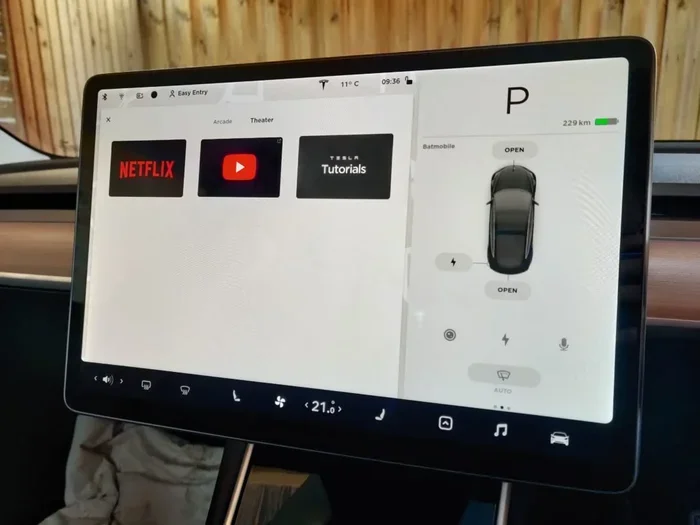
Tesla theater mode is a special display setting. When activated, it turns the center screen into an entertainment hub. Passengers can watch Netflix, YouTube, or other supported apps. They can also play games or browse the web. The feature is designed for when the car is completely stopped.
How Theater Mode Works
When theater mode is on, the screen locks into entertainment view. The driving dashboard disappears. You cannot see speed, navigation, or any driving data. Tesla does this on purpose. It keeps the driver focused on the road. The system knows the car is parked and allows media playback only then.
The theater mode icon looks like a small theater mask on the screen. You can activate it from the Controls menu. Go to Display and then select Theater Mode. Once on, the screen switches to the entertainment interface. This is where passengers can enjoy their favorite content.
When Theater Mode Is Useful
Theater mode is perfect for several situations. Here are some common ones:
- Long parking stops: Waiting at a rest area or charging station.
- Road trips with kids: Keeping passengers entertained during breaks.
- Camping or tailgating: Using the Tesla screen as a portable media player.
- Charging sessions: Making the most of wait time at superchargers.
It is a great feature. But knowing how to turn it off is just as important. That brings us to the main topic: how to exit theater mode in Tesla.
How to Exit Theater Mode in Tesla – Step by Step
There are three main ways to exit theater mode in Tesla. Each method works in different situations. Let us walk through them one by one.
Method 1: Using the Brake Pedal
This is the fastest and most common way to exit theater mode in Tesla. Here is what you do:
- Sit in the driver seat.
- Press the brake pedal firmly.
- The screen will exit theater mode and return to the driving view.
That is it. One press of the brake pedal and you are back in control. Tesla designed it this way for safety. The brake pedal signal tells the car you are ready to drive. The display switches back to the dashboard view instantly.
Quick Tip: Make sure your foot is fully on the brake. A light tap might not register. Press down firmly and the screen will switch within a second or two.
Method 2: Using the Touchscreen Controls
If the brake pedal method does not work or you are a passenger, try the touchscreen. Here is how:
- Tap the screen once to wake it up.
- Look for the theater mode icon at the top or bottom of the screen.
- Tap the icon to toggle theater mode off.
- The screen will switch back to the normal driving display.
Some Tesla models show the theater icon in the status bar at the top. Others have it in the Controls menu. If you cannot find it, try going to Controls, then Display, and look for the theater mode toggle. Switch it off and the screen will return to normal.
This method works great when you are parked and have a moment to navigate the screen. It is also useful if the brake pedal method is not responding for some reason.
Method 3: Using the Tesla Mobile App
Did you know you can control theater mode from your phone? The Tesla mobile app lets you manage many car features remotely. Here is how to use it to exit theater mode:
- Open the Tesla app on your phone.
- Make sure your phone is connected to the car via Bluetooth or Wi-Fi.
- Go to the vehicle controls section.
- Look for the display or theater mode setting.
- Toggle it off to exit theater mode.
This method is handy when you are not near the car but want to prepare it for driving. For example, you can turn off theater mode from inside your home before you walk out to the car. It saves time and makes your Tesla experience smoother.
Common Issues When Trying to Exit Theater Mode
Sometimes things do not go as planned. The screen might freeze, or theater mode might keep turning back on. Let us look at the most common problems and how to fix them.
Screen Freezes or Becomes Unresponsive
A frozen screen in theater mode can be frustrating. This usually happens when the system is processing too many tasks. Maybe a video is buffering or a game is running in the background. Here is what you can do:
- Soft reset: Hold down both scroll wheels on the steering wheel for about 10 seconds. The screen will go dark and then restart.
- Wait it out: Sometimes the screen just needs a few extra seconds to respond.
- Check for updates: Tesla often releases software updates that fix bugs. Make sure your car is running the latest version.
A soft reset is safe and does not delete any of your data. It simply restarts the infotainment system. Think of it like restarting a phone when it gets slow.
Theater Mode Keeps Coming Back
Some Tesla owners report that theater mode turns back on by itself. This can happen if:
- A passenger reactivated it after you turned it off.
- A software glitch triggered it automatically.
- The car did not fully register that you started driving.
If this keeps happening, try a full system restart. Park the car safely, shift into Park, and hold both steering wheel scroll wheels for 10 seconds. This clears most temporary glitches. If the problem continues, check for a software update in the Settings menu.
For comparison, some other car brands have similar entertainment lockouts. For example, fuel efficiency features in traditional cars like how fuel efficiency in cars can vary based on driving habits. Tesla’s theater mode is its own kind of efficiency — it keeps the screen focused on one task at a time.
Theater Mode vs Other Tesla Display Modes
Tesla offers several display modes beyond theater mode. Understanding them helps you switch between them smoothly. Here is a quick look at how theater mode compares to other modes.
| Mode | What It Does | When to Use It |
|---|---|---|
| Theater Mode | Locks screen for media playback | Parked, waiting, or during breaks |
| Normal Driving Mode | Shows dashboard, speed, navigation | While driving |
| Camp Mode | Keeps climate and power on with minimal screen use | Overnight camping or sleeping in the car |
| Sentry Mode | Uses cameras for security monitoring | Parked and unattended |
| Dog Mode | Keeps climate control for pets | When leaving pet in the car |
Each mode serves a different purpose. Theater mode is all about entertainment. Normal driving mode is what you use 99% of the time. The key is knowing how to switch between them quickly and safely.
Quick Tips for Switching Between Modes
- Always come to a complete stop before switching to theater mode.
- Use the brake pedal to exit theater mode before moving the car.
- Customize your quick access menu to include your most-used modes.
- Check that all passengers are ready before switching from theater mode to driving mode.
These small habits make a big difference. They keep you safe and help you get the most out of your Tesla’s display features.
Expert Insights and Safety Considerations
Theater mode is a convenience feature, but safety always comes first. Tesla has built strong protections into the system. Let us look at what you need to know.
Why You Should Never Use Theater Mode While Driving
Tesla blocks theater mode when the car is in motion. This is not a suggestion. It is a hard safety rule. The screen will not allow video playback or gaming while driving. If you try to activate theater mode above a very low speed, the car will prevent it.
This design choice protects everyone on the road. A driver distracted by a screen is a danger to themselves and others. Tesla takes this seriously. The system uses speed sensors and brake data to detect when the car is moving. It will not allow entertainment mode during those times.
Interestingly, some hybrid vehicles switch between power sources at certain speeds. For instance, hybrid switching from electric to gas happens automatically based on driving conditions. Tesla’s theater mode activation also depends on conditions — specifically, whether the car is parked or moving.
How Tesla Protects Passengers
When theater mode is active, the passenger screen works fine. But the driver screen is limited. You cannot watch videos or play games in the driver’s view. This ensures the driver stays focused on the road even when the car is stopped at a light or in traffic.
Tesla also limits certain apps in theater mode. For example, you cannot access navigation or vehicle controls from the entertainment screen. You need to exit theater mode first. This layered approach keeps the car safe and the experience enjoyable.
How to Get the Most Out of Tesla Theater Mode
Theater mode is more than just a way to watch videos. It is a full entertainment system that can enhance your Tesla experience. Here are some tips to maximize it.
Best Apps for Theater Mode
Tesla supports several streaming and gaming apps in theater mode:
- Netflix: Great for long trips and charging stops.
- YouTube: Access to millions of videos and playlists.
- Tubi: Free streaming with a good selection of movies and shows.
- Chess and other games: Fun for passengers of all ages.
- Web browser: Browse the internet on the big screen.
Make sure your car is connected to Wi-Fi for the best streaming experience. Tesla’s built-in Wi-Fi works well in most areas. You can also use your phone’s hotspot if needed.
Setting Up Theater Mode for Family Trips
Planning a road trip with kids? Theater mode is your best friend. Here is a quick setup routine:
- Park the car at your rest stop or destination.
- Activate theater mode from the Controls menu.
- Load up Netflix or YouTube with downloaded content.
- Adjust the screen brightness for outdoor visibility.
- When ready to go, use the brake pedal to exit theater mode.
Downloading content ahead of time is a smart move. It means you do not need a strong internet connection at every stop. This is especially useful when traveling through areas with weak cell service.
It is also worth noting that Tesla’s entertainment features are part of what makes it stand out from traditional vehicles. While 4 cylinder petrol cars in India offer reliable transportation, Tesla adds a layer of smart technology that goes beyond just getting from point A to point B. The theater mode is one of many features that set Tesla apart.
Conclusion
Knowing how to exit theater mode in Tesla is essential for every Tesla owner. Whether you use the brake pedal, the touchscreen, or the mobile app, the process is quick and straightforward. The brake pedal method is the fastest and most reliable way to get back to driving.
Remember that theater mode is designed for parked vehicles only. Tesla blocks it during driving to keep everyone safe. If you run into issues like a frozen screen or theater mode turning back on, a soft reset usually fixes the problem.
Take a few minutes to practice these steps. Familiarize yourself with the different methods so you are never stuck when you need to get back on the road. The more you know about your Tesla’s features, the better your experience will be. Enjoy the entertainment, stay safe, and happy driving.
Frequently Asked Questions
Can you exit theater mode in Tesla without pressing the brake pedal?
Yes, you can. You can use the touchscreen controls to toggle theater mode off. Simply tap the theater mode icon on the screen or go to Controls, then Display, and switch it off. The Tesla mobile app also allows you to manage theater mode remotely without touching the brake pedal.
Why does my Tesla screen stay in theater mode even after I press the brake?
This can happen if the system is frozen or processing a background task. Try a soft reset by holding both steering wheel scroll wheels for 10 seconds. This restarts the infotainment system and usually resolves the issue. Make sure your Tesla software is up to date as well.
Is it safe to use theater mode while the car is stopped at a red light?
No, Tesla disables theater mode when the car detects any forward motion, even at very low speeds. The system is designed to keep the driver focused. Passengers can still use the screen for limited functions, but full media playback is blocked during driving.
Can passengers use theater mode while the driver is still in the car?
Yes, passengers can use theater mode as long as the car is fully parked and the brake pedal is pressed. The driver’s side of the screen will be limited, but the passenger screen can access all entertainment features. This keeps the driver focused on the road.
Does theater mode drain the Tesla battery?
Using theater mode while parked does consume some battery power, especially if you are streaming video for a long time. However, the drain is minimal compared to driving. If you are parked for several hours, it is a good idea to monitor your battery level, especially if you are using the car’s climate control at the same time.
Can I customize which apps are available in theater mode?
Tesla allows you to manage app access through the vehicle settings. You can disable certain apps or restrict content types. Go to Controls, then Safety & Security, and look for the passenger display settings. This lets you customize what is available on the entertainment screen during theater mode.