How Do I Add Apps to My Toyota for a Smarter Driving
Adding apps to your Toyota is simple once you understand your infotainment system and the available options. This guide covers everything from smartphone integration and the Toyota app store to troubleshooting common issues and optimizing your app library. You will learn practical steps, expert tips, and smart strategies to get the most out of your Toyota’s digital features.
Your Toyota is more than just a vehicle. It is a rolling tech hub that can do far more than get you from point A to point B. The modern Toyota infotainment system opens up a world of possibilities, allowing you to access navigation, music, messaging, and productivity tools right from your dashboard. But if you have never explored the app ecosystem on your Toyota, you might be missing out on some genuinely useful features.
Whether you drive a brand-new Toyota Camry or a trusty older model, understanding how to add and manage apps can seriously upgrade your driving experience. The process is easier than most people think, and you do not need to be a tech expert to get started. This guide breaks everything down into simple, actionable steps that anyone can follow.
We will cover every aspect of adding apps to your Toyota. From understanding your infotainment system and connecting your smartphone, to exploring the best apps and troubleshooting common problems. By the time you finish reading, you will feel confident about customizing your Toyota’s digital dashboard to match your lifestyle. Let us dive in.
Key Takeaways
- Toyota infotainment systems support multiple app sources: including the Toyota App Store, Apple CarPlay, and Android Auto for seamless integration.
- Connecting your phone is the first critical step: proper smartphone integration unlocks the widest range of apps and features.
- Popular app categories include navigation, music, messaging, and productivity: each enhancing a different aspect of your driving experience.
- Regular Toyota software updates keep your apps running smoothly: outdated software can cause crashes and compatibility issues.
- Troubleshooting is straightforward: most app issues can be resolved with a display refresh, reconnection, or settings adjustment.
- Managing screen time and app organization improves safety: keeping your dashboard clutter-free reduces distractions while driving.
📑 Table of Contents
Understanding Your Toyota Infotainment System
What Is the Toyota Infotainment System?
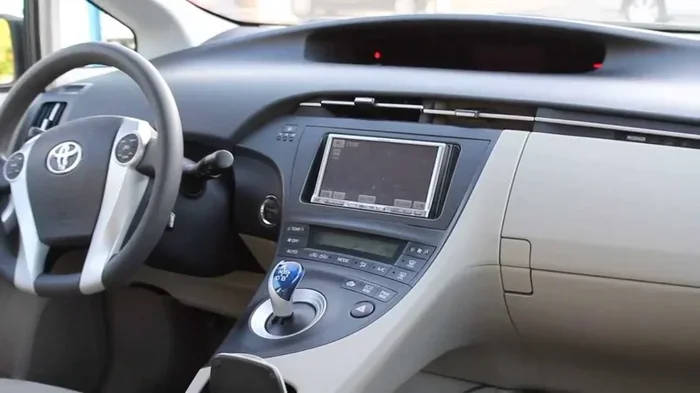
The Toyota infotainment system is the central touchscreen and audio interface built into your vehicle. It controls everything from your radio and climate settings to navigation, phone calls, and app access. Think of it as the brain of your car’s digital experience. Newer Toyota models come with larger, more responsive screens that support a wider variety of Toyota multimedia system features.
The system has evolved significantly over the years. Older Toyotas relied on basic CD players and simple radio controls. Today’s models feature touchscreen displays, voice commands, and wireless connectivity that rival a smartphone. The Toyota Entune platform has been a staple for years, while newer models use the latest Toyota multimedia operating system with even more capabilities.
Understanding what your specific model supports is the first step. Not every Toyota has the same level of app compatibility. A 2023 Toyota RAV4 will have different capabilities than a 2015 Toyota Corolla. Check your owner’s manual or visit the Toyota website to confirm what your system can handle.
Which Toyota Models Support App Installation?
Most Toyota models from the past five years support some form of app integration. The Toyota app store and smartphone projection features like Apple CarPlay and Android Auto are available on a growing number of trim levels. Here is a quick overview:
- Toyota Camry (2018 and newer): Full touchscreen support, Apple CarPlay, Android Auto, and Toyota App Store access.
- Toyota RAV4 (2019 and newer): Advanced infotainment with wireless smartphone integration and app compatibility.
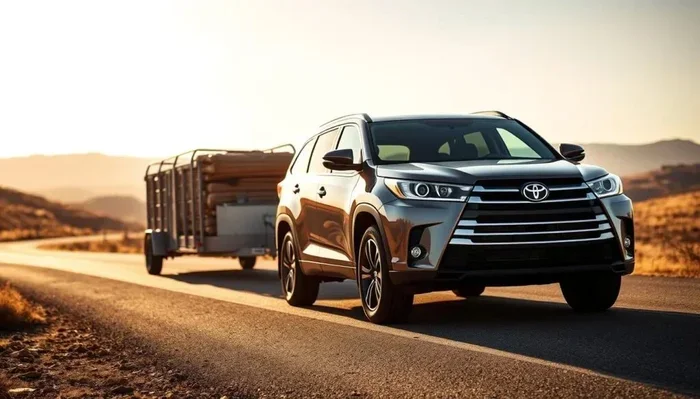
- Toyota Highlander (2020 and newer): Large display screens with robust multimedia and app support.
- Toyota Tacoma (2021 and newer): Updated infotainment with modern app capabilities.
- Older models (pre-2018): May support basic Bluetooth and radio apps but have limited native app installation options.
If your Toyota is older, do not worry. You can still add functionality through Bluetooth connectivity and compatible audio apps. The key is knowing what your system can do and working within those limits.
How to Add Apps to Your Toyota
Step-by-Step Guide to Adding Apps
Adding apps to your Toyota follows a straightforward process. The exact steps may vary slightly depending on your model and year, but the general workflow remains the same. Here is the complete process:
- Start your vehicle and make sure the infotainment system is fully powered on.
- Navigate to the home screen on your Toyota touchscreen. Look for the “Apps” or “Applications” icon.
- Select the app store if your system has one. Toyota vehicles with the latest software often include a built-in app marketplace.
- Browse available apps by category. You can search for specific apps or explore featured recommendations.
- Select the app you want and choose “Download” or “Install.” Wait for the download to complete.
- Open the app from your app list or home screen. Some apps may require additional setup or login credentials.
- Adjust settings within the app to customize it for your preferences.
For vehicles that do not have a built-in app store, the process is slightly different. You will rely on smartphone projection to access apps through your phone’s interface displayed on the Toyota screen. This is where syncing your phone to your car system becomes essential. A proper connection ensures that all your phone’s compatible apps appear on the Toyota display.
Using the Toyota App Store
The Toyota App Store is the official marketplace for Toyota app downloads. It offers a curated selection of apps designed specifically for Toyota vehicles. These apps are tested for compatibility and safety, so you can trust that they will work well with your infotainment system.
Popular categories in the Toyota App Store include:
- Navigation apps: Google Maps, Waze, and other mapping tools that provide turn-by-turn directions.
- Music and audio apps: Spotify, Pandora, Amazon Music, and Apple Music for streaming your favorite tunes.
- Podcast apps: Apple Podcasts, Spotify, and Google Podcasts for on-the-go listening.
- Communication apps: Messaging and voice assistant apps that work safely through your car’s system.
- Utility apps: Gas price finders, parking helpers, and vehicle diagnostics tools.
The Toyota App Store is regularly updated with new additions. Toyota also partners with developers to create exclusive apps that take advantage of the vehicle’s built-in hardware, such as the microphone array and steering wheel controls.
Popular Apps for Toyota Owners
Navigation and Mapping Apps
Navigation apps are among the most popular Toyota touchscreen apps for good reason. Getting lost is stressful, and having a reliable map on your dashboard makes every trip smoother. Google Maps is a top choice because it offers real-time traffic updates, alternative routes, and street-level views. Waze is another favorite, especially for its community-driven alerts about road hazards, speed traps, and construction zones.
For Toyota owners who prefer a more integrated experience, the built-in Toyota navigation system works well for most daily driving needs. However, adding a third-party navigation app gives you access to more features and frequently updated map data. If you use your phone for navigation, consider connecting Google Maps to your car for the best experience.
Music and Streaming Apps
Music apps turn your Toyota into a personal concert venue. Spotify leads the pack for car use because it works seamlessly with both Apple CarPlay and Android Auto. You can access your playlists, discover new music, and even download content for offline listening. Pandora and Amazon Music are also excellent choices, especially if you are already subscribed to their services.
For podcast lovers, apps like Apple Podcasts, Google Podcasts, and Spotify (which also hosts podcasts) are perfect for long commutes or road trips. The beauty of these apps is that they work through your phone’s data connection or Wi-Fi, so you always have fresh content available.
Productivity and Communication Apps
Staying productive on the go is important for many drivers. Messaging apps like WhatsApp and iMessage can be accessed safely through Apple CarPlay and Android Auto, which read messages aloud and allow voice replies. Google Assistant and Siri integration lets you send texts, make calls, and set reminders without taking your hands off the wheel.
For business users, apps like Microsoft Outlook and Slack can be accessed through phone projection. While you should always prioritize safety and avoid complex interactions while driving, these apps are handy for quick checks at stoplights or when parked.
Connecting Your Phone for App Access
Apple CarPlay and Android Auto Integration
Apple CarPlay and Android Auto are the two most important tools for accessing apps on your Toyota. These platforms mirror your phone’s interface onto the Toyota infotainment screen, giving you access to all your favorite apps in a driver-friendly format. Apple CarPlay works best with iPhones, while Android Auto is designed for Android devices.
Setting up either platform is simple. For wireless connection, make sure Bluetooth is enabled on both your phone and your Toyota. For wired connection, plug in your phone with a USB cable. The system should automatically detect your phone and offer to enable CarPlay or Android Auto. If you run into any issues, our guide on syncing your phone to your car system provides detailed troubleshooting steps.
Once connected, you will see app icons on your Toyota screen. Tap any icon to open the corresponding app. You can also use voice commands to launch apps, make calls, or send messages. This hands-free approach is not just convenient, it is also safer.
Bluetooth and Wireless Connection Tips
Bluetooth connectivity is the foundation of app access in most Toyotas. To ensure a stable connection, keep your phone’s Bluetooth software up to date and maintain a reasonable distance from the vehicle’s antenna. If your connection drops frequently, try deleting the paired device and re-pairing it.
For wireless connections, make sure your Toyota’s Wi-Fi hotspot feature is enabled if applicable. Some newer Toyota models support wireless Apple CarPlay and Android Auto, which eliminates the need for a cable entirely. This is a game-changer for daily use because you never have to fumble with cords.
If you want to manage how much time your apps are active on the screen, you can customize your screen time settings to balance convenience with safety. This is especially helpful if you share your vehicle with family members who may have different app preferences.
Troubleshooting Common App Issues
Apps Not Loading or Crashing
App crashes and loading failures are frustrating but usually easy to fix. The most common causes include outdated software, insufficient memory, or a poor connection. Start by checking for Toyota software updates. Your infotainment system receives periodic updates that improve compatibility with the latest apps. If your system is running old software, new apps may not function properly.
Next, try closing all background apps on your phone. Too many running apps can consume memory and cause performance issues on the Toyota screen. Restart both your phone and the infotainment system, then try loading the app again. If the problem persists, uninstall and reinstall the app from the Toyota App Store or your phone’s app platform.
Sometimes the issue is as simple as a frozen screen. In that case, refreshing your display can resolve the problem quickly and get your apps running again.
Display and Connectivity Problems
Display issues can prevent apps from showing correctly on your Toyota screen. If the touchscreen is unresponsive, try a soft reset by holding the power button on the infotainment system for about 10 seconds. This refreshes the system without erasing any of your settings or downloaded apps.
For connectivity problems, check that your Bluetooth or USB connection is secure. A loose cable or a Bluetooth signal blocked by a phone case can cause intermittent issues. If you use wireless CarPlay or Android Auto, make sure your phone and Toyota are within close range and that no other devices are interfering with the connection.
If you have trouble activating the Toyota Connected Services app, which provides remote features like starting your car and checking fuel levels, check our guide on activating the Connect app for detailed instructions.
Tips for Managing and Optimizing Toyota Apps
Keeping Your Apps Organized
As you add more apps to your Toyota, keeping them organized becomes important. A cluttered home screen makes it harder to find the apps you actually need while driving. Most Toyota infotainment systems let you rearrange app icons and create folders. Group related apps together, such as putting all music apps in one folder and all navigation apps in another.
Remove apps you rarely use to free up memory and keep your dashboard clean. You can always reinstall them later if needed. This is especially important if your Toyota has limited storage capacity. Think of it like organizing apps on your phone, but with the added goal of minimizing distractions while driving.
Updating and Maintaining Your App Library
Regular updates are essential for keeping your Toyota apps functioning at their best. App developers release updates to fix bugs, improve performance, and add new features. Set a reminder to check for updates once a month, or enable automatic updates if your Toyota system supports it.
Similarly, keep your Toyota’s infotainment software up to date. Toyota releases system updates that improve overall performance and expand app compatibility. These updates often happen automatically when your vehicle is connected to Wi-Fi, but you can also check manually through the settings menu.
Another important maintenance task is clearing your app cache periodically. Over time, apps accumulate temporary data that can slow down performance. Clearing the cache frees up space and keeps everything running smoothly. You can usually find this option in the app settings or your Toyota’s system maintenance menu.
Expert Insights and Pro Tips
seasoned Toyota owners and automotive tech experts recommend a few additional strategies for getting the most from your car’s app ecosystem. First, always test new apps in a safe, parked environment before using them while driving. This lets you familiarize yourself with the app’s interface and features without any risk.
Second, consider your data usage. Many apps, especially navigation and streaming services, consume significant amounts of data. If you have a limited data plan, download offline maps and playlists before you hit the road. Most navigation apps allow you to save maps for offline use, and music streaming services let you download playlists to your phone.
Finally, take advantage of voice commands. Both Apple CarPlay and Android Auto support voice activation for most apps. This means you can launch navigation, play music, or send a message without ever touching the screen. It is safer, more convenient, and it makes your Toyota feel truly smart.
Conclusion
Adding apps to your Toyota is one of the simplest and most rewarding upgrades you can make to your driving experience. From navigation and music to productivity and communication, the right apps turn your vehicle into a truly connected mobile hub. The process is straightforward, and with the tips in this guide, you can build a customized app setup that fits your lifestyle perfectly.
Remember to keep your apps updated, your screen organized, and your connections stable. These small habits make a big difference in performance and reliability. Learning how do i add apps to my Toyota opens the door to a smarter, more connected way of driving. Start exploring your options today, and enjoy the journey with a fully optimized Toyota infotainment system.
Frequently Asked Questions
Can I add apps to an older Toyota model?
Yes, but the options may be more limited. Older Toyotas can still access apps through Bluetooth connectivity and smartphone projection via Apple CarPlay or Android Auto. Check your specific model’s compatibility to see what is available.
Do I need an internet connection to use apps on my Toyota?
Many apps require an internet connection to function fully, especially navigation and streaming apps. However, some apps allow offline use, such as downloaded maps and saved playlists. You can connect through your phone’s data or a mobile hotspot.
Are Toyota app downloads safe?
Yes, apps from the Toyota App Store are vetted for safety and compatibility. When downloading apps through smartphone projection, stick to official app stores like the Apple App Store or Google Play Store to ensure you are getting safe, legitimate software.
How much storage do Toyota apps use?
App sizes vary widely. Navigation apps typically use 50 to 200 MB, while music streaming apps use less for the app itself but store cached data for offline use. Check your Toyota’s available storage in the settings menu to manage space effectively.
Can I remove pre-installed apps from my Toyota?
Most pre-installed apps can be hidden or disabled, though the exact method depends on your Toyota model and software version. Hiding apps frees up home screen space without completely removing them from the system.
What should I do if an app keeps crashing on my Toyota screen?
Start by restarting both your phone and the infotainment system. Update the app and your Toyota software to the latest versions. If the issue continues, try uninstalling and reinstalling the app. You can also refresh your display to clear temporary glitches.