How Do I Add a Second Driver to My Toyota App Easily
Adding a second driver to your Toyota App is simple and keeps everyone connected to your vehicle. This guide walks you through the exact steps to register another driver, set permissions, and manage multiple profiles. You will learn how the Toyota App handles driver profiles, what you need to get started, and how to troubleshoot common issues.
Have you ever wanted to let a family member or a trusted friend use your Toyota App? Maybe your spouse needs to check the fuel level, or your teenager just got their license and you want to track their driving habits. Whatever the reason, adding a second driver to your Toyota App is easier than you think. In this guide, we will walk you through every step, from creating a new driver profile to managing permissions and fixing common issues.
The Toyota App is a powerful tool that connects you to your vehicle. It lets you lock doors, check tire pressure, start the engine remotely, and so much more. But did you know you can share all of these features with another person? By adding a second driver, you make the app more useful for your household. Plus, it keeps everyone safe and informed about the vehicle’s status.
In this article, we will cover everything you need to know. We will start with what the Toyota App is and why you might want to add another driver. Then we will go through the step-by-step process of adding a second driver. We will also look at how to set up driver profiles, manage permissions, and troubleshoot any problems you might run into. By the end, you will feel confident adding as many drivers as your Toyota model allows.
Before we dive in, let us quickly touch on what you will need. You need a working Toyota App account, a compatible Toyota vehicle, and a smartphone or tablet. The process works on both iPhone and Android devices. So no matter what type of phone you use, you are covered. Let us get started.
Key Takeaways
- Easy Registration: You can add a second driver to your Toyota App in just a few simple steps through the app settings.
- Driver Profiles Matter: Each driver gets their own profile with personalized settings and access permissions.
- Permission Controls: You can manage what each driver sees and controls, from vehicle location to climate settings.
- Works with Toyota Connected Services: The process integrates smoothly with your existing Toyota Connected Services account.
- Troubleshooting is Straightforward: Most issues can be fixed by refreshing the app, checking your connection, or updating the software.
- Multiple Drivers Are Supported: You can add more than one additional driver depending on your Toyota model and plan.
📑 Table of Contents
- What Is the Toyota App and Why Add a Second Driver?
- How to Add a Second Driver to Your Toyota App
- Setting Up Driver Profiles and Permissions
- Benefits of Adding a Second Driver
- Troubleshooting Common Issues When Adding a Driver
- Tips for Managing Multiple Drivers on Your Toyota App
- Frequently Asked Questions
- Conclusion
What Is the Toyota App and Why Add a Second Driver?
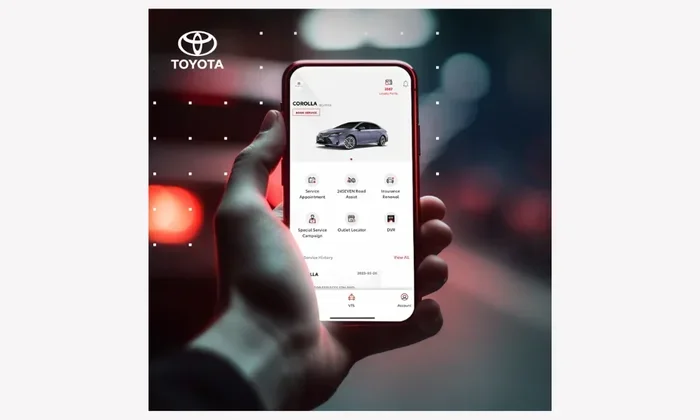
The Toyota App, also known as Toyota Connected Services, is a mobile application that lets you control and monitor your Toyota vehicle from your phone. It uses cloud-based technology to connect your car to your smartphone. Through the app, you can do things like check your fuel level, lock and unlock doors, and even start the engine remotely.
But the app is not just for solo drivers. It is designed to support multiple users. This is where adding a second driver comes in. When you add another person to your Toyota App, they get their own login credentials. They can access the app on their phone and use all the features that you have shared with them.
There are many reasons why you might want to add a second driver. Here are some of the most common ones:
- Family Sharing: Let your spouse or partner check on the car when you are not around.
- Teen Drivers: Monitor your teenager’s driving habits and vehicle location for peace of mind.
- Shared Vehicles: If two people use the same car, both need access to the app features.
- Roadside Assistance: Having multiple drivers registered means anyone can request help if needed.
- Convenience: No more passing the phone back and forth to check tire pressure or fuel levels.
Adding a second driver also enhances safety. If something goes wrong with the vehicle, both drivers can receive alerts and notifications. This means faster response times and better awareness of what is happening with the car. It is a win-win situation for everyone involved.
How to Add a Second Driver to Your Toyota App
Now let us get into the nitty-gritty. Here is the step-by-step process for adding a second driver to your Toyota App. The process is straightforward, but it does require a few minutes of your time. Make sure you have your phone handy and a stable internet connection.
Step 1: Open the Toyota App
First, open the Toyota App on your smartphone. Make sure you are logged in with your primary account. If you have not downloaded the app yet, you can find it in the Apple App Store or Google Play Store. Search for “Toyota App” and install it. Then log in using your Toyota Connected Services credentials.
If you are having trouble logging in, make sure your internet connection is stable. You can also try refreshing your display to clear any temporary glitches. Sometimes the app just needs a fresh start to work properly.
Step 2: Go to Settings
Once you are logged in, look for the Settings icon. It usually looks like a gear or cog wheel. Tap on it to open the settings menu. From there, you should see an option that says something like “Manage Drivers” or “Driver Profiles.” This is where the magic happens.
If you do not see this option right away, try scrolling down through the settings menu. Different Toyota models may organize the settings slightly differently. But the driver management option is always there. It is just a matter of finding it.
Step 3: Select “Add Driver”
Tap on “Add Driver” or a similar button. The app will walk you through the registration process. You will need to enter the second driver’s first name, last name, email address, and phone number. Make sure you use their real email because they will need to verify the account.
Some Toyota models may also ask you to confirm the vehicle identification number or VIN. This helps the app make sure you are adding the driver to the correct vehicle. Double-check everything before you tap the submit button.
Step 4: Send the Invitation
After you fill in the details, the app will send an invitation to the second driver’s email address. They will receive a link that they need to click to complete the registration. The second driver should check their inbox and follow the instructions to set up their own login credentials.
If the second driver does not receive the email within a few minutes, check the spam folder. You can also resend the invitation from the app. Sometimes emails get delayed or filtered out by accident.
Step 5: Complete the Setup
Once the second driver clicks the link and creates their password, they are all set. They can now log into the Toyota App on their own phone and access the features you have shared. They will see the vehicle status, receive notifications, and can control the car just like you do.
It is a good idea to sit down together the first time and walk through the app. Show the second driver how to check tire pressure, how to lock the doors, and how to request roadside assistance. This ensures everyone is comfortable using the app before they need it in an emergency.
Setting Up Driver Profiles and Permissions
One of the best things about the Toyota App is that you can customize what each driver can see and do. This is done through driver profiles and permission settings. Let us break this down so you can get the most out of the app.
Understanding Driver Profiles
Each driver you add gets their own profile within the Toyota App. This profile stores their personal settings, preferences, and access level. For example, you might want the second driver to see the fuel level but not be able to start the engine remotely. You can set these preferences through the driver profile settings.
Driver profiles also help you keep track of who is using the vehicle and when. The app can log trips, show driving history, and even track fuel consumption per driver. This is especially useful if you are sharing a car with a teenager or a commuter in your household.
Managing Permissions
Permissions control what each driver can do in the app. Here are some of the key permissions you can manage:
- Vehicle Location: Allow the driver to see where the car is parked.
- Door Lock/Unlock: Let the driver lock or unlock the doors remotely.
- Engine Start: Allow remote engine starting for climate control.
- Fuel Status: Show the current fuel level and range.
- Trip History: Let the driver view past trips and mileage.
- Roadside Assistance: Allow the driver to request help if needed.
You can adjust these permissions at any time. If you want to revoke access for a driver, you can do so from the settings menu. This gives you full control over who has access to your vehicle and what they can do with it.
Customizing the App Experience
Each driver can also customize their own app experience. They can choose their preferred units (miles or kilometers), set notification preferences, and even adjust the app theme. To change these settings, the second driver can go to their profile and tap on “Customize.” If you want to learn more about adjusting app preferences, you can check out how to customize your screen time for a better app experience.
Customization makes the app feel personal for each driver. It also ensures that everyone gets the information they need in the format they prefer. This small detail can make a big difference in how often the app gets used.
Benefits of Adding a Second Driver
Adding a second driver to your Toyota App comes with several real-world benefits. Let us look at why this feature is so valuable for Toyota owners.
Improved Safety and Security
When you have multiple drivers registered, everyone in the household stays connected to the vehicle. If there is an accident or a breakdown, any registered driver can request roadside assistance. The app also sends alerts to all registered drivers, so no one misses important notifications about the vehicle.
For parents with teen drivers, this feature is a game-changer. You can monitor your child’s driving habits, see where they are going, and get alerts if the car is driven outside of certain hours. It gives you peace of mind without being overly intrusive.
Convenience for Shared Vehicles
If two people share a car, the Toyota App makes life much easier. Both drivers can check the fuel level before they leave, see if the doors are locked, and even start the engine to warm up or cool down the car. No more guessing or rushing out to check things manually.
Shared vehicles also benefit from the trip history feature. Both drivers can see who drove the car and when. This is helpful for tracking mileage, planning maintenance, and splitting fuel costs fairly.
Better Vehicle Maintenance
The Toyota App sends maintenance reminders based on mileage and driving habits. When you add a second driver, both people receive these reminders. This means the car is more likely to get serviced on time, which extends its lifespan and prevents costly repairs down the road.
You can also use the app to track service history for the vehicle. Both drivers can see when the last oil change was, when the tires were rotated, and what other maintenance has been done. This transparency helps keep the car in top shape.
Troubleshooting Common Issues When Adding a Driver
While adding a second driver to the Toyota App is generally smooth, you might run into some issues from time to time. Here are the most common problems and how to fix them.
Invitation Email Not Received
If the second driver does not receive the invitation email, first check the spam or junk folder. Sometimes email providers filter out automated messages. If the email is not there, go back to the app and resend the invitation. Make sure you entered the correct email address the first time.
You can also try syncing your phone to your car system to refresh the connection between the app and the vehicle. This can sometimes resolve communication issues that prevent emails from sending properly.
App Not Responding After Adding a Driver
If the app freezes or crashes after adding a new driver, try closing the app completely and reopening it. On iPhone, swipe up from the bottom of the screen to close the app. On Android, go to your recent apps and swipe the Toyota App away. Then reopen it and log back in.
If that does not work, try restarting your phone. A fresh restart clears temporary files and refreshes the app’s connection to the Toyota servers. This simple step fixes most minor glitches.
Driver Profile Not Showing Up
Sometimes the new driver’s profile does not appear right away. This is usually a syncing issue. Wait a few minutes and check again. If the profile still does not show up, log out of the app and log back in. This forces the app to refresh its data and pull in the new driver profile.
If the problem persists, check that the second driver has completed their registration. They need to click the link in the email and create a password. Until that step is done, their profile will not be fully active in the system.
Connection Timeout Issues
If you are experiencing connection timeouts while trying to add a driver, your internet connection might be the culprit. Try switching from Wi-Fi to mobile data or vice versa. You can also check your app’s connection timeout settings to make sure they are optimized for your network speed.
Tips for Managing Multiple Drivers on Your Toyota App
Once you have added a second driver, there are a few best practices that will help you get the most out of the experience. These tips will keep things running smoothly and make the app more useful for everyone.
- Keep Profiles Updated: Make sure each driver’s information stays current. Update phone numbers and email addresses if they change.
- Review Permissions Regularly: Periodically check the permission settings to make sure they still match your preferences.
- Use the App Together: Sit down with the second driver and explore the app features together. This builds confidence and reduces support requests later.
- Enable Notifications for All Drivers: Make sure both drivers receive alerts for low fuel, maintenance reminders, and security notifications.
- Log Out on Shared Devices: If the second driver uses a shared family tablet, remind them to log out after each session for security.
- Update the App Regularly: Keep the Toyota App updated to the latest version. Updates often include bug fixes and new features that improve the experience for all drivers.
Following these tips will ensure that your Toyota App experience stays smooth and enjoyable for everyone. The more organized you are with driver management, the less time you will spend troubleshooting and the more time you will spend actually using the app’s helpful features.
Adding a second driver is just the beginning. As your family grows or your needs change, you may want to add even more drivers. The Toyota App supports multiple driver profiles, so you can scale up as needed. Just repeat the same process we covered in this guide, and you will have everyone set up in no time.
Frequently Asked Questions
Can I add more than one second driver to my Toyota App?
Yes, in most cases you can add multiple drivers to your Toyota App. The exact number depends on your Toyota model and your Connected Services plan. Check your app settings or your vehicle manual for the specific limit. Adding more drivers follows the same process we outlined above.
Do I need a Toyota Connected Services subscription to add a second driver?
Some features of the Toyota App require an active Connected Services subscription. However, adding a second driver is typically available even without a paid plan. That said, certain advanced features like remote start or GPS tracking may require a subscription. Check your plan details to see what is included.
Can I remove a driver from my Toyota App?
Yes, you can remove a driver at any time. Go to the Settings menu, select Manage Drivers, and choose the driver you want to remove. Tap the remove option and confirm your choice. The driver will no longer have access to the app or the vehicle features connected to it.
What if the second driver forgets their password?
The second driver can reset their password by tapping the “Forgot Password” link on the Toyota App login screen. They will receive an email with instructions to create a new password. Make sure they use the same email address they registered with.
Can the second driver use the Toyota App on more than one phone?
Yes, the second driver can log into the Toyota App on multiple devices. They just need to use the same login credentials. However, for security reasons, it is best to limit the number of devices that have access to your vehicle controls.
Will adding a second driver affect my primary account or settings?
No, adding a second driver does not change your primary account or your personal settings. Your profile, preferences, and vehicle controls remain exactly as they were. The second driver simply gets access to the shared features you have allowed.
Conclusion
Adding a second driver to your Toyota App is a simple process that brings real value to your daily life. Whether you are sharing a car with a spouse, monitoring a teen driver, or just making life more convenient for everyone in your household, the Toyota App makes it easy. You now know how to register a new driver, set up profiles, manage permissions, and troubleshoot common issues.
The steps are straightforward, and the benefits are significant. From improved safety to better vehicle maintenance, sharing your Toyota App with another driver enhances the ownership experience. Take a few minutes today to add that second driver and start enjoying the full power of your Toyota connected services.
Remember, the Toyota App is designed to make your life easier. The more people who have access to it, the more useful it becomes. So go ahead, share the app, and drive with confidence knowing that everyone in your household is connected to the vehicle.