How Do I Turn Off RCTA Your Simple Step By Step Guide
Learning how do I turn off RCTA is easier than you think. This guide walks you through every method to disable your Rear Cross Traffic Alert system step by step. Whether you drive a Toyota, Honda, Mazda, Subaru, or another brand, you will find the right solution here. We cover dashboard settings, infotainment menus, and dealer options so you can stop annoying false alerts for good.
Have you ever been reversing out of a tight parking spot and suddenly heard a loud beep from your car? That sound usually comes from your Rear Cross Traffic Alert system, also known as RCTA. While this feature is designed to keep you safe, it can become incredibly annoying when it goes off too often or when you simply do not need it.
If you have been searching for how do I turn off RCTA, you are in the right place. This guide gives you a clear, step-by-step path to disable the rear cross traffic alert on almost any vehicle. We will cover every major car brand, explain what RCTA actually does, and help you make an informed choice about whether turning it off is the right move for you.
The good news is that most modern cars make it pretty straightforward to adjust or turn off driver assistance features like RCTA. You do not need to be a mechanic or a tech expert. With a few simple taps on your dashboard or infotainment screen, you can silence those annoying alerts and get back to a quieter reversing experience.
Key Takeaways
- Multiple Methods Available: You can turn off RCTA through your vehicle settings, infotainment screen, or dashboard controls depending on your car model.
- Different Brands Have Different Steps: Toyota, Honda, Mazda, Subaru, and other manufacturers each have unique menus for disabling the rear cross traffic alert.
- False Alerts Are Common: Many drivers experience nuisance alerts from parking sensors, narrow poles, or nearby vehicles that trigger the RCTA system unnecessarily.
- Safety First: Before disabling any driver assistance feature, understand what it does and when it helps keep you safe while reversing.
- Dealer Assistance Is Always an Option: If you cannot find the setting yourself, a dealership service center can help you adjust or turn off RCTA.
- Reversing Camera and Parking Sensors Work Together: RCTA often works alongside your backup camera and parking sensors, so understanding the full system helps you make better decisions.
- Temporary vs Permanent Disable: Some vehicles let you toggle RCTA on and off quickly, while others require deeper menu navigation to change the setting permanently.
📑 Table of Contents
- What Is RCTA and Why Do People Want to Turn It Off?
- How Do I Turn Off RCTA on Toyota Vehicles
- How Do I Turn Off RCTA on Honda Vehicles
- How Do I Turn Off RCTA on Mazda Vehicles
- How Do I Turn Off RCTA on Subaru Vehicles
- How Do I Turn Off RCTA on Other Vehicle Brands
- RCTA vs Other Safety Features: How They Work Together
- Should You Turn Off RCTA? Expert Insights
- Common Mistakes People Make When Disabling RCTA
- Quick Tips for Managing RCTA Settings
- Conclusion
What Is RCTA and Why Do People Want to Turn It Off?
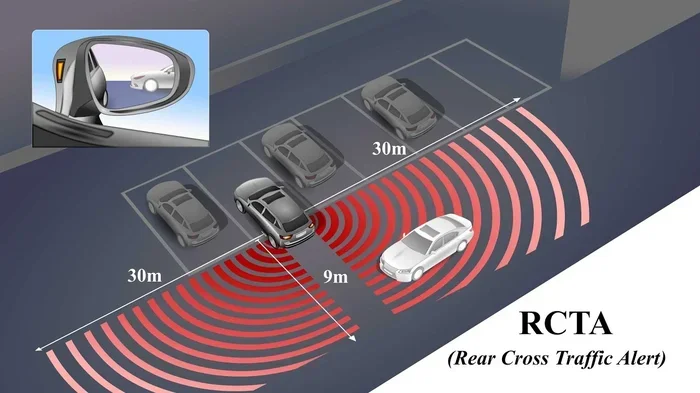
RCTA stands for Rear Cross Traffic Alert. It is a safety feature found in many modern vehicles. When you put your car in reverse, the system uses sensors — usually located in the rear bumper — to monitor traffic coming from the sides behind you. If it detects a vehicle, pedestrian, or object approaching from either side, it triggers an audible warning and sometimes a visual alert on your dashboard or rearview display.
The system is especially helpful in parking lots where cars are pulling out of spots next to you. It can prevent low-speed collisions that happen frequently in crowded parking areas. However, there are several reasons why drivers want to turn the system off.
Common Reasons Drivers Disable RCTA
- False Alerts: The system sometimes triggers when there is no real danger. Narrow poles, low walls, small objects, or even nearby vehicles that are not actually crossing can set off the alert.
- Frequent Reversing: If you reverse out of your parking spot multiple times a day, constant beeping can become mentally exhausting and annoying.
- Sensor Sensitivity: Some RCTA systems are overly sensitive, especially in certain weather conditions like rain or snow, causing nuisance alerts.
- Custom Driving Preferences: Experienced drivers may feel confident enough in their reversing skills and prefer to rely on their own observation rather than electronic warnings.
- Aftermarket Accessories: If you have installed aftermarket sensors or a backup camera, the RCTA system may conflict with your setup and cause interference.
- Battery and System Load: While rare, some drivers prefer to reduce the electrical load on their vehicle by turning off features they do not actively use.
Understanding why people want to disable RCTA helps you make a smarter decision. It is always worth considering whether the safety benefit outweighs the annoyance of the alerts before you turn the feature off completely.
How Do I Turn Off RCTA on Toyota Vehicles
Toyota vehicles come with a well-designed infotainment system that lets you manage your driver assistance settings easily. The exact steps can vary slightly depending on your model year and trim level, but the general process is very similar across most Toyota cars and SUVs.
Turning Off RCTA on Toyota Models with Touchscreen Display
Follow these steps to disable the rear cross traffic alert on your Toyota:
- Start your vehicle and make sure it is in Park.
- Press the Settings button on your infotainment screen.
- Navigate to the Vehicle Settings menu.
- Look for the Driving Assist or Safety section.
- Select Rear Cross Traffic Alert.
- Toggle the RCTA switch to Off.
- Confirm your selection when prompted.
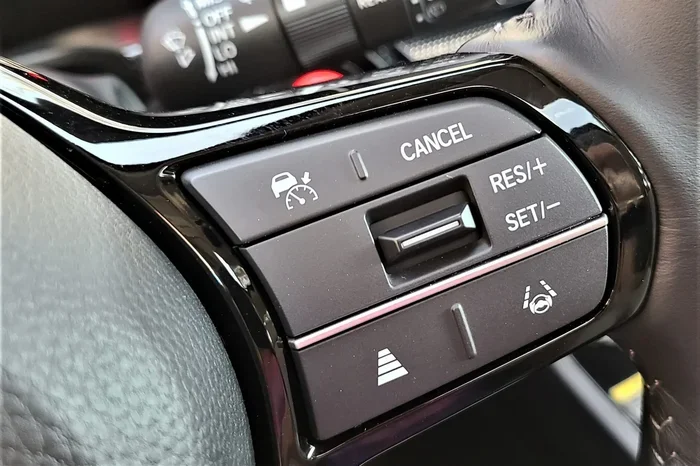
On some Toyota models like the Camry, RAV4, and Highlander, you may also find the RCTA toggle on the dashboard near the gear shift. Look for a button labeled with the RCTA icon, which typically looks like a car with arrows pointing outward from the rear. Press and hold that button for a few seconds until the indicator light on your dashboard turns off.
Toyota RCTA Settings via Pedestal Controls
If your Toyota does not have a large touchscreen, you can still turn off RCTA using the steering wheel controls or dashboard buttons. Use the arrow buttons on your steering wheel to scroll through the instrument cluster menu. Find the Safety or Driving Assist tab, then select RCTA and change the setting to Off. The process is simple once you know where to look.
How Do I Turn Off RCTA on Honda Vehicles
Honda vehicles also make it relatively easy to manage your rear cross traffic alert settings. Honda uses a combination of physical buttons and a central touchscreen, depending on the model and trim.
Step-by-Step Guide for Honda Models
Here is how you can turn off RCTA on most Honda vehicles:
- Press the Home button on your infotainment system to access the main menu.
- Scroll to the Settings icon and tap it.
- Choose the Vehicle Settings option.
- Look for the Driver Assistance section.
- Select Rear Cross Traffic Monitor.
- Switch the toggle to Off.
- Exit the menu and restart your vehicle to confirm the change.
On Honda Civic, Honda CR-V, and Honda Accord models, the RCTA indicator light is usually located near the speedometer on the instrument cluster. When the system is active, you will see a green or yellow icon. Once you turn it off, the light should disappear when you shift into reverse.
Honda RCTA Quick Toggle Method
Some Honda models offer a quick-access button for turning driver assistance features on and off. Check the area around your center console or the left side of the steering column for a dedicated button. This is the fastest way to toggle RCTA without diving into menus.
How Do I Turn Off RCTA on Mazda Vehicles
Mazda vehicles use their signature infotainment interface called Mazda Connect. The process to disable RCTA on a Mazda is slightly different from Toyota or Honda but is still very user-friendly.
Disabling RCTA on Mazda CX-5, Mazda3, and CX-9
Follow these steps for Mazda models:
- Press the Settings button on the Mazda Connect infotainment screen.
- Go to the Vehicle Settings tab.
- Select Driver Assistance Systems.
- Find the Rear Cross Traffic Alert option.
- Change the setting from On to Off.
- Press the Back button to save your changes.
Mazda also allows you to adjust the sensitivity of the RCTA system rather than turning it off completely. If you find the alerts too frequent but still want some protection, you can lower the sensitivity level instead of disabling the feature entirely. This is a great middle-ground option for drivers who want fewer false alerts without losing all the safety benefits.
Mazda Dashboard Indicator for RCTA
When RCTA is active on a Mazda, you will see a small icon on the instrument cluster. The icon looks like two arrows curving outward from the rear of a car silhouette. When you turn the system off, this indicator will no longer appear when you shift into reverse.
How Do I Turn Off RCTA on Subaru Vehicles
Subaru vehicles come standard with their EyeSight driver assist technology, which includes rear cross traffic alert on many models. Subaru makes it easy to manage these settings through the Starlink infotainment system.
Turning Off RCTA on Subaru Outback, Forester, and Crosstrek
Here is the process for Subaru models:
- Press the Home button on your Subaru infotainment screen.
- Navigate to Settings.
- Select Driver Assist Features.
- Choose Rear Cross Traffic Alert.
- Toggle the switch to Off.
- Confirm your selection.
On some Subaru models, you can also access RCTA settings directly from the dashboard by pressing the steering wheel controls. Use the up and down arrows to scroll through the safety features listed on the display. Highlight RCTA and press OK to access the toggle switch.
One thing to note about Subaru vehicles is that RCTA often works closely with their Blind Spot Detection system. If you turn off RCTA, the blind spot monitoring usually remains active. These are separate systems, so disabling one does not affect the other.
How Do I Turn Off RCTA on Other Vehicle Brands
While Toyota, Honda, Mazda, and Subaru cover a large share of the market, many other brands also include RCTA as a standard or optional feature. The general process is similar across most manufacturers, even if the exact menu names differ slightly.
General Steps for Most Vehicle Brands
If your car brand is not covered in detail above, try these general steps:
- Step 1: Start your vehicle and put it in Park.
- Step 2: Press the Settings or Menu button on your infotainment screen or dashboard.
- Step 3: Look for a section called Vehicle Settings, Safety, or Driver Assistance.
- Step 4: Find Rear Cross Traffic Alert or RCTA in the list of features.
- Step 5: Toggle the switch to Off or adjust the sensitivity.
- Step 6: Save your changes and exit the menu.
Brands like Ford, Chevrolet, Nissan, Hyundai, Kia, Volkswagen, and BMW all follow a similar menu structure. The key is to look for the safety or driver assistance section within your vehicle settings. Once you find it, the RCTA option should be easy to locate.
When the Setting Is Hidden or Hard to Find
Sometimes the RCTA toggle is buried deep in the menu system. If you cannot find it, try using the search function on your infotainment screen if your vehicle has one. Simply type RCTA or Rear Cross Traffic into the search bar and the system should direct you to the right menu. If you still cannot find it, check your owner manual or contact your dealer for guidance.
RCTA vs Other Safety Features: How They Work Together
Understanding how RCTA relates to other safety features in your vehicle helps you make better decisions about which ones to keep and which ones to turn off. Many drivers confuse RCTA with similar systems, so let us clear up the differences.
RCTA vs Blind Spot Monitoring
Blind Spot Monitoring (BSM) and Rear Cross Traffic Alert are related but different. BSM alerts you to vehicles in your blind spots while you are driving in a lane. RCTA activates when you are reversing and detects traffic crossing behind you. They use different sensors and serve different purposes, even though both involve detecting nearby vehicles.
RCTA vs Parking Sensors
Parking sensors use ultrasonic waves to detect objects directly behind or in front of your vehicle while parking. RCTA uses radar sensors to detect moving vehicles crossing from the sides. Parking sensors beep when you are close to a stationary object, while RCTA alerts you to moving traffic behind you.
RCTA vs Backup Camera
A backup camera gives you a visual view behind your vehicle when you reverse. RCTA adds an audible or visual warning layer on top of the camera feed. They work together to give you a fuller picture of what is happening behind your car. You can have a backup camera without RCTA, but RCTA usually works best when paired with a rearview camera.
Should You Turn Off RCTA? Expert Insights
Before you decide to disable your rear cross traffic alert, it is worth hearing from experts. Automotive safety professionals generally recommend keeping RCTA enabled, especially if you frequently park in busy areas or drive in crowded lots. The system can detect vehicles and pedestrians that you might not see in your mirrors.
When Experts Say It Is Okay to Turn Off RCTA
Experts do acknowledge that there are situations where turning off RCTA makes sense:
- If you regularly reverse in the same quiet parking area where there is very little cross traffic.
- If your RCTA system produces frequent false alerts that distract you from driving.
- If you have a backup camera and parking sensors that already give you sufficient awareness while reversing.
- If you are towing a trailer or carrying a load that blocks the sensors and causes constant false readings.
When Experts Say You Should Keep RCTA On
There are also times when keeping RCTA active is the safer choice:
- When you reverse in busy parking lots with lots of foot traffic and moving vehicles.
- When you are driving in unfamiliar areas where parking layouts are unpredictable.
- When you have passengers, especially children, who may be near the rear of your vehicle.
- When you are new to driving or reversing in a particular vehicle.
The decision to turn off RCTA ultimately comes down to your personal driving habits and environment. If false alerts are bothering you, consider adjusting the sensitivity first before completely disabling the feature. This way, you still get the safety benefits without the constant annoyance.
Common Mistakes People Make When Disabling RCTA
When drivers try to turn off their rear cross traffic alert, they sometimes make mistakes that cause frustration or even safety issues. Here are some common errors to avoid.
Mistake 1: Turning Off the Wrong Feature
Many vehicles have similar-sounding safety features grouped together in the settings menu. You might accidentally turn off your blind spot monitoring or lane departure warning instead of RCTA. Always double-check that you are modifying the correct feature before confirming any changes.
Mistake 2: Not Restarting the Vehicle
After changing RCTA settings, some vehicles require a restart for the changes to take effect. If you turn off RCTA but still hear alerts when reversing, try restarting your vehicle and see if the problem persists.
Mistake 3: Ignoring Sensor Obstructions
Sometimes the real issue is not that RCTA is too sensitive, but that your rear sensors are dirty or obstructed. Mud, snow, ice, or even a bumper sticker covering a sensor can cause false alerts. Before you turn off RCTA, clean your rear sensors thoroughly and see if the problem goes away.
Mistake 4: Forgetting to Re-Enable When Needed
If you turn off RCTA for a specific situation, make sure you remember to turn it back on afterward. Some drivers disable the feature and then forget about it, leaving themselves without an important safety function the next time they need it.
Mistake 5: DIY Electrical Modifications
Some people try to bypass or wire-disconnect the RCTA system themselves. This is a bad idea. It can void your warranty, cause electrical problems, and even make your vehicle unsafe. Always use the official settings menu or consult a professional if you need help.
Quick Tips for Managing RCTA Settings
Here are some practical tips to help you get the most out of your RCTA system or manage it effectively if you choose to turn it off:
- Clean your rear sensors regularly. A simple wipe-down after washing your car can prevent many false alerts.
- Adjust sensitivity before turning off. Most vehicles let you lower RCTA sensitivity instead of disabling it completely.
- Watch for software updates. Some manufacturers release updates that improve RCTA accuracy and reduce false alerts.
- Use your mirrors and shoulder checks. Even with RCTA turned off, always check your mirrors and look over your shoulder when reversing.
- Keep your owner manual handy. It contains the exact steps for your specific vehicle model and trim.
- Visit a dealer if you are stuck. Service advisors can walk you through the process or make the changes for you in minutes.
- Consider your driving environment. If you mostly drive in quiet residential areas, you may not need RCTA as much as someone who parks in busy commercial lots.
Conclusion
Now you know exactly how do I turn off RCTA on almost any vehicle. Whether you drive a Toyota, Honda, Mazda, Subaru, or another brand, the steps are straightforward and easy to follow. You can disable the rear cross traffic alert through your infotainment menu, dashboard controls, or by visiting your dealer for assistance.
Remember that RCTA is a valuable safety feature designed to protect you and others while reversing. If you decide to turn it off, make sure you compensate by using your mirrors, looking over your shoulder, and staying alert in parking areas. And if false alerts are the problem, try adjusting the sensitivity first before completely disabling the system.
Take a few minutes today to review your vehicle settings and make the choice that works best for your driving style. Your car is a tool, and you should feel comfortable controlling which features are active and which are not. With the guidance in this article, you have everything you need to manage your RCTA system confidently and safely.
Frequently Asked Questions
Can I turn off RCTA without going into the settings menu?
On some vehicle models, you can use a physical button on the dashboard or center console to quickly toggle RCTA on and off. Look for a button with the RCTA icon near your gear shift or on the steering wheel controls. If your vehicle has this feature, it is the fastest way to disable the system without navigating through menus.
Will turning off RCTA affect my backup camera or parking sensors?
No, turning off RCTA does not disable your backup camera or parking sensors. These are separate systems that work independently. Your backup camera will continue to display the view behind your vehicle, and your parking sensors will still alert you to nearby stationary objects when you are parking.
Is it safe to drive with RCTA turned off?
It is generally safe to drive with RCTA turned off, especially if you are confident in your reversing skills and use your mirrors and shoulder checks. However, RCTA provides an extra layer of protection, particularly in busy parking lots. If you turn it off, stay extra alert when reversing and be aware of pedestrians and other vehicles around you.
Why does my RCTA keep going off even when there is no traffic?
False RCTA alerts are common and usually caused by dirty sensors, narrow objects like poles or signs, or extreme weather conditions. Before turning off the system, try cleaning your rear bumper sensors thoroughly. If the problem continues, adjusting the sensitivity or updating your vehicle software may resolve the issue.
Can a dealer turn off RCTA for me?
Yes, absolutely. If you cannot find the RCTA setting in your vehicle menus, you can visit your dealership service center. A service advisor or technician can make the change for you quickly, often at no cost. They can also help you adjust sensor sensitivity or troubleshoot any issues with the system.
Does turning off RCTA void my vehicle warranty?
No, turning off RCTA through your vehicle settings does not void your warranty. However, making physical modifications to the sensors or wiring yourself could potentially cause warranty issues. Always use the official vehicle settings to adjust or disable any safety feature.