How to Check Mileage on a Tesla and Get Accurate Readings
Want to know how to check mileage on a Tesla? This guide shows you exactly how to get accurate readings on every Tesla model. You will learn to use the touchscreen, mobile app, and trip meter like a pro, plus tips to keep your data precise.
Key Takeaways
- Find mileage instantly on the Tesla touchscreen or mobile app.
- Use the trip meter for short-term tracking and the odometer for lifetime miles.
- Check energy consumption in miles per kWh to gauge efficiency.
- Export mileage history from the app for service or tax records.
- Calibrate your trip meter regularly for the most accurate readings.
- Compare real-world range with EPA estimates to understand your driving habits.
📑 Table of Contents
Understanding Your Tesla’s Mileage Display
Every Tesla owner should know exactly where to find their mileage reading. The car gives you two main numbers: the odometer and the trip meter. The odometer shows your total lifetime miles. The trip meter tracks a specific journey. You can reset the trip meter whenever you want. This makes it perfect for tracking daily commutes or road trips.
The dashboard layout is simple and clean. You will not see a bunch of confusing gauges. Instead, the central touchscreen handles most displays. The driver’s side instrument cluster also shows key data. Knowing where to look saves time and keeps you focused on the road.
The Trip Meter vs. Odometer
The odometer is your car’s permanent record. It cannot be reset by the driver. It shows the total distance the vehicle has traveled since it was built. The trip meter, on the other hand, is fully customizable. You can reset it to zero at any time. Most drivers use Trip A for daily use and Trip B for a separate route.
Both numbers are easy to access. On the touchscreen, you will find them under the Vehicle menu. The trip meter updates in real time as you drive. The odometer updates only when you park and the car sleeps. This design keeps the display uncluttered.
Where to Find Mileage on the Dashboard
On the driver’s instrument cluster, the odometer sits in the top center. It is a small, always-visible number. The trip meter appears just below it when you select the trip view. You can toggle between Trip A and Trip B with a quick tap on the steering wheel controls.
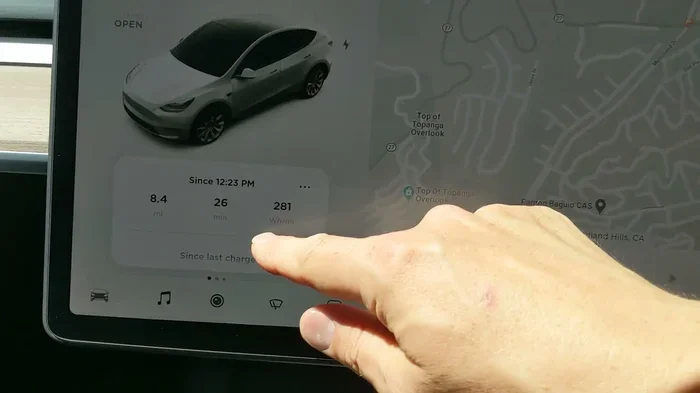
On the touchscreen, the Vehicle tab shows a larger odometer reading. You will also see the current trip distance, average speed, and energy used. This central location makes it easy to glance at your stats while stopped at a charging station.
How to Check Mileage on a Tesla Using the Touchscreen
Checking mileage on a Tesla is straightforward once you know the steps. The process is nearly identical across Model 3, Model Y, Model S, and Model X. The touchscreen is your main control center. You will use it to view both the odometer and trip meter.
Here is a quick comparison of how mileage appears on different Tesla models:
| Tesla Model | Odometer Location | Trip Meter Location |
|---|---|---|
| Model 3 | Instrument cluster (top center) | Touchscreen: Controls > Vehicle > Trip |
| Model Y | Instrument cluster (top center) | Touchscreen: Controls > Vehicle > Trip |
| Model S | Instrument cluster + touchscreen | Touchscreen: Controls > Vehicle > Trip |
| Model X | Instrument cluster + touchscreen | Touchscreen: Controls > Vehicle > Trip |
Step-by-Step Guide for Model 3 and Model Y
Follow these steps to view your mileage on a Model 3 or Model Y. Start by sitting in the driver’s seat. The screen will wake up automatically. Tap the Controls icon at the bottom of the screen. It looks like a gear. Next, select Vehicle from the menu. Scroll down to find the Trip section. Here you will see Trip A and Trip B distances. To view the odometer, tap the Odometer tab at the top of the trip screen. The number displayed is your lifetime mileage. You can switch back to the trip view anytime.
Checking Mileage on Model S and Model X
Model S and Model X offer the same options but with a larger screen. Tap Controls, then Vehicle. The trip screen shows both trip meters side by side. Swipe left or right to see more details. The odometer reading is always visible at the top. These models also let you customize the trip display. You can show distance remaining, energy used, and average efficiency all at once.
Using the Tesla Mobile App to Track Mileage
The Tesla mobile app is a powerful tool for owners who want to check mileage on the go. You do not need to be near the car. The app syncs with your Tesla in real time. It gives you access to trip data, energy usage, and even charging history. This is especially useful for fleet managers or anyone who tracks mileage for work.
Viewing Trip Data on the Go
Open the Tesla app on your phone. Tap the Vehicle tab. You will see the current mileage right at the top. Scroll down to see recent trip history. The app shows each trip’s distance, start and end locations, and energy consumed. You can tap on any trip to see more details. This makes it easy to log a daily commute or a weekend road trip.
Exporting Mileage History
Need to share your mileage data? The app lets you export trip history as a PDF or CSV file. Go to the trip screen, tap the three-dot menu, and select Export Data. This feature is perfect for keeping records for service visits or tax purposes. If you are tracking mileage to deduct vehicle sales tax on your federal return, having a clean export can save you a lot of time at tax time.
Why Accurate Mileage Matters for Tesla Owners
Accurate mileage is more than just a number on a screen. It affects your maintenance schedule, your resale value, and even your tax records. Tesla recommends following a service plan based on mileage intervals. Keeping precise records helps you stay on track.
Maintenance Scheduling and Service Intervals
Tesla does not require oil changes like a petrol car. However, you still need to service the vehicle regularly. Tire rotations, brake inspections, and battery checks are all mileage-based. If your odometer is off, you might miss a service window. Always verify your mileage after a long trip or a software update. A quick check takes only a few seconds.
Mileage for Resale Value and Trade-Ins
When it is time to sell or trade in your Tesla, mileage is a key factor. Buyers look at the odometer to assess wear and tear. A lower mileage usually means a higher price. You can also use the Tesla app to show a full service history tied to mileage. This builds trust with potential buyers and can speed up the sale process.
Keeping Mileage Logs for Tax Purposes
Some Tesla owners use their vehicles for business. If you do, you may need to keep a detailed mileage log. This log can support deductions for business use of your car. While you cannot deduct vehicle sales tax on your federal return simply because you own a Tesla, you can deduct mileage for business trips if you follow IRS rules. Always consult a tax professional for guidance. Accurate records make this process much smoother.
Quick Tips for Getting the Most Accurate Mileage Readings
Getting the right mileage reading is simple if you follow a few best practices. These tips help you avoid common errors and keep your data reliable. Use them every time you check your Tesla.
Calibrating Your Trip Meter
Your trip meter is already accurate from the factory. However, you can reset it before a new journey. Tap the trip reset button on the steering wheel or on the touchscreen. This ensures you are only measuring the miles you care about. Some drivers reset the trip meter at every fuel stop or charging session. This habit gives you a clear picture of daily efficiency.
Avoiding Common Mistakes
One common mistake is relying only on the app while the car is still driving. The app may show a slight delay. Always check the in-car display for real-time data. Another mistake is ignoring tire pressure. Under-inflated tires can reduce your range and skew your mileage calculations. Check your tire pressure monthly for the best results.
Expert Insights: Tesla Mileage and Efficiency
Tesla mileage is not just about distance. It is also about how efficiently you use energy. Understanding miles per kWh helps you become a better driver. Small changes in your habits can add up to significant savings over time.
Miles per kWh Explained
Tesla vehicles display energy consumption in miles per kilowatt-hour. A higher number means better efficiency. For example, a Model 3 might show 4.5 miles per kWh. This tells you how far you travel on one unit of electricity. You can find this metric in the trip screen or in the Energy app. Watching it over time helps you see how your driving style affects range.
How Regenerative Braking Affects Mileage
Regenerative braking is a standout Tesla feature. It captures energy during deceleration and sends it back to the battery. This process directly improves your mileage. When you lift off the accelerator, the car slows down and recharges. You can adjust the regen strength in the settings. Strong regen settings can add several miles to your daily range.
Comparing Electric and Hybrid Efficiency
How does a Tesla compare to a hybrid? A hybrid car switches between electric and gas power. You might wonder at what speed a hybrid switches from electric to gas. Typically, hybrids use electric power at low speeds and switch to gas above 40-50 mph. A Tesla, on the other hand, runs on electricity alone. It does not have a gas engine at all. When you compare energy usage, a Tesla is often much more efficient. For a fun comparison, consider that a petrol car getting 1 litre petrol how many km might only travel about 15 km on a single litre. A Tesla can travel over 6 km per kWh, which is far more efficient in terms of energy cost per mile.
Key Takeaways
- Always check the in-car display for real-time mileage.
- Use the trip meter for short trips and the odometer for lifetime miles.
- Export your trip history from the app for service or tax records.
- Keep tire pressure at the recommended level to maximize range.
- Watch your miles per kWh to improve driving efficiency.
- Regenerative braking helps you get more miles out of every charge.
How to check mileage on a Tesla is a simple skill that every owner should master. Whether you use the touchscreen, the mobile app, or the trip meter, the process is quick and reliable. Accurate readings help you plan trips, schedule service, and even save money on energy costs. Make it a habit to glance at your mileage each time you drive. Over time, you will gain a deeper understanding of your Tesla’s performance and range. With these tips, you will always know exactly how far you have gone and how much further you can go.
Frequently Asked Questions
How often should I check my Tesla’s mileage?
You can check it anytime. Many owners glance at the trip meter before and after a drive. Checking once a week is enough for general tracking. If you use the car for business, check it daily to keep your logs accurate.
Can I check mileage without the touchscreen?
Yes. The instrument cluster on the steering column shows the odometer and trip meter. You do not need the touchscreen to see your current mileage. The mobile app also works from anywhere with a signal.
Does the Tesla app show lifetime mileage?
Yes. The app displays your total lifetime mileage on the vehicle screen. You can also view trip history for the last 30 days. This makes it easy to track long-term trends.
How do I reset the trip meter?
On the touchscreen, go to the trip screen and tap the reset button. On the steering wheel, press the reset stalk button. The trip meter will return to zero and start counting again.
What is a good miles per kWh for a Tesla?
A good number is typically between 4.0 and 5.5 miles per kWh. This depends on your model, driving style, and weather. Higher numbers mean better efficiency. You can check your average in the Energy app.
Is Tesla mileage affected by cold weather?
Yes. Cold weather can reduce range and efficiency. The battery uses more energy to stay warm. You may see lower miles per kWh in winter. Preconditioning the cabin while plugged in helps reduce this effect.