How to Delete Phone from Ford F150 Without Any Hassle
Deleting a phone from your Ford F150 is quick and easy once you know the right steps. Whether you use Bluetooth or a USB connection, this guide walks you through the entire process on Ford SYNC systems. You will learn how to unpair devices, reset your infotainment system, and fix common issues in just minutes.
So you want to know how to delete phone from Ford F150? Maybe you sold your old phone, bought a new one, or just want to keep your truck’s Bluetooth list tidy. Whatever the reason, you are in the right place.
Your Ford F150 comes packed with smart tech like Ford SYNC that lets you connect your phone wirelessly. But over time, that list of paired devices can get cluttered. Old phones hang around, and it can slow things down or even cause connection problems. This guide shows you exactly how to clean it up.
We will cover every method step by step. You will learn about Bluetooth removal, SYNC settings, USB connections, and how to fix common hiccups along the way. No jargon, no fluff, just clear instructions that anyone can follow. Let us get started.
Key Takeaways
- Easy Bluetooth Removal: You can delete a paired phone from your Ford F150 in just a few taps through the SYNC settings menu.
- Multiple Methods Available: Whether you have SYNC 3 or SYNC 4, the process is similar but has small differences you should know about.
- USB Connections Matter Too: Deleting a phone also means removing it from USB pairing and vehicle phone books.
- Troubleshooting Is Simple: Most issues with phone deletion can be fixed with a quick system reset or software update.
- Privacy and Safety: Removing old phones protects your personal data and keeps your F150’s connection list clean.
- Re-Pairing Is Fast: After deletion, you can pair a new phone in under two minutes.
📑 Table of Contents
- Why You Should Delete Old Phones from Your Ford F150
- How to Delete Phone from Ford F150 Using Bluetooth
- Deleting Phone Through the Ford SYNC App
- Removing Phone from USB Connection on Ford F150
- Resetting Your Ford F150 Infotainment System
- Common Mistakes When Deleting Phones from Ford F150
- How to Re-Pair Your Phone After Deletion
- Comparison: Ford SYNC 3 vs SYNC 4 Phone Management
- Privacy and Security After Deleting Your Phone
- Expert Tips for Managing Multiple Phones in Ford F150
- Conclusion
Why You Should Delete Old Phones from Your Ford F150
You might wonder why it even matters. Can you just leave all your old phones paired? Technically, yes. But there are good reasons to clean up your Ford F150 phone connection list regularly.
First, it keeps your Ford SYNC system running smoothly. Every paired device takes up a small amount of memory. Over time, a long list of old connections can slow down your Ford F150 infotainment system. You might notice delays when trying to connect a new phone.
Second, there is the privacy factor. Your phone stores a lot of personal data. When you pair it with your truck, the Ford SYNC 3 or SYNC 4 system accesses your contacts, call history, and sometimes even text notifications. If you sell your truck or give it to someone else, you do not want your personal information left behind.
Third, a clean paired device list means fewer connection headaches. When you have too many devices saved, your F150 might auto-connect to the wrong phone. This can be annoying, especially if you share your truck with family members.
How Ford SYNC Handles Phone Pairing
Your Ford F150 uses the SYNC infotainment platform to manage phone connections. When you pair a phone, the system creates a profile. This profile stores your phone name, contact list access, and audio routing preferences. Deleting a phone removes this profile entirely.
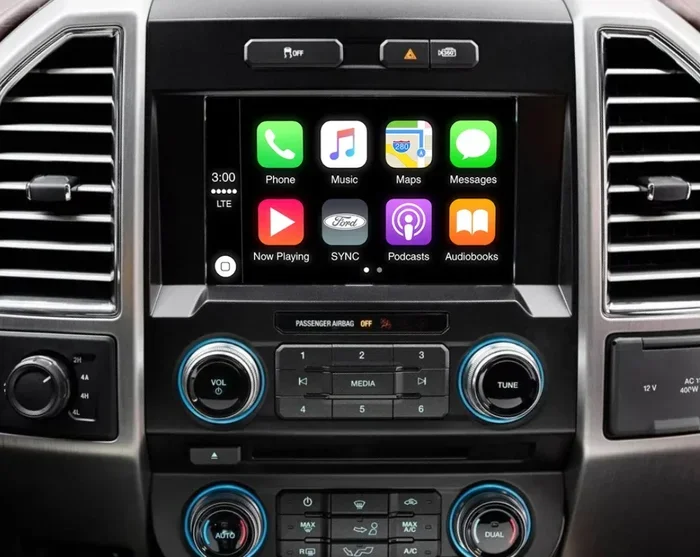
The process is slightly different depending on whether you have SYNC 3 or SYNC 4. But the core steps are very similar. Both systems use a touchscreen interface that makes navigation straightforward. You will find the phone settings in the main menu under “Phone” or “Devices.”
How to Delete Phone from Ford F150 Using Bluetooth
This is the most common method. Most people pair their phones through Bluetooth, and removing them follows the same path. Here is exactly what to do.
Step-by-Step Bluetooth Removal
Follow these steps carefully. They work for both SYNC 3 and SYNC 4 systems in the Ford F150.
- Tap the Phone icon on your touchscreen. It usually looks like a telephone receiver.
- Select “Settings” or the gear icon. This opens your phone and device options.
- Tap “Bluetooth.” You will see a list of all paired devices.
- Find the phone you want to delete. It will show the device name you gave it during pairing.
- Select the device. A menu will pop up with several options.
- Tap “Delete Device” or “Unpair.” Confirm your choice when prompted.
- Repeat for any other phones you want to remove from the list.
That is it! The phone is now removed from your Ford F150 Bluetooth memory. You will no longer see it in your paired devices list, and it will not auto-connect when you get in the truck.
What If the Phone Does Not Show Up?
Sometimes a paired device disappears from the list or becomes unresponsive. This can happen if the phone is already out of range or turned off. Try these quick fixes:
- Turn on Bluetooth on the phone you are trying to delete, even if it is not in the truck.
- Restart your Ford F150’s infotainment system by holding the power button for about 10 seconds.
- Check for SYNC software updates through the Ford SYNC app on your phone or at a Ford dealership.
Deleting Phone Through the Ford SYNC App
Did you know you can also manage your paired devices using the Ford SYNC app on your smartphone? This is a great option if your phone is still nearby and you prefer using the app interface.
Using the Ford SYNC App to Remove Devices
The Ford SYNC app gives you remote access to your truck’s settings. Here is how to use it to delete a phone.
- Open the Ford SYNC app on your smartphone.
- Log in to your FordPass account.
- Go to “Vehicle Settings.” Look for the connectivity or phone section.
- Select “Paired Devices.” You will see all connected phones.
- Choose the phone to delete. Tap on the device name.
- Select “Remove Device.” Confirm the action.
This method works well if you want to manage your F150’s connections from anywhere. It is especially handy when you are away from the truck but still need to clean up your paired device list.
FordPass vs. Direct SYNC Settings
You might wonder which method is better. Using the Ford SYNC app gives you more flexibility since you can manage devices remotely. But if you are already sitting in the truck, going through the touchscreen is faster and more direct. Both methods achieve the same result.
For those who also want to know at what speed does a hybrid switch from electric to gas, that is a different topic entirely but equally interesting for Ford owners exploring their vehicle’s features.
Removing Phone from USB Connection on Ford F150
Not all phone connections go through Bluetooth. Many Ford F150 owners also use USB cables to connect their phones. If you want to fully disconnect your phone from the truck, you should remove it from USB pairing as well.
Steps to Remove USB Phone Connection
Here is what you need to do to clean up USB connections on your F150.
- Unplug the USB cable from your phone and the truck’s USB port.
- Go to the touchscreen home screen.
- Navigate to “Settings” then “USB.”
- Look for “Paired Devices” or “Connected Devices.”
- Select the phone connected via USB.
- Choose “Forget Device” or “Remove.”
Once you do this, your F150 will no longer recognize the phone when you plug it in via USB. You will need to re-pair it if you want to use it again through a cable connection.
USB Connection Tips for Ford F150
Here are some quick tips to keep your USB connections working well.
- Use quality USB cables. Cheap cables can cause connection drops and make your phone harder to remove properly.
- Clean your USB ports regularly. Dust and debris can interfere with connections.
- Update your SYNC software. Newer updates often improve USB device handling.
- Limit USB connections to two devices. This keeps things running smoothly.
You might also be interested in how many km you can drive on 1 litre of petrol in your Ford F150. Fuel efficiency is another important aspect of owning this truck, and keeping your vehicle well-maintained helps with both connectivity and performance.
Resetting Your Ford F150 Infotainment System
Sometimes deleting a phone does not fully clear the connection. In these cases, a soft or hard reset of the Ford F150 infotainment system can help. This is especially useful when a deleted phone still shows up or causes connection issues.
Soft Reset (Recommended First Step)
A soft reset restarts the system without erasing any settings or data. Here is how to do it.
- Press and hold the power button on the touchscreen for about 10 seconds.
- The screen will go dark. Wait for about 30 seconds.
- The system will restart automatically.
- Check your paired devices list to see if the phone is gone.
A soft reset solves most minor issues. It is quick and does not affect your saved settings, radio presets, or navigation data.
Hard Reset (Factory Reset)
A hard reset returns your SYNC system to its original factory settings. Use this only if a soft reset does not work. Be aware that a hard reset will erase all your custom settings.
- Go to Settings on the touchscreen.
- Select “System” then “Factory Reset.”
- Enter your PIN if prompted. The default is usually 0000 or 1234.
- Confirm the reset. The system will restart and return to factory defaults.
After a hard reset, you will need to re-pair your current phone and restore any settings you had customized. Make sure you know your SYNC PIN before attempting this step.
When to Consider a Reset
You should try a reset if you notice any of these issues after deleting a phone:
- The deleted phone still appears in the paired devices list.
- Your new phone will not connect even after pairing.
- The touchscreen becomes slow or unresponsive.
- Bluetooth connections keep dropping unexpectedly.
- You hear static or echo during hands-free calls.
Most of the time, a simple soft reset fixes these problems. But if they persist, visiting a Ford dealership for a professional SYNC diagnostic might be the best next step.
Common Mistakes When Deleting Phones from Ford F150
Even though the process is straightforward, people make mistakes that cause frustration. Here are the most common ones and how to avoid them.
Mistake 1: Not Turning on Bluetooth Before Deleting
If the phone you want to delete is powered off or has Bluetooth turned off, it might not appear in the paired devices list. Always make sure the phone is on and Bluetooth is active before trying to remove it.
Mistake 2: Confusing SYNC 3 and SYNC 4 Menus
The menu layout differs slightly between SYNC 3 and SYNC 4. In SYNC 3, you typically go to Phone Settings then Bluetooth. In SYNC 4, the path might be slightly different, often under “Connectivity” or “Devices.” Check your owner’s manual or the Ford website for your specific model year.
Mistake 3: Forgetting to Remove the Phone from the Ford SYNC App
If you manage your F150 through the Ford SYNC app, deleting the phone from the truck’s touchscreen might not remove it from the app. Always check both places to ensure the device is fully removed.
Mistake 4: Skipping the Confirmation Step
When you tap “Delete” or “Unpair,” the system asks you to confirm. If you accidentally tap “No” or “Cancel,” the phone stays paired. Always watch for the confirmation prompt and tap “Yes” or “OK” to complete the deletion.
Mistake 5: Not Updating SYNC Software
Older SYNC software versions can have bugs that prevent proper device removal. Keeping your system updated ensures smooth operation. You can check for updates through the Ford SYNC app or at a Ford service center.
How to Re-Pair Your Phone After Deletion
Once you have deleted the old phone, you will likely want to connect your current phone. Re-pairing is fast and easy.
- Turn on Bluetooth on your new phone.
- Go to your Ford F150’s touchscreen.
- Navigate to Phone Settings then “Add Device.”
- Select “Bluetooth” as the connection type.
- Choose your phone from the list of available devices.
- Follow the on-screen prompts. You may need to enter a PIN displayed on the truck’s screen into your phone.
- Grant permissions for contacts and audio access when prompted.
Your phone is now connected. You can start using hands-free calling, music streaming, and navigation right away.
Tips for a Smooth Re-Pairing Experience
- Delete the old phone first before pairing the new one. This prevents connection conflicts.
- Keep your phone close to the truck’s antenna during pairing.
- Restart both devices if the pairing process fails.
- Grant all requested permissions so you get the full SYNC experience.
If you are also dealing with other F150 features, you might want to check out are car seats easy to take out in the Ford F150, since this truck offers versatile seating options for families and work use alike.
Comparison: Ford SYNC 3 vs SYNC 4 Phone Management
Here is a quick comparison of how phone deletion works across the two SYNC systems found in Ford F150 trucks.
| Feature | SYNC 3 | SYNC 4 |
|---|---|---|
| Path to Delete Phone | Phone Settings > Bluetooth > Delete | Connectivity > Devices > Remove |
| App Support | Ford SYNC App | Ford SYNC App (Updated) |
| Reset Option | Soft and Hard Reset Available | Soft and Hard Reset Available |
| USB Management | Settings > USB > Forget Device | Settings > USB > Disconnect |
| Average Deletion Time | Under 1 Minute | Under 1 Minute |
| Software Update Method | USB or Dealership | Over-the-Air Updates Available |
As you can see, both systems are very similar. The main difference is the menu layout and the fact that SYNC 4 supports over-the-air updates, which makes keeping your system current even easier.
Privacy and Security After Deleting Your Phone
Deleting a phone from your Ford F150 is not just about cleaning up your connection list. It is also about protecting your privacy.
When you pair a phone with your truck, the SYNC system stores certain data. This includes your phone’s unique identifier, contact access permissions, and call history logs. Even after you unpair the device, some residual data might remain in the system memory.
Here is what you should do to ensure complete privacy protection:
- Delete the phone from both the truck and the Ford SYNC app. This ensures no copies of your data remain on either end.
- Perform a soft reset after deletion. This clears temporary data stored in the system’s active memory.
- Remove the phone from your FordPass account. Go to your FordPass profile and manage connected vehicles.
- Factory reset the SYNC system if you are selling or giving away the truck. This wipes all personal data completely.
Taking these extra steps gives you peace of mind that your personal information is fully removed from the vehicle.
Expert Tips for Managing Multiple Phones in Ford F150
If you share your Ford F150 with family members, managing multiple phones can be tricky. Here are some expert tips to keep things organized.
Use Individual Phone Profiles
Ford SYNC allows you to create separate profiles for each paired phone. This means each person can have their own contact list, call history, and audio preferences. When you delete a phone, make sure you are deleting the right profile.
Set a Default Phone
You can designate one phone as the default connection. This phone will auto-connect when you start the truck. If you delete your default phone, the system will not auto-connect to anything until you pair a new default device.
Regularly Clean Your Paired Device List
Make it a habit to review your paired devices every few months. Remove any phones you no longer use. This keeps your Ford F150 Bluetooth connection fast and reliable.
For those curious about other Ford F150 features, you might also wonder at what speed does the hybrid Escape switch to gas if you are considering a Ford hybrid model for your next vehicle.
Conclusion
Learning how to delete phone from Ford F150 is a simple process that keeps your truck’s connection list clean and your data private. Whether you use Bluetooth removal, the Ford SYNC app, or USB disconnect methods, the steps are straightforward and take just a few minutes.
Remember to unpair old devices regularly, especially before selling or sharing your truck. A clean paired device list means faster connections, fewer headaches, and better privacy. If you run into issues, a soft reset or SYNC software update usually solves the problem.
Your Ford F150 is a powerful and smart truck. Taking a few minutes to manage your phone connections ensures that the technology works for you, not against you. Keep this guide bookmarked for future reference, and you will always know exactly what to do when it is time to remove a phone from your F150.
Frequently Asked Questions
Can I delete a phone from my Ford F150 without being in the truck?
Yes, you can use the Ford SYNC app on your smartphone to remove paired devices remotely. Just log in to your FordPass account, go to vehicle settings, and select the device you want to delete. This works as long as your truck has an active cellular connection.
Will deleting a phone from my Ford F150 erase any data from the phone itself?
No, deleting a phone from your F150 only removes the truck’s access to that device. Your phone’s data, contacts, and files remain completely untouched. The SYNC system only loses the paired device profile and any temporary connection data.
How many phones can I pair with my Ford F150 at once?
Most Ford F150 models can store up to 10 paired phones at a time. However, only one or two phones can be actively connected simultaneously, depending on your SYNC system version. It is a good idea to delete old phones you no longer use to keep the list manageable.
What should I do if the deleted phone still shows up after removal?
Try performing a soft reset of your SYNC system by holding the power button for 10 seconds. If the phone still appears, check the Ford SYNC app to make sure it was also removed from there. A SYNC software update may also resolve the issue.
Is it safe to sell my Ford F150 without deleting my old phone?
No, it is not safe. Always delete all paired phones before selling or giving away your F150. Your phone data, including contacts and call history, may have been stored in the truck’s SYNC system. A factory reset is recommended for complete data removal.
Can I speed up the deletion process by using the Ford SYNC app?
Absolutely. The Ford SYNC app lets you manage paired devices from anywhere with an internet connection. It is often faster than going through the truck’s touchscreen menus, especially if you are already on your phone. Just make sure your FordPass account is linked to your F150.