How to Connect an Xbox Controller to Tesla Model 3
Connecting an Xbox controller to your Tesla Model 3 is easier than you think. With just a USB cable or Bluetooth, you can turn your car into a gaming powerhouse on long trips. This guide walks you through every step, from initial pairing to fixing common issues, so you can start playing your favorite games in minutes.
There is something magical about turning your Tesla Model 3 into a gaming console. Whether you are stuck at a charging station or riding through a long highway stretch, having an Xbox controller Tesla Model 3 setup opens up a world of fun. The good news is that you do not need to be a tech expert to make it work.
In this guide, we will walk you through every single step. You will learn how to pair your controller, which games work best, and how to fix any hiccups along the way. Think of this as your personal tutorial for Tesla Model 3 gaming with an Xbox controller. Let us get started.
Key Takeaways
- Easy Setup: You can connect an Xbox controller to Tesla Model 3 using a USB-C cable or Bluetooth in just a few minutes.
- Multiple Connection Methods: Both wired and wireless options work seamlessly with the Tesla infotainment system.
- Great for Long Trips: Gaming on your Tesla keeps passengers entertained during road trips and charging stops.
- Wide Game Compatibility: Popular games like Cuphead, Beach Buggy Racing, and more support controller input on Tesla.
- Simple Troubleshooting: Most connection issues can be fixed with a quick restart or firmware update.
- No Extra Hardware Needed: Your existing Xbox controller works right out of the box with the Tesla Model 3.
📑 Table of Contents
- Why Connect an Xbox Controller to Your Tesla Model 3?
- What You Need Before You Start
- Step-by-Step: How to Connect an Xbox Controller to Tesla Model 3
- Best Games to Play on Tesla Model 3 with Xbox Controller
- Tesla Model 3 Interior Tips for Gaming
- Common Problems and How to Fix Them
- How This Fits Into the Bigger Tesla Picture
- Expert Tips for the Best Gaming Experience
- Conclusion
Why Connect an Xbox Controller to Your Tesla Model 3?
The Tesla touchscreen is great for everyday driving. But let us be honest, it can get boring on long drives. An Xbox wireless controller changes the game completely. Here is why this setup is worth your time.
Better Gaming Experience
Playing racing games with a touchscreen feels clunky. A physical analog stick gives you much better control. You can feel every turn and drift with precision. This matters a lot in games like Beach Buggy Racing or Cuphead.
Passenger Entertainment
If you have kids or friends in the car, gaming keeps everyone happy. A Tesla Model 3 features list might not mention “gaming console,” but it absolutely works like one. The large center screen makes it a perfect portable gaming station.
Charging Time Becomes Play Time
Waiting for your car to charge can take 30 minutes or more. Instead of staring at a wall, you can play games. This turns dead time into fun time. It is a simple trick that makes road trips much more enjoyable.
What You Need Before You Start
Before you dive into the setup, make sure you have everything ready. The good news is the list is short and simple.
- An Xbox Controller: Any Xbox One or Xbox Series X|S controller works. Wireless and wired versions both work fine.
- A USB-C Cable: This is the most reliable way to connect. Make sure your cable is in good condition.
- A Charged Tesla Battery: Your Tesla should have enough battery to run games without interruptions.
- A Updated Tesla Software: Make sure your Tesla is running the latest software version. Go to Settings > Software to check.
If you are wondering whether your car supports this, the answer is yes. The Tesla Model 3 has a built-in gaming platform that runs on Android. This means it can recognize most standard controllers without any extra apps.
Step-by-Step: How to Connect an Xbox Controller to Tesla Model 3
This is the core of our guide. Follow these steps carefully, and you will be gaming in no time. We will cover both the wired and wireless methods so you can pick what works best for you.
Method 1: Wired Connection Using USB-C
The wired method is the most reliable. It rarely fails, and you do not need to worry about battery drain on your controller. Here is how to do it.
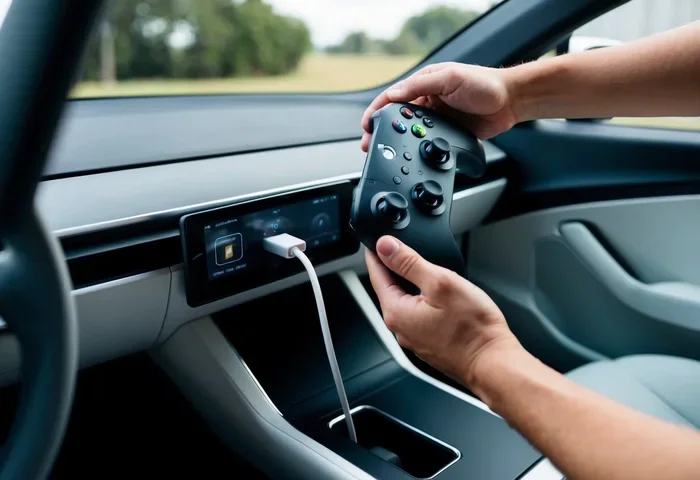
- Plug in your Xbox controller to one of the USB-C ports in the Tesla. The front center console has these ports.
- Wake up the Tesla screen if it is sleeping. Tap the screen or press the steering wheel scroll wheel.
- Go to the Games app on the Tesla home screen. It looks like a little game controller icon.
- Select your game and start playing. The Tesla should automatically detect the controller.
That is it. The wired connection takes less than 30 seconds. If the screen shows the controller icon, you are all set. This method works almost every single time.
Method 2: Wireless Bluetooth Connection
The wireless method gives you more freedom. No cables to deal with, and you can sit further back in the car. Here is the process.
- Press and hold the Xbox button on your controller to turn it on.
- Press the pairing button on top of the controller. The Xbox logo will start flashing.
- On the Tesla screen, go to Settings > Bluetooth & Devices.
- Select Add Device and choose Bluetooth.
- Look for your Xbox controller in the list of available devices. Tap on it to pair.
- Open the Games app and start playing.
The wireless method is slightly more involved, but it works well once paired. Keep in mind that the controller battery should be charged before you start. A low battery can cause connection drops.
Which Method Should You Choose?
Here is a quick comparison to help you decide.
| Feature | Wired (USB-C) | Wireless (Bluetooth) |
|---|---|---|
| Reliability | Very High | High |
| Setup Time | Under 30 seconds | 1-2 minutes |
| Cable Needed | Yes | No |
| Range | Cable length | Up to 30 feet |
| Best For | Quick gaming sessions | Longer, relaxed play |
For most people, the wired method is the go-to choice. It is fast and foolproof. But if you hate cables, the Bluetooth option works great too.
Best Games to Play on Tesla Model 3 with Xbox Controller
Not all games take full advantage of an Xbox controller. Here are the best titles that work smoothly on the Tesla gaming platform.
Racing Games
Racing games are the most popular choice for Tesla gaming. The analog sticks give you smooth steering control. Beach Buggy Racing 2 is a fan favorite. It is fun, colorful, and runs perfectly on the Tesla system.
Cuphead is another great option. It is a challenging run-and-gun game that feels amazing with a physical controller. The hand-drawn art style looks gorgeous on the Tesla screen.
Action and Adventure Games
Grand Theft Auto: San Andreas works well with an Xbox controller. The analog sticks make navigation much easier than using the touchscreen. DOOM is also a solid choice for action fans.
Casual and Puzzle Games
Not all games need intense controls. Solitaire and Chess are great for relaxed moments. These games work with both touch and controller input.
Pro tip: Before you buy or download a game, check the Tesla Arcade library. New games get added with software updates. You can also sideload compatible Android games onto your Tesla.
Tesla Model 3 Interior Tips for Gaming
Setting up a comfortable gaming environment inside your Tesla makes a big difference. Here are some practical tips.
Seat Position Matters
Make sure your seat is in a comfortable position before you start gaming. You want easy access to the center console and the USB ports. If you have passengers who want to play too, consider how the car seats are easy to take out for extra space. Some Tesla owners remove the front passenger seat for a wider gaming area.
Keep the Car Cool
Gaming can put extra load on your Tesla’s systems. The screen and processor generate heat. Keep your cabin cool by using the climate control before you start a long gaming session. This protects both your comfort and your car’s battery.
Use the Right Accessories
A controller stand or a small tablet holder can make gaming more comfortable. You do not need expensive gear. Even a simple phone mount can hold your controller at a good angle. Keep it simple and functional.
Common Problems and How to Fix Them
Even with a simple setup, you might run into issues now and then. Here are the most common problems and their solutions.
Controller Not Detected
If the Tesla does not recognize your Xbox controller, try these steps. First, unplug and replug the USB cable. If using Bluetooth, unpair and repair the device. A simple restart of the Tesla infotainment system often fixes this too. Go to Controls > Safety & Security > Restart Display.
Controller Drift or Lag
Analog stick drift can make games frustrating. This usually happens with older controllers. Try recalibrating the controller by holding the sync button for 10 seconds. If the lag persists, a firmware update for your Xbox controller may help. Connect it to a PC and use the Xbox Accessories app.
Games Crashing or Freezing
Some games may not run smoothly on the Tesla system. Close background apps to free up memory. Make sure your Tesla software is up to date. If a specific game keeps crashing, try clearing its cache or reinstalling it.
Bluetooth Pairing Issues
Bluetooth connections can be finicky. Make sure no other devices are interfering. Turn Bluetooth off and on again on both the controller and the Tesla. Moving the controller closer to the center console also helps. The Tesla Model 3 has a strong Bluetooth range, but walls and metal can weaken the signal.
Remember, most issues are quick to fix. Do not get discouraged if the first attempt does not work perfectly. A little patience goes a long way.
How This Fits Into the Bigger Tesla Picture
The Tesla Model 3 is more than just a car. It is a tech platform on wheels. From the moment you buy a 2 3 lakh car like the Model 3 in markets where it is available, you get access to a full suite of digital features. Gaming is just one piece of the puzzle.
The Tesla Model 3 sits in a unique price bracket. It is not a 3 crore car in India or a luxury sedan from Europe, yet it offers features that rival much more expensive vehicles. The gaming capability is a perfect example of this value proposition.
Tesla continues to add features through over-the-air updates. The gaming library grows with each update. New controller support, better graphics, and more game titles make the experience better over time. Your car literally gets better after you buy it.
The Tesla infotainment system runs on a custom version of Chrome OS. This means it can run many Android-compatible apps and games. The Xbox controller support is a natural extension of this open platform philosophy. Tesla designed the system to be flexible, and gaming is a big part of that vision.
Even the efficiency of the car plays a role. When you are not driving, the battery powers the screen and gaming system. Understanding your 1 litre petrol how many km in car equivalent in electric terms helps you plan longer gaming sessions without worrying about range. The Tesla Model 3 is incredibly efficient, so gaming has minimal impact on your driving range.
Expert Tips for the Best Gaming Experience
Here are some pro tips that will level up your Tesla gaming setup.
- Keep a dedicated USB-C cable in your car. Do not rely on finding one at a charging station. Having your own cable means you are always ready to game.
- Update your Xbox controller firmware regularly. This ensures the best compatibility with the Tesla system. Connect to a phone or PC once a month to check for updates.
- Use a controller stand. This prevents the controller from rolling around the car while you play. A small investment that makes a big difference.
- Download games before your trip. Do not rely on Wi-Fi at charging stations to download large games. Pre-load everything at home.
- Take turns. Gaming is more fun when everyone gets a chance. Set a timer so passengers can rotate fairly.
These small habits make a huge difference. They turn a casual gaming session into a smooth, enjoyable experience every single time.
Conclusion
Connecting an Xbox controller to Tesla Model 3 is one of the best upgrades you can make for long drives and charging stops. The process is simple, the setup takes minutes, and the entertainment value is enormous. Whether you choose the wired USB-C method or the wireless Bluetooth route, you will be gaming in no time.
Remember to keep your controller firmware updated, download games ahead of time, and experiment with different titles to find your favorites. The Tesla Model 3 gaming experience only gets better with each software update from Tesla.
So grab your controller, plug it in, and start playing. Your Tesla is ready to be the coolest gaming machine on the road. Happy gaming!
Frequently Asked Questions
Can I use any Xbox controller with the Tesla Model 3?
Yes, any Xbox One or Xbox Series X|S controller works with the Tesla Model 3. Both wireless and wired versions are supported. The Tesla recognizes them through USB or Bluetooth without needing extra apps.
Do I need to install any apps to use an Xbox controller on Tesla?
No, you do not need to install any additional apps. The Tesla infotainment system has built-in controller support. Simply connect your controller and the Games app will detect it automatically.
Can I connect multiple controllers to my Tesla at once?
Yes, you can pair multiple Xbox controllers via Bluetooth. This is great for multiplayer games with friends or family. Each player can use their own controller for a seamless gaming experience.
Does gaming on Tesla drain the battery quickly?
Gaming uses some battery power, but the drain is minimal compared to driving. If you are plugged in or at a charging station, gaming has almost no impact on your range. It is a great way to pass the time while waiting.
Can I use a PlayStation controller instead of an Xbox controller?
Yes, PlayStation controllers also work with the Tesla Model 3. The setup process is similar. You can connect via USB or Bluetooth, and the Tesla system supports most standard game controllers.
What should I do if my Xbox controller keeps disconnecting?
First, try restarting the Tesla display. If using Bluetooth, unpair and repair the controller. Make sure the controller battery is charged. If problems persist, check for Tesla software updates, as new updates often fix connectivity issues.