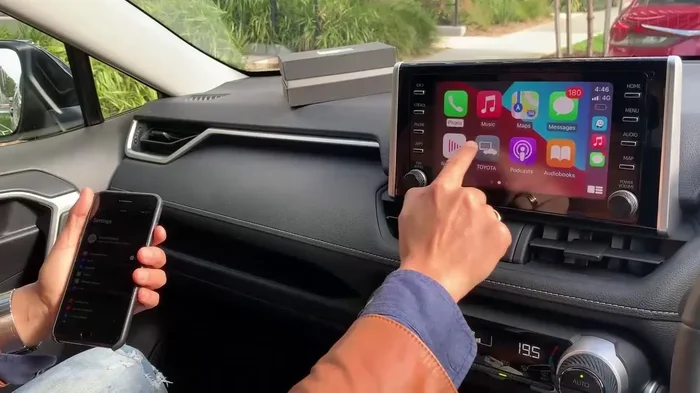
Do I Need a Special Cable for Apple CarPlay to Work
You do not always need a special cable for Apple CarPlay, but using the right cable makes a huge difference. An Apple-certified USB cable ensures fast, reliable connections every time. Wired and wireless CarPlay each have cable requirements, and choosing the wrong one can cause frustrating connection issues.
Apple CarPlay has become one of the most popular features for drivers who want to stay connected while on the road. It lets you access maps, music, messages, and calls through your car’s display. But one question keeps coming up: do you need a special cable for Apple CarPlay to work?
The short answer is no. You do not need a fancy, expensive cable to get CarPlay up and running. However, the cable you choose can make or break your experience. A good cable means smooth connections, fast data transfer, and reliable charging. A bad cable means frustration, disconnections, and wasted time.
In this guide, we will walk through everything you need to know about Apple CarPlay cables. We will cover wired and wireless options, what to look for, common mistakes, and how to fix connection problems. By the end, you will know exactly which cable to buy and why it matters.
Key Takeaways
- You can use a standard Lightning or USB-C cable for wired Apple CarPlay, but MFi certification matters.
- Wireless CarPlay does not need a cable at all but requires compatible car hardware.
- Cheap, uncertified cables are the most common cause of CarPlay connection problems.
- USB-C cables are becoming the new standard for newer iPhones and cars.
- Cable length and quality directly impact your CarPlay experience on the road.
- Troubleshooting CarPlay connection issues often starts with checking the cable you are using.
📑 Table of Contents
- What Is Apple CarPlay and How Does It Connect?
- Do You Need a Special Cable for Apple CarPlay?
- What Makes a Good Apple CarPlay Cable?
- Common Cable Mistakes That Break CarPlay
- How to Set Up Apple CarPlay with Your Cable
- What If Your CarPlay Cable Keeps Disconnecting?
- Do You Need to Buy an Expensive Cable?
- Future of CarPlay Cables: What to Expect
- Final Thoughts
What Is Apple CarPlay and How Does It Connect?
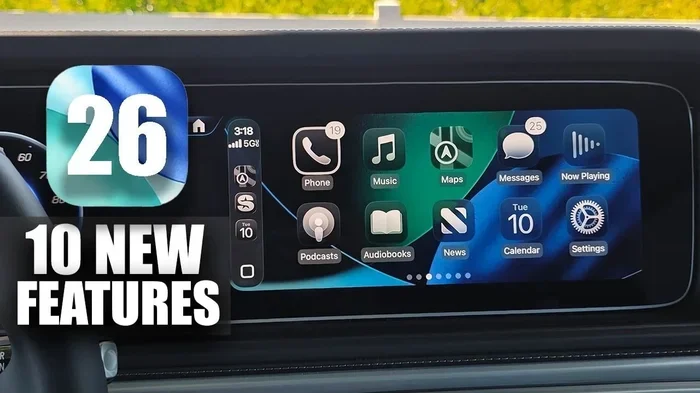
Apple CarPlay is a smart system that mirrors key iPhone features onto your car’s infotainment screen. You get access to navigation, music, phone calls, and messaging in a safe, driver-friendly interface. It works with most cars made after 2016, and support keeps growing every year.
There are two main ways CarPlay connects to your car. The first is wired CarPlay, which uses a physical cable plugged into your iPhone and your car’s USB port. The second is wireless CarPlay, which connects through Bluetooth and Wi-Fi without any cable at all. Both methods deliver the same great features, but the connection type changes what you need.
Wired vs. Wireless CarPlay
Wired CarPlay requires a cable. This is the most common setup and works with almost every car that supports CarPlay. You plug one end into your iPhone and the other into the car’s USB port. The connection is instant and reliable. Wired connections also tend to be faster for data transfer, which means smoother navigation and quicker app loading.
Wireless CarPlay does not need a cable. Instead, it uses your car’s built-in Wi-Fi and Bluetooth to connect to your iPhone. This is super convenient because you never have to fumble with cords. But wireless CarPlay depends on your car having compatible hardware. Not every car supports it out of the box. Some vehicles need a wireless CarPlay adapter added to the system.
Do You Need a Special Cable for Apple CarPlay?
Here is the truth. Apple CarPlay does not require a special or proprietary cable. You can use the same cable you charge your iPhone with in most cases. But not just any cable will do the job well. The key is choosing the right type and quality of cable.
For wired CarPlay, you need a Lightning cable if you have an older iPhone (iPhone 14 or earlier). If you have an iPhone 15 or newer, you need a USB-C cable. These are standard Apple connectors, not special CarPlay-only cables. But the cable must meet certain standards to work reliably with CarPlay.
Lightning Cables for CarPlay
If your iPhone uses a Lightning port, you will need a Lightning cable for wired CarPlay. Most people already have one lying around. But here is the catch. Not all Lightning cables are created equal. Apple-certified cables work best because they meet strict quality and safety standards.
A cheap, uncertified Lightning cable might work for charging. But it may struggle with the data transfer speeds CarPlay demands. You might experience lag, disconnections, or the system not recognizing your phone at all. This is why many experts recommend MFi-certified cables (Made for iPhone). These cables are tested and approved by Apple for reliable performance.
USB-C Cables for CarPlay
Apple made the switch to USB-C with the iPhone 15 lineup. If you have a newer iPhone, you will use a USB-C cable for wired CarPlay. USB-C cables offer faster data transfer and better power delivery. They also future-proof your setup since more cars are adopting USB-C ports.
Just like with Lightning cables, you want a high-quality USB-C cable for CarPlay. Look for cables that support USB 3.0 or higher for the best performance. A basic USB-C charging cable might work, but it may not deliver the speed and stability you need for a seamless CarPlay experience.
What Makes a Good Apple CarPlay Cable?
Not all cables are equal when it comes to CarPlay. A good CarPlay cable should meet a few key standards. Here is what to look for when shopping.
MFi Certification
MFi certification stands for Made for iPhone. It is Apple’s official licensing program for accessories. When you see the MFi logo on a cable, it means Apple has tested it and confirmed it works with iOS devices. This is the single most important factor when choosing a CarPlay cable.
MFi-certified cables ensure proper data transfer speeds, safe charging, and compatibility with CarPlay. They also reduce the risk of damage to your iPhone or your car’s USB port. Always look for this certification before buying a CarPlay cable.
Data Transfer Speed
CarPlay needs fast data transfer to stream maps, music, and notifications without lag. A cable that only supports charging will not cut it. You need a cable that supports data transfer at USB 2.0 speeds or higher.
USB 3.0 and USB 3.1 cables offer even faster speeds. These are ideal if you use data-heavy apps like Google Maps or Apple Music through CarPlay. The faster the data transfer, the smoother your CarPlay experience will be while driving.
Cable Length
Cable length matters more than people think. Most cars have USB ports located in the center console, under the dashboard, or near the gear shift. If your cable is too short, you may not be able to comfortably reach your phone mount or console port.
A 1-meter (3-foot) cable works well for most setups. If your USB port is harder to reach, consider a 2-meter cable. Just avoid going longer than 2 meters, as longer cables can weaken the data signal and cause connection issues.
Durability and Build Quality
Car cables take a beating. They get plugged and unplugged daily, tangled in bags, and exposed to heat and friction. A flimsy cable will wear out fast and start causing problems within months.
Look for cables with braided nylon sheathing or reinforced connectors. These designs last much longer than standard rubber-coated cables. Some premium CarPlay cables also feature angled connectors, which make it easier to plug in tight spaces behind the dashboard.
Common Cable Mistakes That Break CarPlay
Many people run into CarPlay problems and blame the system. But in most cases, the real culprit is the cable. Here are the most common mistakes to avoid.
Using a Charging-Only Cable
This is the number one mistake. Some cables are designed only for charging and do not support data transfer. If you plug one of these into your car’s USB port, CarPlay will not activate. The car will recognize the device for power only, not for data.
Always check the cable description before buying. It should clearly state that it supports data transfer or is compatible with CarPlay. If you are unsure, try the cable with your computer. If it transfers files, it will work with CarPlay.
Using Damaged or Worn Cables
A frayed or bent cable might still charge your phone. But it may fail at data transfer. Damaged connectors cause intermittent CarPlay connections. You might get the system working sometimes and not others.
Inspect your cable regularly. Look for fraying near the connectors, bent pins, or discoloration. If the cable shows any signs of wear, replace it. A new cable costs a few dollars and can save you hours of frustration.
Using Non-Apple or Uncertified Cables
Third-party cables from unknown brands are tempting because they are cheap. But many of these cables do not meet Apple’s standards for data transfer and safety. They may work sometimes and fail other times.
Stick with reputable brands like Anker, Belkin, or Cable Matters. Or simply buy an Apple-branded cable. The small extra cost is worth the reliability and peace of mind.
Ignoring USB Port Compatibility
Not all car USB ports are the same. Some ports are designed only for charging and do not support data. If you plug your CarPlay cable into a charge-only port, it will not work.
Check your car’s manual or look for a USB port labeled with a CarPlay or data icon. Many newer cars have dedicated USB ports for CarPlay and separate ones for charging. Using the right port makes all the difference.
How to Set Up Apple CarPlay with Your Cable
Setting up CarPlay with a cable is straightforward. Follow these steps and you will be running in minutes.
- Plug one end of your cable into your iPhone. Use the Lightning or USB-C port depending on your iPhone model.
- Plug the other end into your car’s USB port. Look for the port labeled for CarPlay or data transfer.
- Unlock your iPhone. A CarPlay prompt should appear on your phone screen. Tap “Allow” to connect.
- Wait for CarPlay to load on your car display. This usually takes a few seconds.
- Adjust your settings. Go to Settings > General > CarPlay on your iPhone to customize which apps appear and how they are arranged.
If CarPlay does not connect on the first try, do not panic. Try unplugging the cable and plugging it back in. Also, restart your iPhone and your car’s infotainment system. Most connection issues are resolved with these simple steps.
Quick Tips for a Smooth Setup
- Always use a clean, undamaged cable.
- Make sure your iPhone is running the latest iOS version.
- Restart both your iPhone and your car’s system if CarPlay does not connect.
- Avoid using cable adapters or extensions. Plug the cable directly into the port.
- If your car supports wireless CarPlay, set it as the default connection method in your iPhone settings.
For drivers who want an enhanced display experience, consider upgrading your car’s screen with a quality unit. A 7-inch touch screen for your car can greatly improve how you interact with CarPlay, giving you sharper visuals and smoother navigation. Pairing it with a reliable 7-inch music system for car ensures you get the best audio quality alongside your CarPlay connection.
What If Your CarPlay Cable Keeps Disconnecting?
Cable disconnections are one of the most common CarPlay complaints. You are driving, and suddenly the screen goes blank or the connection drops. This is incredibly frustrating, but it is usually fixable.
Check the Cable First
Before you try anything else, swap out the cable. A loose or damaged cable is the most likely cause of disconnections. Try a different MFi-certified cable and see if the problem goes away. This simple step solves the issue for most people.
Clean the USB Port
Dust, lint, and debris can build up in your car’s USB port over time. This prevents the cable from making a solid connection. Use a toothpick or compressed air to gently clean out the port. Be careful not to damage any internal pins.
Update Your Software
Sometimes the problem is software-related. Make sure your iPhone is running the latest version of iOS. Also, check if your car’s infotainment system has any available updates. Manufacturers regularly release patches that fix CarPlay compatibility issues.
Avoid Cable Strain
If your cable is stretched tight or pulled at an angle, the connection can weaken over time. Use a cable management clip or mount to keep the cable secure and relaxed. A well-routed cable lasts much longer than one that is constantly under tension.
For drivers dealing with visibility issues while using CarPlay at night or in bright sunlight, consider applying 3M anti-glare film for your car windshield. This simple upgrade reduces screen glare and makes it easier to view your CarPlay display safely while driving.
Do You Need to Buy an Expensive Cable?
Apple’s own Lightning and USB-C cables work perfectly with CarPlay. They are not cheap, but they are reliable. If you do not want to spend extra, the official Apple cable is a solid choice.
That said, there are many excellent third-party options at lower price points. Brands like Anker, Belkin, and Nomad offer MFi-certified cables that perform just as well as Apple’s own. You can often find these for half the price or less.
The key takeaway is this. You do not need to spend a lot of money on a CarPlay cable. But you should avoid the cheapest options. A $5 cable from an unknown brand is more likely to cause problems than a $15 cable from a trusted manufacturer.
Some drivers also wonder if they need a special cable for aftermarket CarPlay systems. If you have a retrofit CarPlay unit installed in an older car, the cable requirements are the same. You still need a standard Lightning or USB-C cable with data transfer support. The aftermarket unit does not change what cable you need.
Future of CarPlay Cables: What to Expect
Apple is always evolving CarPlay, and the cables are part of that evolution. With the shift from Lightning to USB-C on iPhones, the cable landscape is changing. USB-C offers faster speeds, better power delivery, and a more universal standard. More cars are adopting USB-C ports as a result.
Wireless CarPlay is also improving. Future updates may reduce the need for cables altogether. But for now, a good wired cable remains the most reliable way to use CarPlay. If you are buying a new cable today, a USB-C option is the smartest choice for long-term compatibility.
Some car enthusiasts also explore accessories like 3M double-sided tape for cars to secure their devices and cables neatly in the cabin, keeping the dashboard clean and the connection stable during drives.
Final Thoughts
So, do you need a special cable for Apple CarPlay? The answer is no. You need a standard Lightning or USB-C cable that supports data transfer and is MFi-certified. That is it. You do not need a proprietary Apple CarPlay cable or an expensive adapter.
What you do need is a good-quality cable. Invest in a certified, durable cable from a trusted brand. Avoid charge-only cables, damaged cords, and cheap knockoffs. These small decisions make a big difference in how smoothly CarPlay works every time you get behind the wheel.
Take a few minutes to check your current cable. Make sure it meets the standards we discussed. If it does not, replace it with a better one. Your CarPlay experience will improve immediately. A reliable cable means fewer disconnections, faster app loading, and a safer, more enjoyable drive every single time.
Frequently Asked Questions
Can I use any USB cable for Apple CarPlay?
Not all USB cables work with CarPlay. The cable must support data transfer, not just charging. Look for MFi certification (Made for iPhone) to ensure compatibility. Charge-only cables will not activate CarPlay on your car’s display.
Does wireless CarPlay need a cable at all?
No, wireless CarPlay does not need a cable. It connects through Bluetooth and Wi-Fi. However, your car must support wireless CarPlay hardware. If your car only supports wired CarPlay, you will need a cable even if the feature is wireless.
What is the best cable length for Apple CarPlay?
A 1-meter (about 3-foot) cable works best for most setups. It provides enough reach without weakening the data signal. Avoid cables longer than 2 meters, as they can cause connection drops and slower transfer speeds.
Why does my Apple CarPlay keep disconnecting?
The most common reason is a faulty or low-quality cable. Try replacing it with an MFi-certified cable. Also check for dust in the USB port, outdated software, or a cable that is under physical strain. These fixes resolve most disconnection issues.
Do I need a special cable for iPhone 15 CarPlay?
You need a USB-C cable for iPhone 15 and newer models. This is not a special CarPlay cable. Any high-quality USB-C cable that supports data transfer and is MFi-certified will work perfectly with CarPlay.
Are Apple CarPlay cables different from regular charging cables?
They look the same, but not all charging cables support the data transfer speeds CarPlay needs. Apple CarPlay cables must handle data transfer in addition to charging. Always check that the cable is rated for data, not just power delivery.
=== CONCLUSION ===
You do not need a special cable for Apple CarPlay, but you do need the right cable. A MFi-certified Lightning or USB-C cable with data transfer support is all it takes to get CarPlay running smoothly. Avoid charge-only cables, damaged cords, and uncertified brands. These small choices have a big impact on your daily driving experience.
Take the time to choose a quality cable, keep your software updated, and clean your USB ports regularly. These simple habits will keep your Apple CarPlay connection strong and reliable for years to come. A little attention to your cable today saves you from headaches on the road tomorrow.