How Do I Connect My iPhone to Apple CarPlay Wirelessly
Connecting your iPhone to Apple CarPlay wirelessly is easier than you think. This guide walks you through every step, from checking compatibility to fixing common connection problems. You will learn how to set up wireless CarPlay, troubleshoot issues, and get the best experience on every drive.
Have you ever hopped into your car and wished your iPhone could just connect to the screen without fumbling for a cable? That is exactly what Apple CarPlay wireless delivers. It lets you mirror your iPhone’s key features directly onto your car’s infotainment system without plugging anything in. You get navigation, music, messages, and Siri all at your fingertips through a clean, wireless connection.
Setting up wireless CarPlay might feel intimidating if you have never done it before. But the truth is, the process is straightforward once you know what to look for. Whether you are driving a new sedan or a slightly older model, this guide will walk you through everything you need. We will cover compatibility checks, step-by-step setup, troubleshooting tips, and ways to get the best experience every time you turn the key.
If you are tired of tangled cables and loose connections, you are in the right place. By the end of this article, you will know exactly how to get iPhone CarPlay setup running wirelessly in your vehicle. Let us dive in.
Key Takeaways
- Wireless CarPlay lets you ditch the cable and enjoy a cleaner dashboard with seamless iPhone mirroring.
- Both your iPhone and car must support wireless CarPlay for a connection to work without a USB cable.
- Setting up wireless CarPlay takes just a few minutes through your car’s infotainment screen or iPhone settings.
- Common issues like dropped connections can often be fixed with simple resets or software updates.
- Keeping your iPhone and car software updated ensures the smoothest wireless CarPlay experience.
- Wireless CarPlay offers more convenience than wired connections, though wired may be more reliable in some cases.
📑 Table of Contents
- What Is Apple CarPlay Wireless and Why Does It Matter?
- Before You Start: Check Your Compatibility
- Step-by-Step: How to Connect Your iPhone to Apple CarPlay Wirelessly
- Troubleshooting Common Apple CarPlay Wireless Issues
- Tips for Getting the Best Wireless CarPlay Experience
- Wireless vs. Wired CarPlay: Which Should You Choose?
- Final Thoughts
What Is Apple CarPlay Wireless and Why Does It Matter?
How Wireless CarPlay Works
Apple CarPlay is a system that projects a simplified version of your iPhone onto your car’s display. The wireless version uses Bluetooth and Wi-Fi to create a connection between your phone and your car’s infotainment system. No cables needed. No fumbling in the glove box. Just a seamless iPhone mirroring experience every time you get behind the wheel.
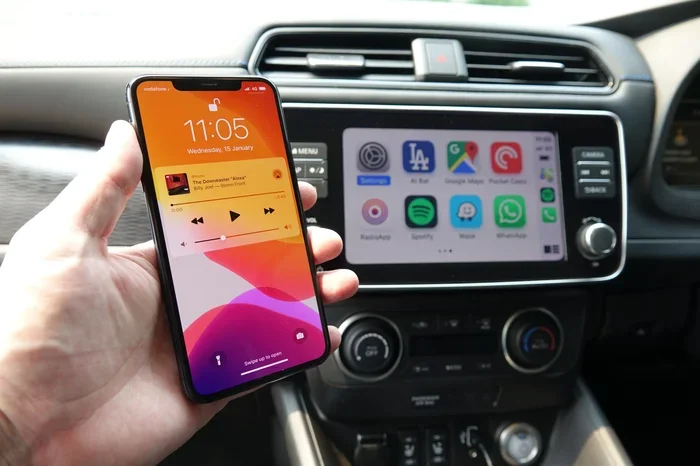
When you start your car, the connection happens automatically if both devices are compatible. Your CarPlay home screen appears on the dashboard, showing your apps, navigation, and controls. You can use Siri integration to make calls, send texts, and get directions all by voice. It is designed to keep your eyes on the road and your hands on the wheel.
The beauty of wireless streaming through CarPlay is that it feels almost magical. Your phone communicates with the car over the air, and everything just works. You get real-time CarPlay navigation, access to your favourite podcasts, and hands-free messaging. It is one of the most useful features modern cars offer.
Before You Start: Check Your Compatibility
Not every car and every iPhone support wireless Apple CarPlay. Before you try to set anything up, it is worth confirming that both your vehicle and your phone are compatible. This saves you time and frustration later on.
iPhone Requirements for Wireless CarPlay
To use iPhone connectivity with wireless CarPlay, you need an iPhone that supports the feature. Here is what you need:
- iPhone 5s or newer for basic CarPlay support
- iPhone XS or newer recommended for the best wireless experience
- iOS 13 or later installed on your device
- Wi-Fi and Bluetooth must be turned on
Make sure your iPhone is running the latest version of iOS. Software updates often include improvements to iOS CarPlay performance and stability. Go to Settings, then General, then Software Update to check.
Car Compatibility for Wireless CarPlay
Your car also needs to support wireless CarPlay. Many vehicles from 2019 onward come with this feature built in. However, some older models may only support wired CarPlay USB connection. Check your car’s manual or visit the manufacturer’s website to confirm. You can also look for the CarPlay logo on your car’s infotainment system.
If your car does not support wireless CarPlay natively, you may be able to add it with an aftermarket receiver. Brands like Pioneer, Kenwood, and Sony offer CarPlay compatible cars upgrade options that include wireless support.
Step-by-Step: How to Connect Your iPhone to Apple CarPlay Wirelessly
Now for the part you have been waiting for. Here is exactly how to get iPhone CarPlay setup running wirelessly. The process is slightly different depending on your car, but the general steps are the same.
Method One: Connect Through Your Car’s Infotainment System
Most cars let you initiate a CarPlay connection directly from the dashboard screen. Here is how to do it:
- Start your car and make sure the infotainment system is on
- Press the CarPlay button on your dashboard or steering wheel if your car has one
- If there is no dedicated button, go to the infotainment settings menu
- Select Smartphone Connection or Phone Pairing
- Choose Apple CarPlay
- Select the wireless option if prompted
- Your iPhone should now appear on the car’s screen
- Tap Connect on your iPhone when the prompt appears
Once connected, your CarPlay home screen will appear on the car display. You can now access navigation, music, and all your favourite CarPlay apps without touching a single cable.
Method Two: Connect Through iPhone Settings
You can also initiate the wireless CarPlay connection from your iPhone itself. This method works well if your car does not have a dedicated CarPlay button.
- Open Settings on your iPhone
- Tap General
- Select CarPlay
- Your car should appear in the list of available vehicles
- Tap on your car’s name
- Choose Set Up Wireless
- Follow the on-screen prompts to complete the pairing
After this initial setup, your iPhone should automatically connect to CarPlay whenever you get in your car. The iPhone projection happens seamlessly in the background. It is one of the most convenient features of the wireless experience.
Quick Tips for a Smooth First Connection
- Make sure your phone is unlocked during the initial pairing process
- Keep your iPhone within a few feet of the car’s infotainment system
- Restart both your iPhone and car if the connection does not appear immediately
- Ensure Bluetooth and Wi-Fi are enabled on your iPhone
Troubleshooting Common Apple CarPlay Wireless Issues
Even with the best setup, you might run into issues with your Apple CarPlay troubleshooting needs. Wireless connections can sometimes be finicky. Here are the most common problems and how to fix them.
CarPlay Won’t Connect Automatically
If your iPhone does not connect to CarPlay when you start the car, try these steps:
- Restart your iPhone by holding the power button and sliding to power off
- Turn off Bluetooth and Wi-Fi on your iPhone, then turn them back on
- Restart your car’s infotainment system
- Go to Settings on your iPhone, then General, then CarPlay, and remove the car. Re-pair it
Sometimes the connection just needs a fresh start. This happens more often after major iOS updates. Be patient and try the steps above before assuming something is broken.
Connection Drops Frequently During Driving
A wireless CarPlay connection that keeps dropping is frustrating. Here is what to check:
- Make sure your iPhone software is up to date
- Check that your car’s firmware is current (visit your dealer if needed)
- Move your iPhone to a stable location, like a dashboard mount
- Reduce the number of connected Bluetooth devices in your car
Interference from other wireless devices can weaken the connection. If you have multiple phones or tablets paired to the car, disconnect the ones you are not using. This frees up bandwidth and can stabilise your iPhone Bluetooth CarPlay link.
CarPlay Shows But Is Unresponsive
If the screen appears but tapping does nothing, try this:
- Disconnect CarPlay and reconnect it
- Restart your iPhone
- Check that your car’s infotainment system has enough storage
- Delete and re-add CarPlay from your iPhone settings
Unresponsiveness is usually a temporary glitch. A simple reset of the connection almost always fixes it.
Tips for Getting the Best Wireless CarPlay Experience
Once you have wireless CarPlay working, a few simple habits can make the experience even better. These tips help you get the most out of every drive.
Keep Your iPhone and Car Software Updated
Apple regularly releases updates that improve iPhone connectivity and CarPlay performance. Similarly, car manufacturers push firmware updates for their infotainment systems. Check for updates on both devices regularly. An outdated system is the number one cause of connection problems.
Optimize Your Driving Environment
Where you place your iPhone matters. A dashboard mount keeps the phone stable and close to the car’s systems. This strengthens the wireless signal and reduces the chance of dropped connections. Avoid placing your phone in the glove box or under a seat during CarPlay use.
Also, consider how your driving position affects comfort. If you spend long hours on the road, proper seating makes a big difference. You might want to check whether your car seat is easy to adjust to find the perfect driving position for using CarPlay safely.
Use Siri for Hands-Free Operation
Siri integration is one of the biggest advantages of CarPlay. You can ask Siri to make calls, send messages, find restaurants, and start navigation without touching your phone. Just say “Hey Siri” and speak your request. It keeps your eyes on the road and your hands on the wheel.
Manage Your CarPlay Apps Wisely
Not all apps work perfectly with CarPlay. Stick to apps that are designed for the CarPlay interface. Apple Maps, Google Maps, Spotify, Podcasts, and WhatsApp are all excellent choices. Too many apps on your CarPlay home screen can slow things down and make the interface cluttered.
Wireless vs. Wired CarPlay: Which Should You Choose?
Both wireless and wired CarPlay connection options have their strengths. Here is a quick comparison to help you decide which is right for you.
| Feature | Wireless CarPlay | Wired CarPlay |
|---|---|---|
| Connection Method | Bluetooth and Wi-Fi | USB cable |
| Setup Convenience | Automatic once paired | Plug in cable every time |
| Reliability | Good, occasional drops | Very stable |
| Dashboard Cleanliness | No cables visible | Cable in the way |
| Speed | Slightly slower response | Faster data transfer |
| Compatibility | Newer cars and iPhones | Wider range of vehicles |
For most people, wireless CarPlay is the better choice. The convenience of not dealing with cables is a game-changer. You get in the car, and everything is already connected. However, if you have an older car that only supports wired connections, a USB cable still delivers a great experience.
If you are curious about how your driving habits affect fuel consumption, you might enjoy our guide on how far you can go on 1 litre of petrol. Efficient driving complements the smart technology of CarPlay.
For hybrid vehicle owners, understanding when your car switches between power sources can also enhance your overall driving experience. Learn more about when a hybrid switches from electric to gas to get the most out of every trip.
Final Thoughts
Connecting your iPhone to Apple CarPlay wirelessly transforms the way you interact with your car. It is convenient, clean, and incredibly useful for daily driving. Once you set it up, you will wonder how you ever drove without it.
The process is simpler than most people think. Check compatibility, follow the setup steps, and enjoy a cable-free driving experience. If you run into issues, the troubleshooting tips in this guide should help you get back on track quickly.
Take a few minutes today to set up wireless CarPlay in your vehicle. Your future self will thank you every time you get behind the wheel. A seamless iPhone CarPlay connection is one of those small upgrades that makes a big difference in your daily routine.