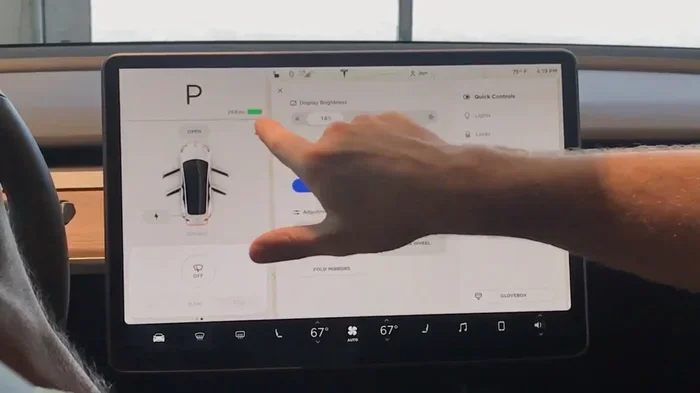
How to Change Work Address in Tesla Account Settings
Changing your work address in Tesla account settings is simple and takes just a few minutes. Whether you switched jobs, started working from home, or relocated, updating your work location ensures your Tesla navigation, charging preferences, and energy estimates stay accurate. This guide walks you through every method, troubleshooting tip, and pro advice you need.
Key Takeaways
- Easy Access: You can update your work address directly through the Tesla mobile app or the web portal in under five minutes.
- Multiple Methods: Both the Tesla app and the desktop web portal let you change your work location with just a few taps or clicks.
- Real Impact: Your work address affects navigation routing, charging station suggestions, and energy range estimates on your Tesla.
- No Vehicle Required: You do not need to be inside your car to make the change.
- Troubleshooting Available: If the update fails, simple fixes like clearing cache or updating the app usually resolve the issue.
- Privacy Matters: Tesla lets you manage and remove saved locations, giving you control over your personal data.
📑 Table of Contents
Understanding Your Tesla Account Profile
Your Tesla account is more than just a login. It stores your personal details, vehicle preferences, charging history, and location data. Think of it as the digital brain behind your Tesla experience. When you first set up your account, you likely entered a home address and a work address. These two locations shape how your car behaves every day.
Your work address in particular plays a big role. It tells your Tesla where you go during the week. This affects your navigation routes, your charging schedule, and even your estimated remaining range. So when your work life changes, your Tesla should change too.
Many Tesla owners do not realize how easy it is to update this information. You do not need a service appointment. You do not need to visit a showroom. A few simple steps are all it takes. Let us walk through exactly how to change work address in Tesla account settings.
What Information Does Your Tesla Profile Store?
Your Tesla profile holds more than just addresses. It includes your name, email, phone number, payment methods, and vehicle details. It also stores your favorite locations and recent destinations. Here is a quick look at what lives inside your profile:
- Home Address: Used for daily commute planning and home charging schedules.
- Work Address: Guides navigation and suggests nearby Superchargers on your route.
- Payment Methods: Saved credit cards and payment options for Supercharging and purchases.
- Vehicle Details: Model info, firmware version, and current battery health data.
- Saved Locations: Favorites, recent destinations, and custom waypoints.
Understanding what is stored helps you see why keeping your work address current matters. An outdated work location can lead to wrong charging suggestions and longer commute routes. That is wasted time and energy.
How to Change Work Address in Tesla Account Settings
There are two main ways to update your work address. You can use the Tesla mobile app on your phone, or you can use the Tesla web portal on a computer. Both methods are straightforward. Let us cover each one in detail.
Method 1: Using the Tesla Mobile App
The Tesla app is the fastest way to make changes on the go. Most Tesla owners already have it installed on their phone. Here is exactly what to do:
- Open the Tesla app on your smartphone.
- Tap the Profile icon in the top left corner.
- Select Account from the menu.
- Tap on Profile & Settings.
- Look for the Work Address field.
- Tap the field and type in your new work address.
- Tap Save to confirm the change.
That is it. The update syncs to your vehicle within a few minutes. Your Tesla will now use the new address for navigation and energy planning.
Quick Tip: If you cannot find the work address field, make sure your app is updated to the latest version. Older app versions sometimes hide certain settings under different menus. Updating the app solves this problem in most cases.
Method 2: Using the Tesla Web Portal
If you prefer working on a larger screen, the web portal is your best bet. It offers the same functionality as the app but with a bigger interface. Here are the steps:
- Go to tesla.com in your web browser.
- Log in to your Tesla account.
- Click on Profile in the top navigation bar.
- Select Account Settings.
- Find the Work Address section.
- Enter your new work address in the provided field.
- Click Save Changes.
The web portal is especially helpful if you are managing multiple vehicles or accounts. You can switch between vehicles and update each one’s settings from a single dashboard.
What If You Want to Remove Your Work Address Entirely?
Some Tesla owners prefer not to save a work address at all. Maybe you work from home now, or your schedule is unpredictable. Tesla allows you to clear your work address completely. Simply follow the same steps above and delete the existing address. Leave the field blank and save. Your Tesla will stop using a work location for route planning.
This is similar to how you might manage other personal data. Just as you might check if you can change my odometer reading for accuracy purposes, you can also fine-tune what location data your Tesla stores.
What Happens After You Update Your Work Address
Once you save your new work address, several things happen behind the scenes. Your Tesla recalculates routes, updates charging suggestions, and adjusts energy estimates. Let us break down what changes and when.
Navigation and Route Planning
Your Tesla uses your work address to plan your daily commute. When you pull up navigation, the car suggests the most efficient route to your workplace. After you update the address, the new route appears the next time you start navigation. If your new workplace is farther away, your Tesla may suggest different charging stops along the way.
For example, if your old work address was 10 miles away and your new one is 30 miles away, your Tesla will adjust the charging plan accordingly. It might recommend a Supercharger stop that it did not suggest before.
Charging Schedule and Energy Management
Your charging schedule is closely tied to your location data. Tesla uses your work address to estimate how much energy you need for the round trip. After updating your work address, check your energy graph in the app. It should reflect the new commute distance within a day or two.
If you have a home charger, your Tesla may also adjust the charging start time. It tries to make sure your battery is full and ready when you leave for work. A longer commute means more energy needed, so the car might start charging earlier or at a higher rate.
Supercharger Suggestions
Tesla’s navigation system suggests Superchargers based on your route. When your work address changes, the suggested Superchargers may also change. This is especially noticeable for longer commutes. Your Tesla picks chargers that are closest to your new route, saving you time and detours.
Common Issues When Changing Work Address
Most people update their work address without any problems. But sometimes things go wrong. Here are the most common issues and how to fix them.
The App Will Not Let You Save the New Address
This is the most frequent complaint. You type in the new address, tap save, and nothing happens. Here is what to try:
- Check your internet connection. A weak Wi-Fi or cellular signal can prevent the save from going through.
- Restart the Tesla app. Close the app completely and reopen it. Sometimes a fresh start clears temporary glitches.
- Update the app. Visit the App Store or Google Play and check for updates. Running an outdated version causes many problems.
- Clear the app cache. On Android, go to Settings > Apps > Tesla > Storage > Clear Cache. This removes temporary data that might be causing conflicts.
The Vehicle Does Not Reflect the New Address
You updated the address on the app or web portal, but your car still shows the old one. This usually happens because the vehicle has not synced yet. Try these steps:
- Open the Tesla app and pull down on the screen to force a sync.
- Turn the car off and back on again.
- Check for a software update in the vehicle settings. Sometimes the sync only works after a firmware refresh.
The New Address Shows Up Incorrectly on the Map
Sometimes Tesla misreads the address you typed. The pin lands on the wrong street or the wrong city. To fix this:
- Delete the address and retype it carefully.
- Use the map picker instead of typing. Tap the map, find the exact location, and save it.
- Make sure you include the full address, including apartment or suite numbers if applicable.
Common Mistakes to Avoid: Do not use abbreviations that Tesla might not recognize. For example, type “Street” instead of “St” if the app struggles. Also, double-check the zip code. A wrong zip code can place your work address in a completely different area.
Pro Tips for Managing Tesla Account Settings
Once you know how to change your work address, you can take your Tesla account management to the next level. Here are some expert tips that help you get the most out of your profile.
Set Up Multiple Addresses
Tesla does not officially support multiple work addresses. But you can use the favorites feature as a workaround. Save your alternative workplace as a favorite location. Then, when you need to go there, simply select it from your favorites instead of relying on the work address field.
Keep Your Profile Updated Regularly
Life changes. Jobs change. Cities change. Make it a habit to review your Tesla profile every few months. Just like you would check if car seats are easy to take out when switching vehicles, regularly reviewing your account settings keeps everything running smoothly.
Use the Web Portal for Bulk Changes
If you manage a fleet of Teslas or share an account with family members, the web portal is your best tool. You can make multiple changes at once without touching each phone. This saves a lot of time for households with more than one Tesla vehicle.
Review Your Privacy Settings
Tesla collects location data to improve its services. You can control what is shared. Go to your account settings and review the privacy options. You can limit location tracking, delete saved locations, and control what data Tesla stores about your driving habits.
Expert Insight: Tesla CEO Elon Musk has mentioned in interviews that the company continuously improves account management features. New updates often bring more control over personal data and location settings. Keeping your app updated ensures you always have the latest privacy and management tools.
Why Keeping Your Work Address Accurate Matters
You might wonder why this small detail matters so much. The truth is, your work address touches almost every aspect of your daily Tesla experience. Let us look at the big picture.
First, accurate location data improves your range estimates. Tesla calculates how much charge you need based on your daily driving pattern. If your work address is wrong, the estimate could be too optimistic or too conservative. Either way, it creates unnecessary stress or wasted planning time.
Second, correct location data improves Supercharger recommendations. Tesla wants to route you through chargers that make sense for your trip. An outdated work address could send you on a detour to a charger that is no longer on your route.
Third, keeping your profile current helps with service and maintenance reminders. Tesla uses your driving patterns to schedule service alerts. Accurate location and usage data lead to better, more timely reminders.
Think of your Tesla account like a digital assistant. The more accurate the information you feed it, the better it serves you. A simple address update can make a real difference in your daily driving experience.
Final Thoughts
Changing your work address in Tesla account settings is one of those small tasks that makes a big difference. It takes less than five minutes and requires no technical skills. Whether you use the mobile app or the web portal, the process is straightforward and user-friendly.
Your Tesla is a smart vehicle that relies on accurate data to deliver the best experience. Keeping your work address current ensures your navigation, charging, and energy planning all work as they should. It is one of the simplest ways to get more out of your Tesla every single day.
So take a moment today. Open the app, check your work address, and update it if needed. Your future self will thank you when your Tesla routes you perfectly to your new workplace every morning. And remember, if you ever run into trouble, the troubleshooting steps in this guide have you covered.
For more tips on managing your Tesla and understanding your vehicle’s capabilities, explore our other articles on car settings and vehicle features. Stay informed, stay charged, and enjoy the ride.
Frequently Asked Questions
Can I change my work address in Tesla from the car’s touchscreen?
Yes, you can. Go to the Controls menu on your touchscreen, select Settings, and look for Profile. From there, you can edit your work address directly on the car. The change syncs to your account and the mobile app automatically.
How long does it take for the new work address to sync to my Tesla vehicle?
Usually, the sync happens within a few minutes. If it takes longer, try pulling down on the Tesla app screen to force a refresh. You can also restart the vehicle or check for a software update to speed up the process.
Will changing my work address affect my Supercharging plan or credits?
No, changing your work address does not affect your Supercharging plan or credits. Your charging plan is tied to your account, not your location data. However, the suggested Superchargers on your route may change based on the new address.
Can I set a different work address for each day of the week?
Tesla does not currently support multiple or rotating work addresses natively. As a workaround, you can save alternative locations as favorites and select them manually when navigating to a different workplace.
Is my work address visible to other Tesla account users?
Only if you share your Tesla account with someone else. Tesla keeps your profile data private to your account. You can review and manage privacy settings in your account to control what data is stored and shared.
What should I do if my Tesla app keeps showing the old work address after I update it?
First, make sure you saved the changes successfully. Then, try logging out and back into the app. If the issue persists, uninstall and reinstall the app. As a last resort, contact Tesla support through the in-car Help menu or the Tesla website.
=== CONCLUSION ===
Updating your work address in Tesla account settings is a quick, easy, and important task. It keeps your navigation accurate, your charging suggestions relevant, and your daily driving experience smooth. Whether you use the mobile app or the web portal, the steps are simple and take just a few minutes. Make it a regular part of your routine whenever your work life changes, and your Tesla will always be ready to guide you exactly where you need to go.