How Do I Fix My System Time And Keep It Always Accurate
Fixing your system time is one of the simplest yet most important maintenance tasks every computer user should know. Whether your clock resets after a shutdown or drifts hours off, this guide covers every solution for Windows, Mac, and Linux. You will learn the root causes, step-by-step fixes, and daily habits that keep your system time accurate for good.
There is nothing more frustrating than looking at your computer and realizing the clock is completely wrong. Maybe it says last year. Maybe it is off by hours. Either way, a system time that does not match reality can cause real problems. Wrong timestamps on files, missed appointments, and login errors can all stem from a simple clock issue.
The good news is that fixing your system time is one of the easiest technical tasks you will ever do. You do not need to be a tech expert. Whether you are running Windows, Mac, or Linux, the steps are straightforward and take just a few minutes. In this guide, we will walk you through every method to fix your system time and keep it accurate going forward. We will cover the most common causes, the best solutions for each operating system, and simple habits that prevent the problem from coming back.
Let us start with the basics. Your computer has two clocks working at the same time. One is the software clock, which runs while your operating system is powered on. The other is the hardware clock, also called the RTC (Real Time Clock), which keeps ticking even when your PC is unplugged or turned off. When these two clocks fall out of sync, or when the hardware clock loses power, your system time goes wrong. Understanding this difference is the first step to a permanent fix.
Key Takeaways
- CMOS Battery Is the #1 Culprit: A dead coin-cell battery is the most common reason your system time resets after shutdown.
- Automatic Sync Solves Most Issues: Turning on time synchronization with an NTP server fixes clock drift in seconds.
- Wrong Time Zone Causes Confusion: An incorrect time zone setting makes your clock show the wrong time even when it is technically correct.
- Dual Boot Systems Need Extra Care: Running Windows and Linux on the same machine can cause recurring time conflicts.
- Replace the Battery Every Few Years: A fresh CMOS battery prevents future time problems before they start.
- Manual Adjustment Works in a Pinch: You can always set the time by hand, but automatic sync is far more reliable.
📑 Table of Contents
Why Does My System Time Go Wrong?
Before you jump to the fix, it helps to understand why your system time gets messed up in the first place. Several common issues can cause your computer clock to drift or reset unexpectedly. Let us look at each one so you can identify the root cause.
The CMOS Battery Is Dying
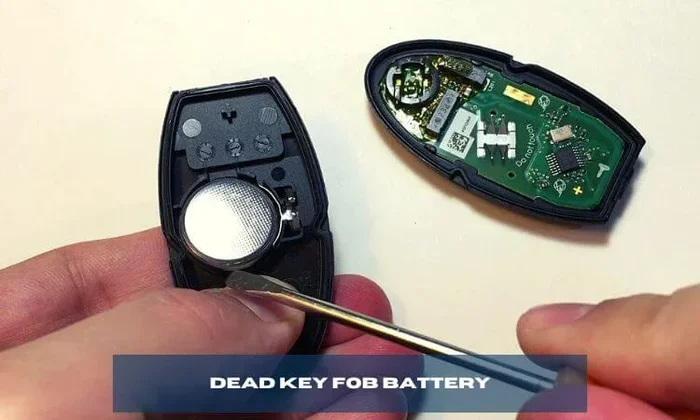
Your motherboard has a small coin-cell battery, usually called a CR2032. This battery powers the hardware clock when your computer is unplugged or turned off. When this battery starts to die, your BIOS time resets every time you shut down. This is the single most common reason people ask, “Why does my system time keep resetting?”
If your computer is more than three to five years old, the battery may need replacement. You can usually buy a replacement for just a few dollars at any electronics store. We will cover how to replace it later in this guide. But first, let us rule out software-related causes.
Time Zone Settings Are Wrong
Sometimes your system time is actually correct, but the time zone is set incorrectly. This makes it look like your clock is wrong when it really is not. This often happens after a Windows update or when you move to a new region.
For example, if you live in New York but your computer thinks you are in Los Angeles, your clock will show a three-hour difference. Checking your time zone settings is always the first step when your clock seems off. It is a quick fix that many people overlook.
Daylight Saving Time Confusion
Daylight saving time can also throw your clock off. Some operating systems do not update their DST rules automatically. This means your computer might switch an hour early or late. In rare cases, your system may not adjust for DST at all.
Making sure your operating system is fully updated usually solves this problem. Updates often include the latest DST rule changes from your country or region. Always install system updates when they become available to stay current.
Dual Boot Time Conflicts
If you run more than one operating system on the same computer, you may run into a dual boot time conflict. Windows assumes the hardware clock is set to local time, while Linux assumes it is set to UTC. This mismatch causes one system to show the wrong time every time you switch between them.
This is a very common issue for people who dual boot Windows and Linux. The good news is that it is fixable with a simple configuration change. We will cover the exact steps for Linux users in a dedicated section below.
How to Fix System Time on Windows
Windows makes it relatively easy to adjust your system time. You can fix the clock manually or set it to sync automatically. Let us walk through both methods step by step.
Adjust the Clock Manually
To set the time by hand on Windows 10 or 11, follow these simple steps:
- Right-click on the clock in your taskbar.
- Select “Adjust date/time” from the menu.
- Turn off “Set time automatically” if it is on.
- Click the “Change” button next to the time.
- Enter the correct time and date.
- Click “Change” to save your new settings.
This method works well for a quick fix. However, if your computer clock keeps drifting, manual adjustment is only a temporary solution. You will need to address the root cause, such as a dead CMOS battery or a sync issue. Think of manual adjustment as a bandage, not a cure.
Turn On Automatic Time Sync
The best way to keep your system time accurate is to let Windows sync with an online time server. Here is how to set it up:
- Go to Settings > Time & Language > Date & Time.
- Turn on “Set time automatically.”
- Make sure your time zone settings are correct.
- Click “Sync now” under the “Sync your clock” section.
Windows uses an NTP (Network Time Protocol) server to stay in sync with atomic clocks around the world. This is the most reliable way to ensure your system time is always correct. Once you turn this on, your computer will check the time server regularly and make small adjustments as needed. It is hands-off and works in the background without any effort from you.
Restart the Windows Time Service
If automatic sync is not working, the Windows Time service might be stopped or stuck. You can restart it through the Services app:
- Press Windows Key + R to open the Run dialog.
- Type “services.msc” and press Enter.
- Scroll down to “Windows Time” in the list.
- Right-click and select “Restart.”
- If the service is stopped, click “Start” instead.
This often fixes cases where your system time will not sync no matter what you try. The Windows Time service runs in the background and handles all time synchronization tasks. A quick restart of this service resolves many stubborn clock issues.
How to Fix System Time on Mac
Mac computers also handle system time synchronization very well. Apple uses its own time sync service, and the process is simple and user-friendly. Here is how to get your Mac clock back on track.
Set the Time Manually
If your Mac clock is wrong, you can adjust it quickly:
- Open System Settings (or System Preferences on older macOS versions).
- Click on “General” and then “Date & Time.”
- Turn off “Set date and time automatically.”
- Click the clock and enter the correct time.
- Turn automatic sync back on when you are done.
Remember to turn automatic sync back on after making your manual change. Leaving it off will cause your clock to drift again over time.
Enable Automatic Time Zone Detection
One of the best features on Mac is automatic time zone detection. Your Mac uses your location to set the correct time zone automatically. To make sure this is on:
- Go to System Settings > General > Date & Time.
- Turn on “Set time zone automatically using your current location.”
This feature uses your Wi-Fi network and location data to determine where you are. It is incredibly accurate and eliminates the need to manually adjust time zone settings every time you travel. Whether you are in Tokyo or Toronto, your Mac will set the right time automatically.
How to Fix System Time on Linux
Linux users have several options for managing system time through the terminal. The most common and powerful approach is using the timedatectl command. Do not worry if the terminal looks intimidating. The commands are simple and easy to copy.
Check Your Current Time
Open your terminal and type the following command:
timedatectl status
This command shows you your current system time, time zone, and whether NTP synchronization is active. If NTP is inactive, your clock will drift over time. This command gives you a quick snapshot of everything you need to know about your time settings.
Enable NTP Synchronization
To turn on automatic time sync on Linux, run this command:
sudo timedatectl set-ntp true
This tells your system to sync with an NTP server automatically. Most modern Linux distributions use systemd-timesyncd as the default sync service. It connects to pool.ntp.org by default, which is a reliable global time server network. Your system time will stay accurate as long as you have an internet connection.
Fix Dual Boot Issues on Linux
If you dual boot Linux with Windows, you can tell Linux to treat the hardware clock as local time instead of UTC. Run this command:
sudo timedatectl set-local-rtc 1 --adjust-system-clock
This simple change prevents the dual boot time conflict we discussed earlier. Your Linux and Windows clocks will now agree with each other every time you switch between them. It is a one-time fix that saves a lot of headaches for dual boot users.
How to Keep Your System Time Always Accurate
Fixing your system time once is great. But the real goal is to prevent the problem from coming back. Here are the best practices to keep your computer clock accurate long-term.
Replace the CMOS Battery Regularly
A CR2032 battery typically lasts three to five years. If your computer is older than that, consider replacing the battery proactively. It is a cheap and easy fix that prevents many system time headaches. You can find these batteries at any drugstore or online for less than five dollars.
Signs that your CMOS battery is dying include:
- Your computer clock resets after every shutdown.
- You get a “CMOS checksum error” message on startup.
- Your BIOS settings keep changing on their own.
- Your hardware clock shows a date from years ago after a reboot.
If you notice any of these signs, replace the battery right away. It takes about five minutes and requires no technical expertise.
Keep Your Operating System Updated
Operating system updates often include fixes for time synchronization bugs and updated DST rules. Running an outdated version of Windows, macOS, or Linux can lead to clock drift and incorrect time zone handling. Turn on automatic updates whenever possible so you always have the latest time-related patches.
Use a Reliable Internet Connection
Automatic time sync requires an internet connection. If your computer rarely goes online, it cannot reach the NTP server to check the time. For desktop computers that stay connected, this is not an issue. But if you use a laptop offline for long periods, your system time may drift. Try to connect to the internet at least once a week to allow your computer to sync.
Check Your Time Zone After Major Updates
Major operating system updates sometimes reset your time zone settings. After updating Windows or macOS, take a moment to verify that your clock and time zone are still correct. This simple habit can save you from confusing time mismatches that affect your daily schedule and file timestamps.
Use Third-Party Tools for Advanced Users
If you need more control over time synchronization, several third-party tools can help. Applications like Dimension 4 or NetTime for Windows offer advanced time synchronization features. These tools let you choose specific NTP servers, set custom sync intervals, and get alerts when your clock drifts beyond a set threshold.
For most users, the built-in sync tools are more than enough. But power users and IT professionals may appreciate the extra control these tools provide. They are especially useful in enterprise environments where precise timekeeping matters.
When Should You Replace the CMOS Battery?
Knowing when to replace your CMOS battery can save you a lot of troubleshooting. Here are the clear signs it is time for a new one:
- Your system clock resets every time you turn off the computer.
- Your computer shows the wrong date and time after a restart.
- You see a CMOS or battery warning during startup.
- Your BIOS settings keep reverting to defaults.
- Your computer is more than four years old and has never had the battery replaced.
Replacing a CMOS battery is simple. You just open your computer case, locate the round battery on the motherboard, and swap it out. It takes about five minutes. If you are not comfortable opening your PC, a local repair shop can do it for a small fee.
Remember that a new battery will not fix software-level time synchronization issues. It only addresses hardware clock problems. If your system time is wrong while the computer is running, the issue is likely software-related, not battery-related. Always check software settings first before opening your computer case.
Common Mistakes People Make When Fixing System Time
Even with the best intentions, people often make mistakes when trying to fix their system time. Here are the most common ones to avoid so you do not waste time going in circles.
Ignoring the Time Zone
Many people adjust the clock without checking the time zone. If your time zone is wrong, you are just moving the problem around. Always verify your time zone settings first before making any manual changes to the clock. It takes five seconds and saves a lot of frustration.
Forgetting to Turn Sync Back On
Some users turn off automatic sync to make a manual adjustment and then forget to turn it back on. This leads to the clock drifting again within days. Always re-enable automatic sync after making any manual changes. Set a reminder if you need to.
Assuming the Problem Is Software
Not every wrong computer time issue is caused by software. A dying CMOS battery is a hardware problem that no software fix can solve permanently. If your clock resets every time you power off the machine, the battery is almost certainly the cause. Do not waste time tweaking software settings when the real fix is a five-dollar battery.
Not Checking for Malware
In rare cases, malware can alter your system clock to interfere with security certificates or software licenses. If you have tried everything else and your system time keeps changing on its own, run a full antivirus scan to rule out malicious software. This is uncommon but worth checking if nothing else works.
Final Thoughts
Fixing your system time does not have to be complicated. Whether the issue is a dead CMOS battery, wrong time zone settings, or a sync problem, the solutions are straightforward and usually take only a few minutes. The key is to identify the root cause and apply the right fix for your situation.
For most users, turning on automatic time synchronization is all you need to do. It keeps your computer clock accurate without any effort on your part. Combine this with a fresh CMOS battery every few years, and you will never have to worry about wrong time again. It is one of those small maintenance tasks that makes a huge difference in your daily computing experience.
Take a few minutes today to check your system time settings. Make sure sync is on, your time zone is correct, and your battery is healthy. These small steps will save you from headaches down the road. Your future self will thank you the next time your clock is right on the money and your files have accurate timestamps.
Frequently Asked Questions
Why does my computer clock keep resetting after every shutdown?
The most likely cause is a dying CMOS battery on your motherboard. This small coin-cell battery powers the hardware clock when your PC is off. When it weakens, the clock loses its charge and resets. Replacing the battery is inexpensive and usually solves the problem completely.
How often should I replace my CMOS battery?
Most CMOS batteries last between three and five years. If your computer is older than that and you have never replaced the battery, it is a good idea to do so proactively. Signs like a resetting clock or BIOS errors are clear indicators that replacement time has come.
What is NTP and how does it keep my time accurate?
NTP stands for Network Time Protocol. It is a system that connects your computer to time servers around the world via the internet. These servers sync with atomic clocks to provide extremely precise time. When NTP is enabled, your computer checks and adjusts its clock automatically.
Why is my system time wrong after switching between Windows and Linux?
This is a common dual boot issue. Windows reads the hardware clock as local time, while Linux reads it as UTC. This mismatch causes one operating system to show the wrong time when you switch. You can fix it by configuring Linux to treat the hardware clock as local time.
Can malware change my system time?
Yes, though it is rare. Some malware alters the system clock to bypass security certificates or interfere with software license checks. If your clock keeps changing unexpectedly, run a full antivirus and anti-malware scan to rule out this possibility.
Does an incorrect system time affect my computer’s performance?
It does not slow down your computer directly, but it can cause many indirect problems. Wrong timestamps on files, failed software activations, expired security certificates, and login errors can all result from an inaccurate clock. Keeping your time correct helps your system run smoothly.