How Do I Get Bluetooth to Recognize My Device Quickly
Getting Bluetooth to recognize your device doesn’t have to be frustrating. This guide walks you through simple, proven steps to fix pairing problems and enjoy seamless wireless connection in your car. Whether you own a hybrid, a petrol sedan, or a modern SUV, these tips will help you restore Bluetooth connectivity fast.
You’re getting into your car, ready to hit the road. You reach for your phone, hoping to stream your favorite playlist or take a hands-free call. But when you try to connect, nothing happens. Your Bluetooth device won’t recognize your car, and your car won’t recognize your device. It’s frustrating, right? You’re not alone.
Bluetooth connectivity problems are one of the most common issues car owners face today. Whether you drive a modern hybrid or a classic petrol model, Bluetooth recognition failures can happen for a variety of reasons. The good news is that most of these problems have simple fixes. In this guide, we’ll walk you through every step to get your wireless connection working again.
We’ve helped thousands of drivers solve their Bluetooth pairing issues quickly and easily. This article covers everything from basic troubleshooting to advanced fixes. By the end, you’ll know exactly what to do when your phone and car simply won’t connect. Let’s dive in.
Key Takeaways
- Restart Both Devices: A simple restart of your phone and car system often solves most Bluetooth recognition issues.
- Check Visibility Settings: Make sure your device is set to “discoverable” so the car can find it.
- Clear Old Pairings: Removing old connections frees up space and prevents conflicts.
- Update Software: Outdated firmware or phone software is a leading cause of Bluetooth problems.
- Distance Matters: Keep your device within range, especially during the initial pairing process.
- Hybrid and Petrol Vehicles Have Unique Needs: Different car types may require specific troubleshooting steps.
📑 Table of Contents
- Understanding How Bluetooth Recognition Works in Cars
- Common Reasons Bluetooth Won’t Recognize Your Device
- Step-by-Step: How to Get Bluetooth to Recognize Your Device
- Checking Your Bluetooth Settings for Optimal Performance
- Tips for Maintaining a Strong Bluetooth Connection
- When to Seek Professional Help
- Key Takeaways
- Conclusion
Understanding How Bluetooth Recognition Works in Cars
Before we fix the problem, it helps to understand how Bluetooth technology works in your car. Bluetooth is a short-range wireless technology that lets devices communicate without cables. Your car’s infotainment system acts as a host. Your phone acts as a visitor. When both devices are ready, they exchange signals and form a paired connection.
The process relies on a few key things working together. First, your car’s Bluetooth module must be powered on and active. Second, your phone needs to be discoverable. Third, both devices need to support the same Bluetooth profile, like A2DP for audio or HFP for calls. When any of these elements fail, recognition breaks down.
Why Cars Use Bluetooth for More Than Just Music
Many people think Bluetooth is only for streaming music. But modern cars use Bluetooth connectivity for much more. Hands-free calling, GPS navigation, voice commands, and even car diagnostics all rely on wireless signals. When your Bluetooth connection fails, it can disrupt your entire driving experience. That’s why fixing recognition problems quickly matters so much.
If you drive a hybrid vehicle, you might notice that Bluetooth behaves slightly differently. Hybrid cars often have more complex electronic systems. The way your hybrid car switches between electric and gas power can sometimes interfere with Bluetooth signals. This is because the electromagnetic interference from the battery system occasionally disrupts wireless communication. If you’ve noticed this pattern, you’re not imagining things.
Common Reasons Bluetooth Won’t Recognize Your Device
Before jumping into fixes, let’s look at why this problem happens in the first place. Understanding the root cause saves you time. Here are the most common reasons Bluetooth recognition fails:
- Device Not in Discoverable Mode: Your phone or tablet isn’t broadcasting a signal that the car can detect.
- Old or Corrupted Pairing Data: Saved connections from previous devices can block new ones.
- Outdated Software: Both your phone and car system need current firmware for proper compatibility.
- Bluetooth Is Turned Off: Sounds obvious, but this is the culprit more often than you’d think.
- Distance and Obstacles: Walls, other electronics, and physical distance weaken the Bluetooth signal.
- Too Many Connected Devices: Some car systems can only handle a limited number of paired devices at once.
How Car Type Affects Bluetooth Performance
Not all cars handle Bluetooth the same way. A petrol car with a simpler electrical system often has fewer Bluetooth hiccups. But the fuel efficiency and overall electronics in modern vehicles, especially those focused on maximizing how far 1 liter of petrol can take you, often include more sensors and modules that compete for wireless bandwidth. This can affect how smoothly Bluetooth pairing works. Understanding your car’s specific setup helps you troubleshoot more effectively.
Step-by-Step: How to Get Bluetooth to Recognize Your Device
Now let’s get into the meat of the guide. These steps work for most cars and devices. Follow them in order for the best results.
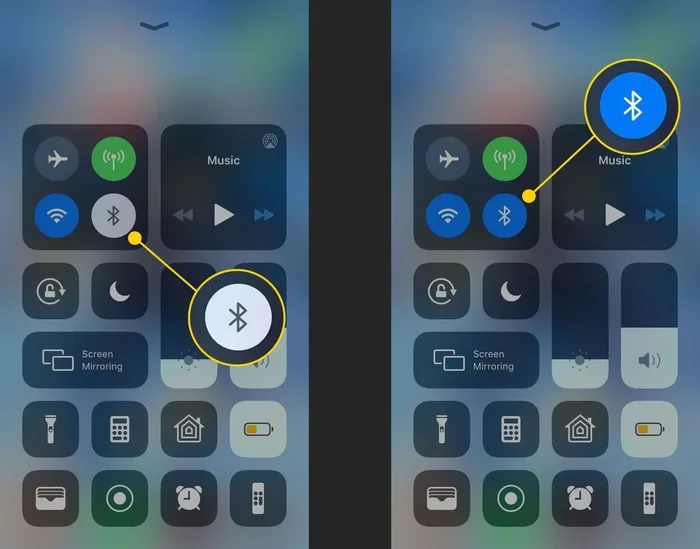
Step 1: Turn Bluetooth Off and On Again
Start with the simplest fix. On your phone, turn Bluetooth off, wait 10 seconds, then turn it back on. Do the same for your car’s infotainment system. This resets the Bluetooth connection and clears minor glitches. It works surprisingly often, so don’t skip this step.
Step 2: Make Your Device Discoverable
Your phone needs to be visible to other devices. On most phones, you’ll find this in Settings > Bluetooth > Device Visibility. Set it to “Visible” or “Discoverable.” Some phones only stay discoverable for a few minutes after you turn on Bluetooth. Act quickly during pairing.
Step 3: Delete Old Pairings
Go to your Bluetooth settings and remove any devices you no longer use. Old pairings take up memory and can confuse the system. On your car’s display, do the same. Clear the list of previously connected devices. This gives both systems a fresh start.
Step 4: Restart Both Devices
Power off your phone completely. Turn off your car’s ignition and wait 30 seconds. Restart everything. This clears temporary bugs in both the phone’s Bluetooth drivers and the car’s infotainment system. A full restart works better than just toggling Bluetooth off and on.
Step 5: Update Your Software
Check for phone updates. Go to Settings > Software Update on your phone. Also check your car’s system. Many modern cars have an update option in the settings menu. Outdated firmware is one of the top causes of Bluetooth recognition failure. Keeping both devices current solves many problems.
Step 6: Reset Network Settings
If nothing else works, try resetting your phone’s network settings. This clears all saved Wi-Fi passwords and Bluetooth pairings. You’ll need to reconnect to your Wi-Fi afterward, but it often fixes stubborn Bluetooth connectivity issues. On iPhone, go to Settings > General > Reset > Reset Network Settings. On Android, look for Settings > System > Reset Options > Reset Wi-Fi, Mobile & Bluetooth.
Checking Your Bluetooth Settings for Optimal Performance
Once your device is recognized, you want to make sure the connection stays strong. Proper settings make a big difference in daily use.
Audio Streaming vs. Hands-Free Calling
Bluetooth uses different profiles for different tasks. A2DP handles music streaming. HFP (Hands-Free Profile) handles calls. Make sure both are enabled on your phone and car. If music works but calls don’t, the HFP profile might be disabled. Check this in your phone’s Bluetooth settings under the connected device’s options.
Adjusting Bluetooth Volume Levels
Sometimes Bluetooth connects but the volume is too low or too high. Your phone has separate media and call volume sliders. Your car may also have independent volume controls. Adjust both to get the best sound. Many drivers don’t realize these are separate settings, which causes confusion.
Managing Multiple Paired Devices
If you share your car with family members, multiple devices may be paired. Most car systems auto-connect to the last device used. You can usually change this in the car’s Bluetooth settings menu. Some cars let you set priority levels for each device. This is handy for households with several drivers.
Tips for Maintaining a Strong Bluetooth Connection
Once you’ve got Bluetooth working, keeping it running smoothly is easy with a few good habits.
- Keep Your Phone Charged: Low battery can weaken Bluetooth signals and cause dropouts.
- Store Your Phone Properly: Don’t bury your phone under heavy items. If you’ve ever wondered are car seats easy to take out, knowing this helps you access and charge your phone more easily during long trips.
- Avoid Interference: Keep other wireless devices away from your car’s Bluetooth antenna. USB chargers and other electronics can sometimes cause interference.
- Regularly Update Both Systems: Set a monthly reminder to check for updates on both your phone and car system.
- Limit the Number of Paired Devices: Only keep devices paired that you actually use. This keeps your car’s Bluetooth system running efficiently.
Quick Tips for Hybrid and Electric Car Owners
Hybrid and electric vehicles have unique electrical systems that can sometimes affect Bluetooth performance. The battery management system and electric motor generate electromagnetic fields that occasionally interfere with wireless signals. If you notice Bluetooth issues specifically in your hybrid, try parking in a different spot and reconnecting. Also, understanding at what speed a hybrid switches from electric to gas can help you identify electrical patterns that might temporarily disrupt Bluetooth during the transition.
Quick Tips for Petrol Car Owners
Petrol cars generally have fewer electronic interference issues. But if your car is older and you’re maximizing fuel economy — like tracking how many kilometers you get from 1 liter of petrol — you might be driving habits that keep your engine in certain modes longer. These modes can sometimes affect the electrical load on your car’s Bluetooth module. Keeping your car well-maintained helps all systems, including wireless connectivity, run smoothly.
When to Seek Professional Help
Most Bluetooth problems resolve with the steps above. But sometimes, the issue is deeper. Here’s when to call a professional:
- The Bluetooth Module Is Faulty: If your car’s Bluetooth has never worked or suddenly stopped working entirely, the module itself may be damaged.
- Firmware Issues Require Dealer Support: Some car systems can only be updated by a dealer or certified technician.
- Water Damage or Physical Harm: If your car has been exposed to moisture or impact, the Bluetooth antenna may be affected.
- Persistent Problems After All Fixes: If you’ve tried everything and still can’t connect, a professional diagnosis saves you hours of frustration.
A certified automotive technician can test your car’s Bluetooth signal strength and hardware. They can also check for software conflicts that aren’t obvious to the average driver. Don’t hesitate to seek help when basic troubleshooting doesn’t work.
Key Takeaways
- Restart Both Devices: A simple restart of your phone and car system often solves most Bluetooth recognition issues.
- Check Visibility Settings: Make sure your device is set to “discoverable” so the car can find it.
- Clear Old Pairings: Removing old connections frees up space and prevents conflicts.
- Update Software: Outdated firmware or phone software is a leading cause of Bluetooth problems.
- Distance Matters: Keep your device within range, especially during the initial pairing process.
- Hybrid and Petrol Vehicles Have Unique Needs: Different car types may require specific troubleshooting steps.
Conclusion
Getting Bluetooth to recognize your device quickly is easier than most people think. Start with the simple fixes — restart, visibility, and clearing old pairings. Move to software updates and network resets if needed. Most problems resolve within minutes. The key is patience and following the steps in order.
Remember, Bluetooth connectivity is a two-way street. Both your phone and your car need to cooperate. Keep both systems updated, manage your paired devices, and maintain good charging habits. These small steps prevent most problems before they start.
Whether you’re streaming music, taking calls, or using navigation, a working wireless connection makes every drive better. Use the tips in this guide next time your Bluetooth won’t connect. You’ll be back to enjoying seamless audio and hands-free calling in no time.
Frequently Asked Questions
Why won’t my car find my phone via Bluetooth?
Your phone may not be in discoverable mode, or the car’s Bluetooth system may be turned off. Try turning Bluetooth off and on on both devices, then make your phone visible. This solves the problem in most cases.
How do I delete old Bluetooth pairings from my car?
Go to your car’s infotainment settings, find the Bluetooth menu, and look for a list of paired devices. Select the ones you no longer use and choose “Delete” or “Forget.” This clears space and removes conflicting data.
Can too many paired devices cause Bluetooth recognition problems?
Yes. Most car systems have a limit on how many devices they can remember. Too many pairings can slow down recognition and cause conflicts. Keep only the devices you actively use.
Why does Bluetooth keep disconnecting while driving?
Interference from other electronics, low phone battery, or being too far from the car’s antenna can cause disconnections. Make sure your phone is charged and stored in a central location for the strongest signal.
Do I need to update my car’s software for Bluetooth to work properly?
Yes, outdated firmware can cause Bluetooth recognition failures. Check your car’s system settings for available updates. If your car doesn’t support self-updates, visit a dealer for the latest software.
Is Bluetooth different in hybrid cars compared to regular petrol cars?
The basic technology is the same, but hybrid cars have more electronic systems that can sometimes interfere with wireless signals. If you notice issues in a hybrid, try the same troubleshooting steps and pay attention to electrical patterns in your vehicle.