How Do I Clear Apple CarPlay A Simple Step by Step Guide
Knowing how do I clear Apple CarPlay is essential for every driver who relies on this handy feature. Whether your screen is frozen, apps are acting up, or connections keep dropping, clearing Apple CarPlay can solve most problems in minutes. This guide walks you through every method, from a simple restart to a full factory reset, so you can get back on the road with confidence.
Have you ever been driving down the road, trying to use your car’s smart screen, and suddenly everything freezes? You tap the screen, but nothing happens. Your music stops, your maps freeze, and you are left staring at a blank or stuck display. It is frustrating, right? Well, you are not alone. How do I clear Apple CarPlay is one of the most common questions car owners ask every day. The good news is that clearing Apple CarPlay is usually simple, fast, and something you can do yourself in just a few minutes.
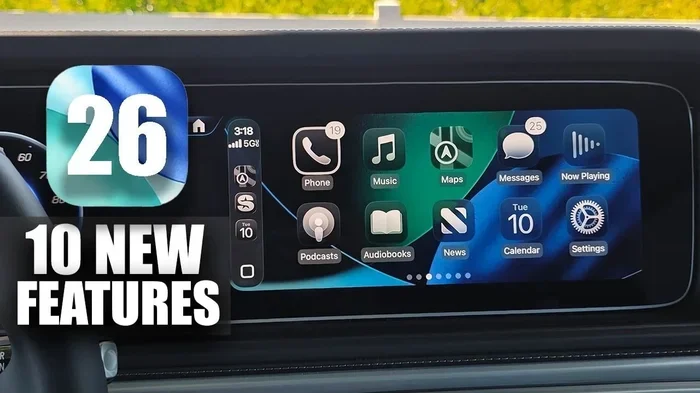
Apple CarPlay is a fantastic feature that brings your iPhone’s most useful apps right onto your car’s screen. You get maps, music, messages, and calls all in one place. But like any technology, it sometimes needs a fresh start. Maybe you have been using it for months and the cache has built up. Perhaps a recent update caused a glitch. Or maybe the connection between your phone and your car just needs a reset. Whatever the reason, this guide will show you exactly how to clear Apple CarPlay and get everything working again. We will cover every method, from the easiest quick fix to more advanced troubleshooting steps. So let us dive right in and get your CarPlay running smoothly again.
Key Takeaways
- Clearing Apple CarPlay is easy and can be done directly from your iPhone or your car’s infotainment screen.
- A simple restart fixes most issues like freezing, lag, or unresponsive screens.
- Resetting network settings can solve connection problems between your iPhone and your car.
- Deleting and re-pairing your device is the most thorough way to clear all CarPlay data.
- Regular maintenance like updating iOS and keeping cables clean prevents most CarPlay problems.
- Knowing when to seek help saves time if basic fixes don’t work.
📑 Table of Contents
- What Is Apple CarPlay and Why Would You Need to Clear It?
- How Do I Clear Apple CarPlay on iPhone?
- How Do I Clear Apple CarPlay on the Car’s Infotainment Screen?
- Common Problems When Clearing Apple CarPlay
- Tips to Keep Apple CarPlay Running Smoothly
- When to Seek Professional Help for Apple CarPlay Issues
- How Do I Clear Apple CarPlay: Quick Comparison of Methods
What Is Apple CarPlay and Why Would You Need to Clear It?
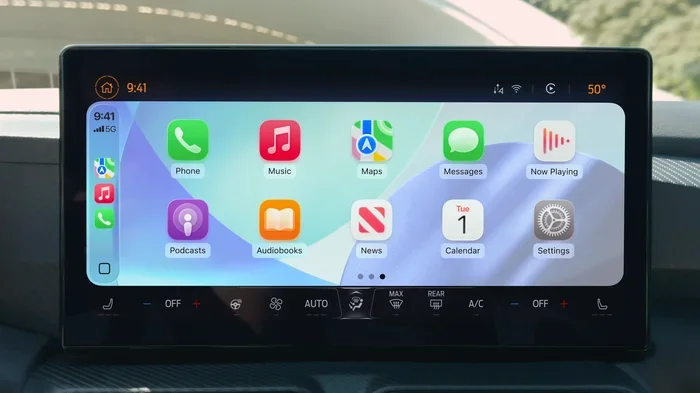
Before we get into the steps, let us quickly talk about what Apple CarPlay actually is. Apple CarPlay is a system that mirrors certain apps from your iPhone onto your car’s display. It works through a USB cable or wirelessly, depending on your car model. Once connected, you can see your navigation, play music, make calls, and send messages without touching your phone directly. It is designed to keep you safe and focused while driving.
Over time, however, CarPlay can start to act up. Temporary files build up. Connections get stale. Apps may not load properly. The screen might become slow or unresponsive. This is where knowing how to clear Apple CarPlay becomes really valuable. Clearing CarPlay removes old data, resets connections, and gives the system a clean slate. Think of it like restarting your computer when it starts running slow. Sometimes all it needs is a fresh start to work at its best.
Now, you might wonder if clearing CarPlay will delete anything from your phone. The answer is no. Your contacts, photos, messages, and apps on your iPhone stay exactly as they are. Clearing CarPlay only affects the data stored in the CarPlay interface itself. So you do not need to worry about losing any important information.
How Do I Clear Apple CarPlay on iPhone?
The first and most common way to clear Apple CarPlay is directly from your iPhone. This method is quick and does not require any special tools. Here is how to do it step by step.
Method 1: Restart Your iPhone
The simplest way to clear CarPlay is to restart your iPhone. This clears temporary files and refreshes all connections. Here is what you need to do.
- Press and hold the side button on your iPhone.
- Slide the power off slider when it appears.
- Wait about 30 seconds.
- Press and hold the side button again until the Apple logo appears.
- Once your iPhone is back on, reconnect it to your car.
This method works for most minor glitches. If your CarPlay screen was frozen or lagging, a simple restart often fixes the problem right away. It is always the first thing you should try. Just like how a car needs a good ignition to start, your iPhone needs a fresh boot to reconnect properly with your vehicle.
Method 2: Clear CarPlay from iPhone Settings
If a restart does not work, you can try clearing CarPlay data through your iPhone settings. This method goes a bit deeper than a simple restart.
- Open the Settings app on your iPhone.
- Go to General.
- Scroll down and tap Transfer or Reset iPhone.
- Tap Reset.
- Select Reset All Settings.
- Enter your passcode if prompted.
- Confirm the reset.
This will reset all settings on your iPhone, including CarPlay. Do not worry, your personal data like photos and messages will stay safe. After the reset, you will need to reconnect your iPhone to your car. CarPlay should now run much more smoothly.
Keep in mind that this method also resets things like your Wi-Fi passwords and Bluetooth pairings. So you will need to reconnect to your Wi-Fi network and any Bluetooth devices after the reset. It is a small inconvenience for a big improvement in CarPlay performance.
Method 3: Delete and Re-Pair Your Car
This is the most thorough way to clear Apple CarPlay from your iPhone. It removes all CarPlay data and starts fresh. Here is how.
- Go to Settings on your iPhone.
- Tap General.
- Tap CarPlay.
- Select your car from the list.
- Tap Forget This Car.
- Reconnect your iPhone to your car using a cable or wirelessly.
- Set up CarPlay again from scratch.
This method gives you a completely clean CarPlay experience. All old data, cached apps, and connection settings are wiped away. When you set it up again, everything feels brand new. Many users report that this method solves even the most stubborn CarPlay issues.
If you have multiple cars, you can repeat this process for each vehicle. It is a great way to keep your CarPlay experience clean across all your vehicles. And if you are curious about how your car uses fuel, you might want to check out our guide on 1 Litre Petrol How Many Km In Car for helpful fuel efficiency tips.
How Do I Clear Apple CarPlay on the Car’s Infotainment Screen?
Sometimes the problem is not on your iPhone. Sometimes the car’s screen itself needs to be cleared. Most modern cars with Apple CarPlay have settings right on the infotainment system. Let us look at how to access them.
Step-by-Step: Clearing CarPlay from the Car Screen
- Start your car and make sure the infotainment screen is on.
- Find the Settings icon on the car screen. It usually looks like a gear.
- Look for a section called CarPlay, Connected Devices, or Phone.
- Select your iPhone from the list of connected devices.
- Look for an option to Disconnect or Forget Device.
- Confirm the action.
- Reconnect your iPhone to the car.
Different car brands use slightly different menus. For example, a Ford might label it differently than a Honda. But the general process is the same across most vehicles. The key is to find the connected devices section and remove your iPhone from the CarPlay pairing list.
Once you reconnect, your CarPlay should load fresh. If it was freezing or lagging before, this method often fixes the issue immediately. It is like giving your car’s brain a quick restart.
Restarting the Infotainment System
Some cars allow you to restart the entire infotainment system. This is similar to restarting your iPhone but for the car’s screen. Here is how to do it on most vehicles.
- Press and hold the power button on the infotainment screen for 10 to 15 seconds.
- The screen will go black.
- Wait a few seconds.
- Press the power button again to turn it back on.
After the system restarts, reconnect CarPlay. This clears any temporary software glitches in the car’s system. It is one of the fastest ways to fix a frozen or unresponsive CarPlay screen.
For those interested in general car care and fuel efficiency, our article on 1 Liter Petrol How Many Km Car offers great tips on getting the most out of every tank.
Common Problems When Clearing Apple CarPlay
Even when you follow the steps correctly, you might run into some issues. Let us talk about the most common problems and how to solve them.
CarPlay Screen Keeps Freezing After Clearing
If your CarPlay screen freezes again after you clear it, the problem might be with your cable. A damaged or low-quality USB cable is one of the top causes of CarPlay issues. Try using a different cable. Make sure it is an Apple-certified cable or a high-quality MFi-certified cable. Also, try plugging the cable into a different USB port in your car.
Another cause could be a low battery on your iPhone. If your phone battery is below 20%, CarPlay might not work properly. Charge your phone for a few minutes before connecting it to CarPlay again.
CarPlay Won’t Connect After Clearing
Sometimes after clearing CarPlay, the connection between your iPhone and your car does not come back automatically. If this happens, try these steps.
- Make sure Bluetooth is turned on in your iPhone settings.
- Make sure Wi-Fi is turned on.
- Turn off your car, wait 30 seconds, and turn it back on.
- On your iPhone, go to Settings and toggle Airplane Mode on and then off.
- Reconnect your iPhone to the car.
These steps refresh all wireless connections and usually get CarPlay working again. If the problem persists, try deleting and re-pairing your car in the CarPlay settings on your iPhone.
Apps Not Loading Properly in CarPlay
If your CarPlay apps like Maps, Spotify, or Messages are not loading, it could be because of cached data. Clearing CarPlay should fix this, but if it does not, try updating the apps individually. Open the App Store on your iPhone and check for updates. Also, make sure your iPhone is running the latest version of iOS. Outdated software is a common cause of app loading problems in CarPlay.
Tips to Keep Apple CarPlay Running Smoothly
Prevention is always better than cure. Here are some simple tips to keep your Apple CarPlay running smoothly and avoid the need to clear it often.
- Keep your iPhone updated. Apple releases iOS updates that fix bugs and improve CarPlay performance. Check for updates regularly.
- Use a quality cable. A good USB cable makes a huge difference. Avoid cheap, uncertified cables that can cause connection problems.
- Restart CarPlay weekly. A quick restart once a week keeps things running smoothly. Just disconnect and reconnect your iPhone.
- Clear unused apps. If you have apps on CarPlay that you never use, consider removing them. This reduces clutter and improves speed.
- Keep your car’s software updated. Car manufacturers release infotainment updates too. Check with your dealer or manual for update instructions.
- Avoid extreme temperatures. Heat and cold can affect both your iPhone and your car’s screen. Park in shade when possible.
Following these simple tips can save you a lot of trouble. Your CarPlay will stay fast, responsive, and reliable for months. Think of it like maintaining a car, you do small things regularly so you avoid big problems later.
When to Seek Professional Help for Apple CarPlay Issues
Most CarPlay issues can be fixed at home using the methods we have covered. But there are times when you should seek professional help. If you have tried clearing CarPlay multiple times and the problem still persists, it might be a hardware issue. A damaged USB port in your car, a faulty infotainment system, or a problem with your iPhone’s hardware could all be the cause.
Visit your car dealer or an authorized Apple service provider if you notice any of these signs.
- CarPlay does not connect at all, even after multiple resets.
- The car screen shows error messages repeatedly.
- Your iPhone gets very hot when connected to CarPlay.
- Audio cuts out frequently during CarPlay use.
- The CarPlay screen flickers or shows static.
These could indicate a deeper issue that needs professional diagnosis. Do not try to open your car’s infotainment system yourself. That could void your warranty and cause more damage. A trained technician can identify the problem safely and fix it properly.
How Do I Clear Apple CarPlay: Quick Comparison of Methods
Let us quickly compare the different methods so you can choose the best one for your situation.
| Method | Difficulty | Time Needed | Best For |
|---|---|---|---|
| Restart iPhone | Easy | 2 minutes | Minor freezes, slow performance |
| Reset All Settings | Medium | 5 minutes | Connection issues, app glitches |
| Delete and Re-Pair | Medium | 10 minutes | Persistent problems, full reset |
| Restart Infotainment | Easy | 1 minute | Frozen car screen |
| Clear from Car Settings | Easy | 3 minutes | Quick disconnect and reconnect |
As you can see, most methods are quick and easy. You do not need to be a tech expert to clear Apple CarPlay. Start with the simplest method and work your way up if needed. In most cases, a simple restart solves the problem.
Knowing how do I clear Apple CarPlay gives you control over your driving experience. You do not have to sit stuck with a frozen screen or a glitchy connection. With these methods in your toolkit, you can handle almost any CarPlay issue that comes your way. Keep this guide saved for future reference, and you will always know exactly what to do when CarPlay acts up.
Remember, technology works best when you take care of it. Regular maintenance, updates, and occasional resets keep everything running at its best. Your Apple CarPlay is a powerful tool that makes driving safer and more enjoyable. Treat it well, and it will serve you reliably for years to come.
Whether you are a daily commuter or an occasional road tripper, a working CarPlay system makes every drive better. You get seamless navigation, hands-free calling, and easy access to your favorite music. When something goes wrong, you now know exactly how to fix it. So the next time your CarPlay acts up, do not panic. Just follow the steps in this guide, and you will be back on track in no time.
Stay proactive with your car care. Check your connections, update your software, and keep your cables in good shape. These small habits go a long way in preventing CarPlay problems. And if you ever need more tips on car maintenance or fuel efficiency, be sure to explore our other guides for helpful advice on keeping your vehicle in top shape.
Frequently Asked Questions
Will clearing Apple CarPlay delete my data from my iPhone?
No, clearing Apple CarPlay will not delete any data from your iPhone. Your contacts, photos, messages, and apps remain completely safe. Clearing CarPlay only removes temporary files and connection data stored in the CarPlay interface itself. You can clear it as often as you need without worrying about losing anything.
How often should I clear Apple CarPlay?
There is no set schedule for clearing Apple CarPlay. Most users only need to clear it when they notice performance issues like freezing, slow loading, or connection problems. As a general rule, restarting CarPlay once a month helps keep things running smoothly. If you use CarPlay daily, a quick restart every two weeks is a good habit to build.
Why does my Apple CarPlay keep freezing even after clearing it?
If CarPlay keeps freezing after clearing it, the most common cause is a faulty USB cable. Try using a different Apple-certified cable. Also check if your iPhone needs a software update. Low battery levels and outdated car software can also cause freezing. If none of these fixes work, there may be a hardware issue that needs professional attention.
Can I clear Apple CarPlay without disconnecting my iPhone?
Yes, you can. Restarting your iPhone is the easiest way to clear CarPlay without physically disconnecting. Simply power off your iPhone, wait a few seconds, and turn it back on. When you reconnect, CarPlay will load fresh. You can also restart the car’s infotainment system without disconnecting the cable.
Does clearing Apple CarPlay remove my saved playlists and favorites?
No, clearing Apple CarPlay does not remove your saved playlists or favorites. Your music apps like Spotify, Apple Music, and Pandora save your data in the cloud. When you reconnect CarPlay, your playlists and favorites sync back automatically. You might need to sign in to your apps again if you reset all iPhone settings, but your data is always safe in the cloud.
What is the difference between clearing CarPlay and resetting all iPhone settings?
Clearing CarPlay removes temporary data specific to the CarPlay feature. Resetting all iPhone settings is a deeper reset that affects all phone settings including Wi-Fi, Bluetooth, and display preferences. Clearing CarPlay is a lighter fix for minor issues. Resetting all settings is a more thorough solution for persistent problems that a simple CarPlay clear does not fix.
=== CONCLUSION ===
How do I clear Apple CarPlay is a question with a straightforward answer. Whether you choose a simple restart, a settings reset, or a full delete and re-pair, the process is easy and fast. You now have all the tools and methods you need to tackle any CarPlay issue that comes your way. Start with the simplest fix and work your way up if needed. Most problems clear up with just a basic restart.
Keep your CarPlay system healthy with regular maintenance. Update your iPhone and car software, use quality cables, and restart CarPlay occasionally. These small steps make a big difference. Your Apple CarPlay is designed to make driving easier, safer, and more enjoyable. When it works well, you barely even think about it. And that is exactly how it should be.
Now that you know how to clear Apple CarPlay, you can drive with confidence. No more frozen screens, no more connection drops, and no more frustration. Just smooth, reliable CarPlay every time you get behind the wheel. Safe travels and happy driving.