Can I Use Apple CarPlay Wirelessly And How To Set It Up
Yes, you can use Apple CarPlay wirelessly if your car or aftermarket head unit supports it. Wireless Apple CarPlay lets you connect your iPhone without any cables, giving you a cleaner dashboard and easier access to maps, music, and messages. In this guide, we walk you through what wireless CarPlay is, which cars support it, and exactly how to set it up in plain, simple steps.
So you have heard about Apple CarPlay wireless and want to know if it works for you. Maybe your friend just got a new car and she showed you how her iPhone connects to the dashboard without a single wire. It looks cool. It feels futuristic. And you are thinking, “Can I use Apple CarPlay wirelessly too?”
The short answer is yes. The longer answer depends on your car, your iPhone model, and a few other factors we will cover in this guide. Wireless Apple CarPlay has become one of the most wanted features in modern vehicles. It replaces the messy cable connection with a clean, seamless wireless link between your phone and your car’s infotainment system.
In this article, we will explain everything you need to know. We will cover what wireless CarPlay is, which cars support it, how to set it up step by step, and how to troubleshoot common issues. By the end, you will know exactly whether your car can go wireless and how to make it happen.
Key Takeaways
- Wireless Apple CarPlay is available: Many new cars and aftermarket head units now support it natively.
- Setup is simple: You just need a compatible car, an iPhone 6 or newer, and a Wi-Fi connection.
- Wireless beats wired in convenience: No more fumbling with cables every time you get in the car.
- Not all cars support it: Older models may need an aftermarket adapter or a software update.
- Troubleshooting is straightforward: Most issues can be fixed with a quick reset or settings check.
- Both iPhone and Android have options: Wireless CarPlay is Apple’s ecosystem, but Android Auto offers similar wireless features.
📑 Table of Contents
What Is Apple CarPlay Wireless?
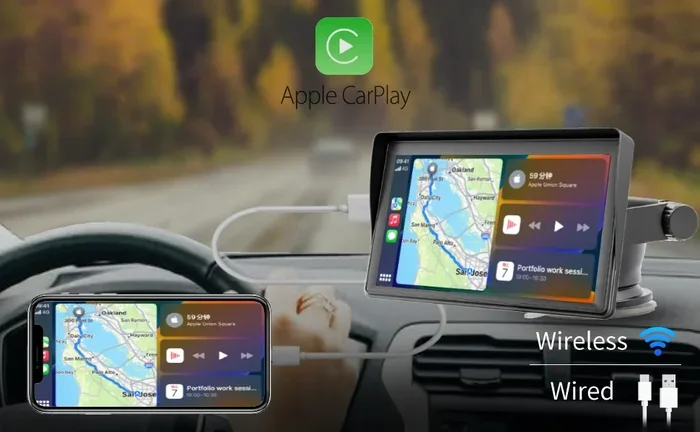
Apple CarPlay wireless is a technology that mirrors your iPhone’s key features onto your car’s display screen. Instead of plugging in a USB cable, you connect through Wi-Fi and Bluetooth. This means no cables. No clutter. No fumbling around in the dark to find the right port.
Once connected, you get access to navigation, music, phone calls, and messages right on your dashboard. The experience feels almost identical to wired CarPlay, but without the cord. You can use Siri voice commands, stream music from apps like Spotify or Apple Music, and get turn-by-turn directions from Google Maps or Apple Maps.
How Does Wireless CarPlay Connect?
Wireless CarPlay uses two connections at the same time. Bluetooth handles the initial pairing and audio streaming. Wi-Fi takes care of the data-heavy tasks like loading maps and syncing playlists. Together, these two wireless protocols create a smooth and responsive experience that feels just like a wired connection.
Here is what happens behind the scenes:
- Bluetooth pairs your iPhone with the car’s system.
- Wi-Fi creates a local network between your phone and the car.
- The infotainment screen mirrors your iPhone’s interface wirelessly.
- Siri processes voice commands through the same connection.
The whole process takes just a few seconds once it is set up. Your phone connects automatically when you sit behind the wheel. It really is that simple.
Which Cars Support Wireless Apple CarPlay?
Not every car supports wireless CarPlay yet. But the list of compatible vehicles grows every year. Most cars made after 2019 offer wireless CarPlay as either standard or optional equipment. Some older models can also support it through software updates or aftermarket upgrades.
Car Brands That Offer Wireless CarPlay
Many popular car manufacturers now include wireless CarPlay compatible systems. Here are some of the brands leading the way:
- Toyota – Many 2020 and newer models offer wireless CarPlay.
- Honda – Select models from 2021 onward support wireless connectivity.
- Ford – Newer Ford vehicles include wireless CarPlay in most trims.
- BMW – Many 2019 and newer BMW models are wireless ready.
- Hyundai – Most 2020+ Hyundai vehicles support wireless CarPlay.
- Volkswagen – Newer VW models come with wireless support.
- Chevrolet – Select 2021+ Chevy models offer wireless CarPlay.
- Nissan – Several recent Nissan models are wireless CarPlay ready.
Can You Add Wireless CarPlay to an Older Car?
Yes, you can. If your car does not natively support wireless Apple CarPlay, you have options. Aftermarket head units from brands like Pioneer, Kenwood, and Sony offer wireless CarPlay support. You can also use an adapter like the Carlinkit wireless CarPlay adapter. These devices plug into your existing system and add wireless capability.
Aftermarket adapters typically cost between $50 and $200. They are a great budget-friendly option if you love your current car but want the wireless experience. Just make sure the adapter is compatible with your car’s infotainment system before buying.
How To Set Up Wireless Apple CarPlay
Setting up Apple CarPlay wireless is easier than most people think. The process takes just a few minutes, and you only need to do it once. After that, your phone connects automatically every time you get in the car.
Step-by-Step Setup Guide
Follow these steps to get your wireless CarPlay running:
- Make sure your iPhone is updated. You need iOS 12 or later for wireless CarPlay. Go to Settings, tap General, then Software Update, and install any available updates.
- Turn on Bluetooth and Wi-Fi. Go to Settings and make sure both Bluetooth and Wi-Fi are enabled. You do not need to connect to a specific Wi-Fi network. Your car will create its own.
- Put your car in park. This is important for safety. The CarPlay interface will only activate when the car is in park.
- Tap the CarPlay icon on your car screen. This icon looks like a phone silhouette. If you do not see it, check your car’s infotainment settings.
- Select your car from the iPhone list. Your iPhone will detect the car and show it as an available device. Tap on it to pair.
- Follow the prompts on both screens. You may need to confirm a pairing code on both the car display and your iPhone.
- Wait for the connection. Within a few seconds, your CarPlay home screen should appear on the car display.
That is it. You are now connected wirelessly. The next time you get in the car, CarPlay should connect automatically as long as Bluetooth and Wi-Fi are on.
Quick Tips for a Smooth Setup
- Restart both devices first. If pairing fails, restart your iPhone and the car’s infotainment system. This fixes most connection issues.
- Forget old pairings. Go to Settings, Bluetooth, and remove the car from your paired devices before trying again.
- Keep your phone charged. Wireless CarPlay uses more battery than a normal Bluetooth connection. Consider using a wireless charger while driving.
Wireless vs Wired Apple CarPlay
You might be wondering whether wireless CarPlay is really better than the traditional wired connection. Both have pros and cons. Let us break it down so you can decide what works best for you.
Comparison Table: Wireless vs Wired CarPlay
| Feature | Wireless CarPlay | Wired CarPlay |
|---|---|---|
| Connection | Wi-Fi and Bluetooth | USB cable |
| Setup | One-time pairing | Plug in cable each time |
| Convenience | Very high | Moderate |
| Connection stability | Good, occasional drops | Very stable |
| Charging | Separate wireless charger needed | Charges through USB cable |
| Car compatibility | Newer models and aftermarket | Almost all CarPlay cars |
| Speed | Slightly slower load times | Faster data transfer |
When Wired CarPlay Makes More Sense
Wired Apple CarPlay still has its place. If you have an older car that does not support wireless, a USB cable is your best bet. Wired connections are also more stable and less likely to drop. If you do a lot of long highway driving and want zero connection issues, a cable might be the way to go.
Also, wired CarPlay charges your iPhone at the same time. With wireless CarPlay, you will need a separate wireless charger if you want your phone to stay powered up during long trips.
When Wireless CarPlay Wins
For most people, wireless CarPlay is the better choice. The convenience factor alone is huge. You get in the car, and everything just works. No digging for cables. No dealing with frayed wires. No struggling to find the right USB port in the dark.
Wireless CarPlay also keeps your dashboard looking clean. There are no cables hanging down from the screen. It just looks sleek and modern. If you care about aesthetics and convenience, wireless is the clear winner.
Common Problems with Wireless CarPlay and How To Fix Them
Even though wireless CarPlay is generally reliable, you might run into issues from time to time. Here are the most common problems and how to solve them quickly.
CarPlay Will Not Connect Wirelessly
This is the most common issue. If your Apple CarPlay wireless connection refuses to work, try these fixes:
- Toggle Bluetooth off and on. Sometimes a simple reset of the Bluetooth connection does the trick.
- Toggle Wi-Fi off and on. Same idea. A fresh Wi-Fi connection can resolve pairing issues.
- Restart your iPhone. A quick restart clears temporary glitches that might block the connection.
- Restart the car’s infotainment system. Most systems can be restarted by holding the power button for 10 seconds.
- Forget the car in Bluetooth settings. Go to Settings, Bluetooth, tap the car icon, and select “Forget This Device.” Then pair again from scratch.
Connection Drops Frequently
If your wireless CarPlay keeps disconnecting, the issue is usually related to Wi-Fi interference. Other devices in your car might be competing for the same wireless signal. Try turning off other Wi-Fi devices in the vehicle. Also, make sure your iPhone is not in Low Power Mode, as this can affect connectivity.
CarPlay Works But Sounds Scratchy
Audio quality issues are usually caused by a weak Bluetooth signal. Make sure your iPhone is not in a metal phone mount that blocks the signal. Also, check that nothing is interfering with the Bluetooth connection, like a nearby wireless charger that operates on the same frequency.
Siri Does Not Work Over Wireless CarPlay
If Siri voice commands stop working, check your Siri settings. Go to Settings, Siri, and make sure “Listen for Hey Siri” is turned on. Also, ensure your car’s microphone is not blocked or muted. Sometimes a simple restart of both devices fixes this issue.
Tips To Get The Best Wireless CarPlay Experience
Want to make the most out of your wireless Apple CarPlay setup? Here are some practical tips that will improve your daily driving experience.
Use a Quality Wireless Charger
Wireless CarPlay drains your iPhone battery faster than normal use. A good wireless charger mounted on your dashboard or console keeps your phone powered throughout the drive. Look for chargers that are MFi certified (Made for iPhone) to ensure safe and fast charging.
Keep Your Apps Updated
CarPlay apps like Google Maps, Spotify, and WhatsApp get regular updates that improve performance and fix bugs. Make sure your apps are up to date for the best experience. Turn on automatic updates in the App Store so you never miss a patch.
Customize Your CarPlay Home Screen
You can rearrange your CarPlay apps to put the ones you use most front and center. Open the Settings app on your iPhone, tap General, then CarPlay. Select your car and drag apps to reorder them. This small customization makes a big difference in daily usability.
Use Siri for Hands-Free Operation
One of the biggest benefits of Apple CarPlay wireless is hands-free control. Use Siri to send messages, make calls, change music, and get directions without touching your phone. Say “Hey Siri” and speak your command. It keeps your eyes on the road and your hands on the wheel.
Update Your Car’s Software
Car manufacturers release infotainment updates that improve CarPlay performance. Check with your dealer or your car’s manual for update instructions. Some brands allow over-the-air updates, while others require a visit to the service center.
Is Wireless CarPlay Worth It?
After reading all of this, you might be asking yourself whether wireless Apple CarPlay is really worth the upgrade. The answer for most people is yes. The convenience of a cable-free connection is something you appreciate every single time you get behind the wheel.
Wireless CarPlay keeps your dashboard clean, your hands free, and your experience seamless. It is one of those features that you do not realize you need until you have it. And once you do, going back to a wired connection feels like a step backward.
If your current car does not support wireless CarPlay, consider an aftermarket adapter. The cost is modest compared to the daily convenience you gain. And if you are shopping for a new car, make sure wireless CarPlay is on your must-have list.
The technology continues to improve too. Newer versions of wireless CarPlay offer faster connections, better audio quality, and smoother performance. As more cars adopt this standard, the experience will only get better.
So to answer the question one more time: Can I use Apple CarPlay wirelessly? Yes, you can. And now you know exactly how to make it happen.
Final Thoughts
Apple CarPlay wireless has changed the way we interact with our phones in the car. It brings the apps and features we rely on every day into a safe, driver-friendly interface. Whether you are navigating to a new restaurant, streaming your favorite playlist, or sending a quick voice message, wireless CarPlay makes it all effortless.
The setup process is straightforward, the compatibility list keeps growing, and the convenience factor is hard to beat. If your car supports it, there is really no reason not to switch to wireless. And if it does not, the aftermarket options make it accessible for nearly any vehicle.
Take a few minutes today to check whether your car is wireless CarPlay compatible. Follow the setup steps in this guide. You will wonder how you ever drove without it. Wireless Apple CarPlay is not just a feature. It is a game changer for your daily commute and road trips alike.