How Do I Reconnect My Phone to Bluetooth in My Car Again
Reconnecting your phone to Bluetooth in your car is simpler than you think. Whether your connection dropped after an update, a battery died, or you bought a new phone, this guide walks you through every step. You will learn quick fixes, common mistakes to avoid, and pro tips to keep your Bluetooth connection strong every time you get behind the wheel.
Have you ever gotten into your car, ready to hit the road, only to find that your phone refuses to connect to the Bluetooth system? You are not alone. Reconnecting your phone to Bluetooth in your car is one of the most common tech frustrations drivers face every day. Whether it is a minor glitch or a stubborn pairing problem, the good news is that most issues have simple solutions. This guide will walk you through every step to get your phone back online with your car’s audio system in no time.
Modern cars come packed with wireless connectivity features. From hands-free calling to wireless streaming of music and podcasts, Bluetooth has become essential for daily driving. But like any technology, it can act up. Maybe your phone updated overnight, or perhaps you switched to a new device. Whatever the reason, knowing how to fix the problem saves you time and frustration. Let us dive into the solutions.
Key Takeaways
- Restart Both Devices First: A simple restart of your phone and car system fixes most Bluetooth issues instantly.
- Forget and Re-Pair: Removing the old connection and setting it up fresh often solves stubborn pairing problems.
- Check Bluetooth Visibility: Make sure your car’s infotainment system is set to discoverable mode before trying to pair.
- Update Software Regularly: Keeping your phone and car software up to date prevents compatibility issues.
- Distance Matters: Stay within range and avoid physical barriers between your phone and the car’s Bluetooth antenna.
- Clear Paired Devices List: Too many saved connections can confuse your car’s system and cause reconnection failures.
- Seek Help When Needed: If all else fails, a professional at an auto electronics shop can diagnose hardware issues.
📑 Table of Contents
- Why Does Bluetooth Keep Disconnecting in Your Car?
- Step-by-Step Guide to Reconnecting Your Phone to Bluetooth in Your Car
- Common Bluetooth Problems and How to Fix Them
- Tips to Keep Your Bluetooth Connection Stable
- When Should You Seek Professional Help?
- Quick Tips for Faster Bluetooth Reconnection
- Final Thoughts
Why Does Bluetooth Keep Disconnecting in Your Car?
Before we fix the problem, it helps to understand why it happens. Bluetooth disconnections in cars are more common than you might expect. Several factors can interfere with your mobile connectivity and cause the connection to drop unexpectedly.
One of the biggest culprits is software updates. Both phones and car infotainment systems receive regular updates. Sometimes these updates change how devices communicate with each other. A Bluetooth pairing issue can pop up overnight after a system update. Your phone and car may no longer “speak the same language,” so to speak.
Another common reason is battery management. Many smartphones use power-saving modes that limit Bluetooth range and background activity. When your phone battery drops below a certain level, it may automatically disable Bluetooth to conserve energy. This can cause your car audio system to lose the connection without warning.
Physical barriers also play a role. If your phone sits deep inside a bag or pocket, the signal may weaken. Metal frames, magnetic phone mounts, and even other electronic devices can interfere with the wireless connection between your phone and car. Understanding these causes helps you prevent the problem from happening again.
Software Conflicts Between Devices
Your phone and your car’s entertainment system both run on software. When either one updates, there can be a temporary mismatch. Think of it like two people trying to have a conversation but one learned new words overnight. The Bluetooth settings on each device need to align for a smooth connection. This is why Bluetooth troubleshooting often starts with checking for updates on both sides.
Hardware Limitations in Older Vehicles
Older cars may have Bluetooth versions that are not compatible with newer smartphones. If you drive a car entertainment system from several years ago, it might only support Bluetooth 3.0 or 4.0. Newer phones often use Bluetooth 5.0 or higher. While most systems handle backward compatibility fine, some older units struggle. This can lead to frequent disconnections or failure to pair at all.
Step-by-Step Guide to Reconnecting Your Phone to Bluetooth in Your Car
Now that you understand the why, let us focus on the how. Follow these steps in order to restore your Bluetooth connection quickly and easily.
Step 1: Turn Off Bluetooth on Both Devices
Start by turning off Bluetooth on your phone. Then, if your car allows it, turn off the infotainment system or at least the Bluetooth function. This clears the active connection and prepares both devices for a fresh start. Wait about 10 seconds before moving to the next step. This small pause lets the systems fully reset.
Step 2: Restart Your Phone
A phone restart works wonders. It clears temporary files, refreshes wireless settings, and resets network connections. Power off your phone completely, wait 15 seconds, and turn it back on. This simple step resolves more Bluetooth issues than most people realize. Do not skip it.
Step 3: Make Your Phone Visible
Go to your phone’s Bluetooth settings and make sure it is set to visible or discoverable. On most phones, you can find this option in the Bluetooth menu. Your phone needs to “shout out” to the car that it is ready to connect. Without this setting, your car’s system may not even see your phone in the list of available devices.
Step 4: Put Your Car’s Infotainment System in Pairing Mode
Every car system is a little different, but the process is similar. Go to your car’s settings menu, find the Bluetooth option, and select “Pair New Device” or “Search for Devices.” The system will now scan for nearby Bluetooth devices. Look for your phone’s name on the list and select it.
Step 5: Confirm the Pairing Code
Most systems will display a pairing code on the car screen. Check your phone to see if the same code appears. If it does, confirm the connection on both devices. Once paired, your phone pairing should be complete. You will usually hear a confirmation tone from the car’s speakers.
Step 6: Test the Connection
Play some music or make a test call to confirm everything works. Try adjusting the volume from both your phone and the car controls. If the audio streams smoothly and calls connect clearly, you are all set. If not, do not worry. We have more solutions below.
Common Bluetooth Problems and How to Fix Them
Even after following the steps above, you might run into trouble. Here are the most common Bluetooth problems and their fixes.
Problem 1: Phone Does Not Show Up in Car’s Device List
If your phone does not appear when the car scans for devices, try this. First, make sure Bluetooth is turned on and your phone is set to discoverable. Move your phone closer to the car’s infotainment system. If it still does not appear, try turning Bluetooth off and on again on your phone. Sometimes the phone’s Bluetooth visibility mode needs a fresh toggle to work properly.
Problem 2: Connection Drops Frequently
A Bluetooth connection that keeps dropping is incredibly annoying. The most common cause is distance. Bluetooth works best within about 30 feet. If your phone sits too far from the car’s antenna, the signal weakens. Also check for interference from other devices. USB cables, phone chargers, and even GPS units can disrupt the signal. Remove unnecessary electronic devices from near your phone and try again.
Problem 3: Audio Quality Is Poor or Scratchy
If you can connect but the sound quality is bad, the issue might be with the car audio system itself. A weak signal often causes crackling or choppy audio. Try moving your phone closer to the car’s center console. You can also try clearing the paired devices list on both your phone and your car, then pairing fresh. This often improves audio quality significantly.
Problem 4: Hands-Free Calling Does Not Work
Sometimes music streams fine, but calls do not connect. This usually happens because the car’s system has separate profiles for music and calls. Check that both the “Media Audio” and “Phone Audio” options are enabled in your phone’s Bluetooth settings. If only one is checked, calls will not route through the car’s speakers. This is a very common Bluetooth pairing issue that catches people off guard.
Problem 5: Car Shows “Pairing Failed” Error
A pairing failure error means the two devices cannot agree on a connection. This often happens when too many devices are saved in the system’s memory. Clear the list of previously paired devices on your car’s infotainment system. Then try pairing again. If the error persists, a Bluetooth reset on both devices usually does the trick.
Tips to Keep Your Bluetooth Connection Stable
Prevention is always better than cure. Here are some practical tips to keep your wireless connectivity strong and reliable.
Keep Your Software Updated
Regular updates keep your phone and car system compatible. Check for phone updates weekly and car system updates monthly if your vehicle supports them. Updated software means fewer Bluetooth connection problems over time.
Limit the Number of Paired Devices
Your car’s system can only handle so many saved connections at once. Too many paired devices slow things down and create confusion. Delete devices you no longer use. Keep your list clean and organized. This simple habit prevents many reconnection issues.
Store Your Phone in a Consistent Location
When you always place your phone in the same spot, the Bluetooth range stays consistent. Avoid tucking your phone under a seat or in the glove box where metal and other objects block the signal. A dashboard mount or center console tray works best for a strong, stable connection.
Use a Quality Bluetooth Receiver if Needed
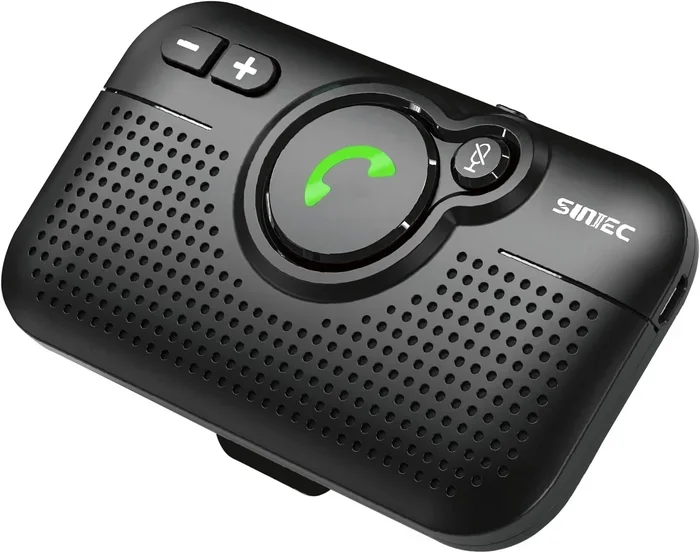
Older cars without built-in Bluetooth can still enjoy wireless connectivity with a Bluetooth receiver. These small devices plug into your car’s auxiliary port or cigarette lighter. They create a bridge between your phone and the car’s speakers. Look for a receiver that supports the latest Bluetooth version for the best wireless streaming experience.
Avoid Using Your Phone While Charging for Bluetooth
Charging and Bluetooth streaming at the same time can cause overheating in some phones. Overheating triggers power-saving modes that disable Bluetooth. If you notice disconnections while charging, try unplugging your phone during short trips. For longer drives, use a high-quality charger that does not generate excess heat.
When Should You Seek Professional Help?
Most Bluetooth issues resolve with the steps above. But sometimes, the problem is deeper than a simple reset. If you have tried everything and your car Bluetooth still will not connect, it is time to visit a professional.
A qualified auto electronics technician can check the car’s Bluetooth antenna and infotainment hardware. They have specialized tools to diagnose issues that software fixes cannot reach. For example, a damaged antenna or a faulty Bluetooth module in the car needs physical replacement. No amount of restarting will fix that kind of problem.
Also consider professional help if your car’s infotainment system freezes frequently or shows error messages even after a full reset. These could be signs of a deeper hardware issue. A professional diagnosis saves you time and prevents you from accidentally damaging the system with repeated resets.
Many local auto shops and dealerships offer Bluetooth diagnostic services. Some even provide smartphone integration upgrades for older vehicles. If your current system simply cannot keep up with modern phones, an upgrade might be a worthwhile investment.
Quick Tips for Faster Bluetooth Reconnection
Here are some fast tips to speed up the reconnection process every time you get in your car:
- Enable Auto-Connect: Most car systems remember paired devices and connect automatically. Make sure this feature is turned on in your settings.
- Keep Your Phone Charged: A low battery can disable Bluetooth before you even start the car.
- Turn on Do Not Disturb Mode: This reduces interference from notifications during the pairing process.
- Close Unused Apps: Apps that use Bluetooth in the background can conflict with your car’s connection.
- Restart the Car Infotainment System: Many systems have a restart option in the settings menu. Use it before trying to pair again.
- Check for Physical Damage: Inspect your phone case. Thick or metal cases can block Bluetooth signals and cause connection drops.
Final Thoughts
Dealing with a Bluetooth connection problem in your car does not have to be stressful. With the right knowledge, you can troubleshoot and fix most issues in just a few minutes. Start with the simple steps like restarting devices and checking settings. Move on to forgetting and re-pairing if needed. And remember, professional help is always available when the problem goes beyond software fixes.
Your car’s Bluetooth system is designed to make driving safer and more enjoyable. When it works, you get seamless music streaming, hands-free calling, and convenient mobile connectivity on every trip. Taking a few minutes to maintain your connection and follow the tips in this guide ensures you get the best experience every time you turn the key.
Keep this guide bookmarked for the next time your phone pairing acts up. Share it with friends and family who struggle with the same issue. And most importantly, enjoy the drive with your favorite music and calls flowing through your car’s speakers without interruption.