How to Delete a Phone from Ford F-150 Hands-Free System
Deleting a phone from your Ford F-150 hands-free system is simple once you know the right steps. Whether you are using SYNC 3, SYNC 4, or the FordPass app, this guide walks you through every method. You will also learn how to remove all paired devices, fix common issues, and keep your Bluetooth connections organized.
Your Ford F-150 is more than just a truck. It is a rolling tech hub with a powerful infotainment system that keeps you connected on the road. But what happens when you need to remove an old phone from the system? Maybe you bought a new device, sold the truck, or simply want to clean up your Bluetooth list. Whatever the reason, learning how to delete a phone from Ford F-150 hands-free system is a skill every F-150 owner should have.
This guide covers everything you need to know. We will walk you through the steps for both SYNC 3 and SYNC 4 systems. You will also discover how to use the FordPass app, remove all devices at once, and troubleshoot common problems. By the end, you will feel confident managing your truck’s phone connections like a pro.
Let us be clear: this process is not complicated. Ford designed the SYNC system to be user-friendly. Even if you are not tech-savvy, you can follow along. And if you ever run into trouble, we have you covered with practical tips and solutions. So let us dive right in.
Key Takeaways
- Multiple Methods Available: You can delete a phone through the touchscreen, the SYNC settings menu, or the FordPass app on your new phone.
- SYNC 3 and SYNC 4 Differ: The steps vary slightly depending on which Ford SYNC system your F-150 uses.
- Privacy Matters: Removing old phones protects your personal data, especially when selling or sharing your truck.
- One-Step Full Reset: You can delete all paired phones at once by resetting the Bluetooth module.
- Troubleshooting Is Easy: Most issues can be fixed with a simple restart, re-pairing, or factory reset.
📑 Table of Contents
Understanding the Ford F-150 Hands-Free System
Before you start deleting anything, it helps to understand what you are working with. The Ford F-150 uses the SYNC infotainment system to manage Bluetooth connections, phone calls, and audio streaming. Knowing how this system works makes the deletion process much smoother.
What Is the Ford SYNC System?
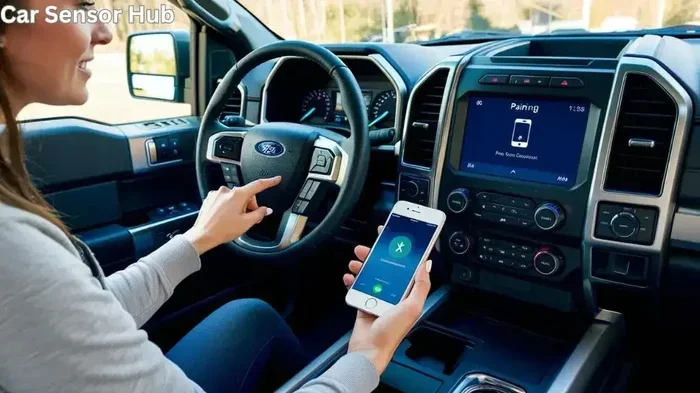
The SYNC system is Ford’s built-in connectivity platform. It lets you pair your phone wirelessly to the truck’s audio system. Once paired, you can make calls, stream music, and use voice commands without touching your phone. This is a huge safety benefit. Studies show that hands-free driving reduces distractions significantly. For instance, did you know that hitting a deer can total your car? Staying focused on the road is essential, and a clean phone list helps you stay there.
There are two main versions of SYNC found in Ford F-150s: SYNC 3 and SYNC 4. Both handle Bluetooth pairing and phone management, but the menus look a bit different. SYNC 4 is newer and features a larger touchscreen with more intuitive navigation. If you are not sure which system you have, check your owner’s manual or look at the screen layout.
How Does Phone Pairing Work?
When you pair a phone with your F-150, the system stores the device’s information. This includes the phone name, contact list (if you allowed sync), call history, and pairing PIN. The system can remember multiple phones at the same time. Typically, an F-150 can hold between 10 and 15 paired devices, depending on the model year.
Each time you get in the truck, the SYNC system automatically searches for known devices. If your phone is nearby and Bluetooth is on, it connects within seconds. This seamless experience is great until you need to remove a device. That is where things can feel a little tricky if you have never done it before.
Why You Might Need to Delete a Phone
There are several perfectly valid reasons to remove a phone from your Ford F-150. Let us look at the most common ones so you can see why this task matters.
Selling or Giving Away Your Truck
If you are selling your F-150 or giving it to a family member, you absolutely need to delete your phone. Leaving your contacts, call logs, and pairing information on the system is a privacy risk. The next person could potentially access your personal data. Taking a few minutes to clear everything protects you and gives the new owner a fresh start.
Switching to a New Phone
Upgrading to a new phone is another common reason. Instead of juggling two phones on the same SYNC system, it makes sense to remove the old one. This keeps your Bluetooth list tidy and prevents accidental connections to the wrong device. A clean setup means fewer headaches and better performance.
Privacy and Security Reasons
Even if you are keeping your truck, there are times when you want to remove a phone for privacy. Perhaps a friend or family member used your F-150 and you no longer want their phone connected. Or maybe you shared your truck for a road trip and want to wipe their data afterward. Either way, removing the device is the right move.
And speaking of keeping things tidy in your truck, removing car seats when they are not needed is another great way to declutter. A clean truck inside and out just feels better to drive.
Step-by-Step Guide to Deleting a Phone
Now let us get into the meat of the guide. Below, you will find detailed steps for every method of phone deletion. Follow the section that matches your system.
For Ford SYNC 3 Systems
SYNC 3 is the older but still very common system in Ford F-150s. Here is how to delete a paired phone step by step:
- Press the Phone Button: On the steering wheel or touchscreen, press the phone icon to open the phone menu.
- Go to Settings: Look for the gear icon or the “Settings” option on the screen. Tap it to enter the system settings.
- Select Bluetooth: Find the Bluetooth menu. This is where all your paired devices are listed.
- Find the Phone: Scroll through the list of paired devices until you find the phone you want to delete.
- Select the Device: Tap on the phone name to open its details.
- Choose Delete: Look for the “Delete Device” or “Remove” option. Confirm your choice when prompted.
- Repeat if Needed: If you have multiple phones to remove, repeat the process for each one.
That is it. The phone is now removed from your F-150’s hands-free system. The next time you get in the truck, it will no longer try to connect to that device automatically.
For Ford SYNC 4 Systems
SYNC 4 has a slightly different interface, but the process is very similar. Here is what to do:
- Tap the Home Screen: Press the home button on the touchscreen to go to the main menu.
- Open Settings: Look for the gear icon in the top or side menu. Tap to open the settings panel.
- Navigate to Phone/Bluetooth: Select the “Phone” or “Bluetooth” option from the settings menu.
- Choose the Device: Find the phone you want to delete from the list of connected and paired devices.
- Access Device Options: Tap and hold the device name, or look for a three-dot menu next to it.
- Select Delete or Forget: Choose the delete or forget device option. Confirm the action.
- Verify Removal: Go back to the Bluetooth list to make sure the phone is gone.
SYNC 4 users may also notice that the system asks if you want to delete the phone from the cloud. If you are using FordPass Connect, the phone data may sync to the cloud. Make sure to check that option too.
Using the FordPass App
The FordPass app offers another way to manage your phone connections. This is especially handy if you want to make changes from your new phone before you even get in the truck. Here is how:
- Open the FordPass App: Launch the app on your smartphone and log in to your Ford account.
- Go to Vehicle Settings: Tap on your F-150 from the vehicle list and navigate to the settings section.
- Find Bluetooth or Phone Settings: Look for the Bluetooth or connected devices option.
- Remove the Device: Select the phone you want to delete and choose the remove option.
- Confirm the Deletion: Follow the on-screen prompts to complete the process.
The FordPass app is a great tool for managing your truck remotely. It is worth exploring if you have not already. And while we are on the topic of vehicle efficiency, if you ever wonder about fuel economy, check out how far 1 litre petrol can take you in a car for some useful reference.
How to Remove All Paired Phones at Once
Sometimes you do not just want to remove one phone. Maybe you are resetting the entire system or preparing the truck for a new owner. In that case, you can delete all paired phones at once. Here is how to do it.
Method 1: Reset Bluetooth Module
- Go to the SYNC settings menu.
- Find the “Bluetooth” section.
- Look for a “Reset Bluetooth” or “Clear All Devices” option.
- Confirm the reset. The system will remove every paired phone.
Method 2: Factory Reset the Infotainment System
- Go to Settings and select “System Reset.”
- Choose “Factory Reset” or “Reset to Default.”
- This will erase all paired phones, saved preferences, and custom settings.
- You will need to re-pair your phone and adjust your preferences after the reset.
Method 3: Disconnect and Power Cycle
- Go to the Bluetooth settings and disconnect all devices manually.
- Turn off the truck and wait at least 30 seconds.
- Restart the truck and check that the Bluetooth list is empty.
Method 1 is the quickest and most targeted approach. Method 2 is more thorough but also more disruptive. Choose the one that fits your situation.
Troubleshooting Common Issues
Even with clear instructions, things do not always go smoothly. Here are the most common problems people face when trying to delete a phone, along with solutions.
Phone Won’t Delete
If the system will not let you delete a phone, try these steps:
- Restart the Truck: Turn the F-150 off and back on. Sometimes a simple restart clears up glitches.
- Check for Updates: Make sure your SYNC system is running the latest software. Outdated software can cause bugs.
- Force Close the App: If you are using the FordPass app, close it completely and try again.
- Try a Different Method: If the touchscreen is not cooperating, use the steering wheel controls or the FordPass app instead.
Bluetooth Still Shows Old Device
If the deleted phone still appears on the Bluetooth list, the system may be holding cached data. To fix this:
- Go to the Bluetooth settings and select “Clear Cache” if available.
- Perform a Bluetooth reset as described in the previous section.
- Turn off your truck, wait a minute, and restart it.
- If the problem persists, a factory reset of the infotainment system usually resolves it.
New Phone Won’t Connect After Deletion
After deleting the old phone, you may have trouble pairing the new one. This is normal and usually easy to fix:
- Make sure Bluetooth is turned on on your new phone.
- Delete any old F-150 pairing from your phone’s Bluetooth settings as well.
- Restart both the truck and your phone before attempting to pair again.
- If you are still stuck, try resetting the truck’s Bluetooth module.
Tips for Managing Your Ford F-150 Phone Connections
Deleting a phone is just one part of the equation. Keeping your connections organized over time saves you frustration down the road. Here are some practical tips to help you manage your F-150’s phone list effectively.
- Review Paired Devices Regularly: Every few months, check your Bluetooth list and remove any devices you no longer use. This keeps the system fast and secure.
- Name Your Devices Clearly: When you pair a new phone, give it a recognizable name like “My iPhone” or “Wife’s Samsung.” This makes future deletions much easier.
- Use Voice Commands: SYNC systems support voice commands. You can say “Delete phone” and follow the voice prompts to remove a device hands-free.
- Keep Your SYNC Software Updated: Ford releases updates that fix bugs and improve performance. Check for updates regularly through the touchscreen or the FordPass app.
- Unpair Before Selling: Always delete all phones and reset the Bluetooth list before selling or trading in your F-150. It is a matter of privacy and professionalism.
These small habits make a big difference. They keep your system running smoothly and protect your personal information. Think of it like maintaining any other part of your truck. A little regular care goes a long way.
You might also wonder about other aspects of your F-150’s features. For example, some owners ask about fuel efficiency and how far a single litre of petrol can take them. While this is not directly related to phone deletion, it is another piece of the puzzle when it comes to understanding and managing your vehicle better.
Conclusion
Knowing how to delete a phone from Ford F-150 hands-free system is an essential skill for every F-150 owner. Whether you are using SYNC 3 or SYNC 4, the process is straightforward once you know the steps. You can delete a single phone through the touchscreen, the FordPass app, or the voice command system. You can also remove all paired devices at once with a Bluetooth reset or factory reset.
Remember to clean up your phone list regularly. It keeps your system running fast, protects your privacy, and prevents connection issues. If you ever run into trouble, the troubleshooting tips in this guide should help you get back on track quickly.
Your Ford F-150 is a powerful and smart truck. Taking a few minutes to manage its phone connections ensures that the technology works for you, not against you. Keep this guide handy, and you will never struggle with Bluetooth again.
Frequently Asked Questions
Can I delete a phone from my Ford F-150 without touching the touchscreen?
Yes, you can. Use the FordPass app on your smartphone to manage and delete paired devices remotely. You can also use voice commands if your SYNC system supports them. Simply say “delete phone” and follow the prompts.
Will deleting a phone also erase my contacts from the truck’s system?
Yes, when you delete a paired phone, the system removes all synced data for that device. This includes contacts, call history, and any other information that was shared during pairing. Your contacts on the phone itself remain untouched.
How many phones can a Ford F-150 hands-free system remember?
Most Ford F-150s can store between 10 and 15 paired phones at a time. The exact number depends on your model year and SYNC system version. If you reach the limit, you will need to delete an old phone before pairing a new one.
What should I do if the deleted phone keeps coming back after a restart?
This usually means the phone data is cached in the system. Try resetting the Bluetooth module or performing a factory reset of the infotainment system. Also make sure the deleted phone’s Bluetooth is turned off when you restart the truck.
Is it safe to factory reset my Ford F-150 infotainment system?
Yes, it is safe. A factory reset simply restores the system to its original settings. You will lose all paired phones, saved preferences, and custom configurations. Make sure you have your SYNC login information and any important settings backed up before proceeding.
Can I delete a phone from the Ford F-150 while driving?
It is not recommended to make changes while driving. Pull over to a safe location first. Ford designed the SYNC system to minimize distractions, but your full attention should always be on the road. If you need to make a quick change, use voice commands for a safer experience.