How Do I Activate CarPlay on My iPhone the Easy Way
Activating CarPlay on your iPhone is simpler than you think. This guide walks you through every method — wireless, wired, and USB — so you can get Apple CarPlay up and running in minutes. We also cover common problems, compatibility checks, and pro tips to make your iPhone car connection seamless.
Getting Apple CarPlay running on your iPhone is one of the best upgrades you can make for your daily commute or weekend road trips. It puts your favourite apps right on your car screen, so you can navigate, listen to music, and reply to messages without taking your eyes off the road. Whether you are new to iPhone car integration or have tried and failed to get it working before, this guide will walk you through every step.
We will cover everything from the basic CarPlay setup to fixing common problems. You will learn how to activate CarPlay on your iPhone using both wireless and wired methods. By the end, you will know exactly what to do and how to get the most out of CarPlay features.
Let us dive in and get your iPhone car connection working perfectly.
Key Takeaways
- Wireless and wired activation are both easy — you just need the right cable or a compatible car.
- Check CarPlay compatibility first to avoid frustration and wasted time.
- Siri CarPlay lets you control maps, music, and messages hands-free.
- Troubleshooting steps like restarting your iPhone often fix CarPlay not working issues.
- Keep your iPhone and car software updated for the best CarPlay experience.
- Using CarPlay while driving can help you stay focused and navigate safely.
📑 Table of Contents
- What Is Apple CarPlay and Why Does It Matter?
- How to Activate CarPlay on Your iPhone (Step by Step)
- Wireless vs Wired CarPlay: Which Is Better?
- Common Problems When CarPlay Won’t Activate
- CarPlay Tips for a Better Driving Experience
- Is Your Car Compatible with CarPlay?
- Final Thoughts on Activating CarPlay
What Is Apple CarPlay and Why Does It Matter?
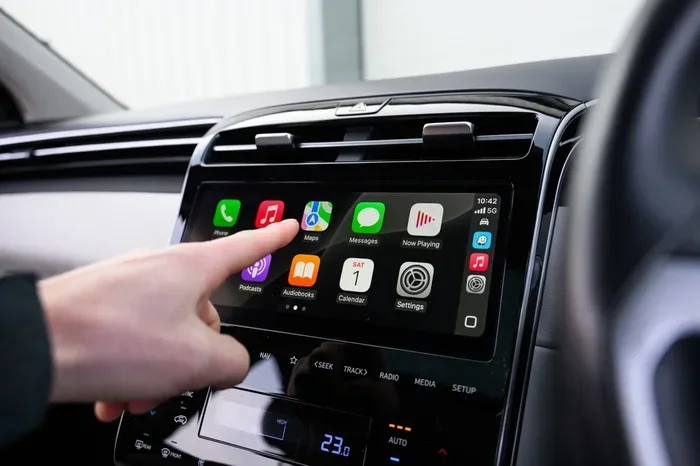
Apple CarPlay is a smart system that mirrors key parts of your iPhone onto your car’s display. It lets you use maps, make calls, send texts, and stream music — all through your car’s screen and controls. Think of it as a safe bridge between your phone and your vehicle.
The beauty of iPhone car integration is that it keeps your hands on the wheel and your eyes on the road. You use Siri to do most things. A simple voice command can read your messages, find a gas station, or play your favourite playlist. This is why Siri CarPlay is such a game-changer for daily driving.
Not all cars support CarPlay, though. Newer models from most major brands do, but older vehicles might not. We will look at compatibility in more detail later. For now, just know that if your car supports it, activating CarPlay is a quick process that takes only a few minutes.
How to Activate CarPlay on Your iPhone (Step by Step)
Activating CarPlay on your iPhone is straightforward. The exact steps depend on whether your car uses a wired or wireless connection. Let us go through both methods.
Method 1: Wired CarPlay Activation
This is the most common way to get CarPlay screen mirroring up and running. Here is what you need to do:
- Find your car’s USB port. It is usually labelled with a CarPlay or smartphone icon.
- Plug one end of a CarPlay USB cable into your iPhone and the other into the car port.
- Wait a few seconds. Your car screen should show the CarPlay interface.
- If it does not appear, open the Settings app on your iPhone and tap General, then CarPlay.
- Select your car from the list of available vehicles.
That is it. Your iPhone car connection is now active. You can start using maps, music, and messaging right away.
Method 2: Wireless CarPlay Activation
Wireless CarPlay Bluetooth setup is even more convenient. No cables needed. Here is how to do it:
- Make sure your car supports wireless CarPlay. Check your car manual or the manufacturer’s website.
- On your iPhone, go to Settings and tap General, then CarPlay.
- Tap Set Up CarPlay.
- Your iPhone will search for available vehicles nearby.
- Select your car from the list and follow any on-screen prompts.
Once paired, your iPhone will connect automatically whenever you get in the car. This is the easiest way to enjoy wireless CarPlay every day. Just make sure CarPlay Bluetooth is turned on in your iPhone settings.
Quick Tips for First-Time Setup
- Use an Apple-certified cable for wired connections. Cheap cables often cause connection issues.
- Restart your iPhone before setting up if you run into problems.
- Check your car’s infotainment system — some cars need you to switch the source to USB or Bluetooth first.
- Keep your iPhone unlocked during the initial pairing process.
Wireless vs Wired CarPlay: Which Is Better?
Both methods have their strengths. Let us compare them so you can decide which works best for you.
| Feature | Wired CarPlay | Wireless CarPlay |
|---|---|---|
| Connection | USB cable | Bluetooth and Wi-Fi |
| Setup Speed | Fast, plug and play | Fast, automatic after pairing |
| Reliability | Very stable | Slight delay possible |
| Convenience | Need to plug in each time | Connects automatically |
| Compatibility | Works with most cars | Only in newer car models |
In most cases, wired CarPlay gives you a slightly faster and more stable connection. Wireless CarPlay setup is more convenient and keeps your dashboard cable-free. If your car supports both, try each and see which you prefer.
One thing to keep in mind: using CarPlay on long drives can be part of a broader strategy for efficient travel. For example, planning your route with CarPlay maps can help you avoid unnecessary detours and save fuel. If you are curious about how far you can go on a litre of fuel, check out this guide on 1 litre petrol how many km in car to understand your vehicle’s fuel economy better.
Common Problems When CarPlay Won’t Activate
Sometimes CarPlay not working is frustrating. But do not worry — most issues have simple fixes. Here are the most common problems and how to solve them.
CarPlay Does Not Show Up on Your Car Screen
This is the most common complaint. Try these steps first:
- Unplug and replug your USB cable.
- Restart your iPhone completely.
- Make sure CarPlay is enabled in Settings under General.
- Try a different USB cable or port.
If you are using wireless CarPlay, toggle Bluetooth off and back on. Sometimes a simple refresh fixes the connection instantly.
CarPlay Keeps Disconnecting
A loose connection or software glitch often causes this. Here is what to do:
- Check that your cable is firmly plugged in.
- Update your iPhone to the latest iOS version.
- Update your car’s infotainment software if possible.
- Forget the CarPlay device in your iPhone settings and reconnect.
Keeping both your iPhone and car software up to date is one of the best ways to prevent CarPlay troubleshooting issues down the road. Regular CarPlay updates also bring new features and bug fixes.
Siri Is Not Responding Through CarPlay
If Siri CarPlay is not working, make sure Siri is enabled on your iPhone. Go to Settings, tap Siri and Search, and turn on all the relevant toggles. Also check that your car’s microphone is not muted.
CarPlay Tips for a Better Driving Experience
Once you have activated CarPlay, you can get even more out of it with a few smart habits. These tips will help you use CarPlay features more effectively and safely.
Customise Your CarPlay Home Screen
You can rearrange the apps that appear on your CarPlay screen. Go to Settings, tap General, then CarPlay, and choose your car. From there, you can drag and drop apps to put the ones you use most front and centre. This small change makes a big difference in your daily iPhone car integration experience.
Use Siri for Everything
The safest way to use CarPlay is through voice commands. Say “Hey Siri” and ask for directions, call contacts, or play a podcast. This keeps your hands on the wheel and your focus on driving. Over time, you will find that Siri CarPlay becomes second nature.
Plan Long Drives with CarPlay
CarPlay maps are excellent for navigation, but you can make your trips even smoother by planning ahead. Knowing your route and fuel needs before you leave helps you stay relaxed on the road. If you want to understand your car’s fuel range better, this guide on 1 liter petrol how many km can give you useful insights into how far your vehicle can travel on a single litre of petrol.
Keep Your Apps Updated
Apps like Google Maps, Spotify, and WhatsApp all work great with CarPlay. But they need to be updated regularly for the best performance. Check the App Store occasionally and install updates for your most-used CarPlay apps.
Use Do Not Disturb While Driving
This built-in iPhone feature pairs perfectly with CarPlay. It silences notifications and auto-replies to messages, so you stay focused. You can set it up in Settings under Focus and Do Not Disturb While Driving. It is a small change that makes a big safety difference.
Is Your Car Compatible with CarPlay?
Not every car on the road supports Apple CarPlay. Compatibility depends on your car’s make, model, and year. Here is how to check.
How to Check CarPlay Compatibility
- Look for the CarPlay logo on your car’s infotainment screen or manual.
- Visit the car manufacturer’s website and search for CarPlay support.
- Check your car’s model year — most cars made after 2016 support CarPlay.
- Ask your dealer or check the vehicle specifications online.
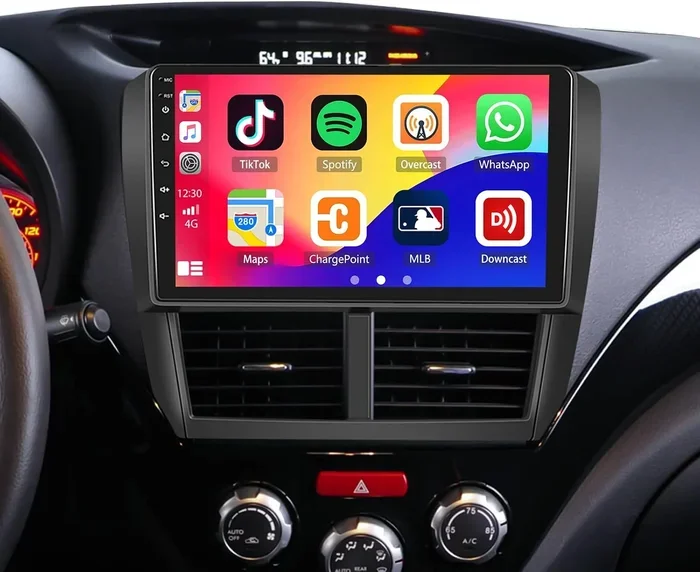
Many cars now come with CarPlay compatibility as standard. Even some older models can be upgraded with aftermarket infotainment systems that support CarPlay. If your car does not support it natively, an aftermarket head unit is a great option.
When you do find a car that works with CarPlay, the CarPlay setup process is almost always quick and painless. The key is to start with a compatible vehicle and a modern iPhone running the latest iOS.
Final Thoughts on Activating CarPlay
Activating CarPlay on your iPhone is one of the easiest ways to make your driving experience smarter and safer. Whether you use a wired USB cable or go wireless, the process takes just a few minutes once you know the steps. From CarPlay screen mirroring to hands-free Siri commands, the benefits are clear from day one.
If you run into issues, remember that most problems are easy to fix with a quick restart or a software update. Keep your iPhone and car software current, use the right cable, and do not hesitate to reset your CarPlay connection if needed.
For those who drive long distances regularly, understanding your fuel efficiency goes hand in hand with a great CarPlay experience. Efficient driving means fewer stops and more time enjoying your connected car features. You can learn more about maximising your fuel economy in our detailed breakdown of how far 1 litre petrol goes in a car, which pairs well with the trip-planning tools CarPlay offers.
Now that you know how to get Apple CarPlay running, go ahead and try it. The first time you use Siri to change tracks or get directions without touching your phone, you will wonder how you ever drove without it.
Frequently Asked Questions
How do I know if my car supports CarPlay?
Check your car’s manual, look for the CarPlay logo on the infotainment screen, or visit the manufacturer’s website. Most cars made after 2016 support Apple CarPlay either as standard or as an optional feature.
Can I use CarPlay without a USB cable?
Yes, if your car supports wireless CarPlay. You can set it up through your iPhone’s Settings app under General and CarPlay. It connects automatically via Bluetooth and Wi-Fi each time you get in the car.
Why does my CarKeep your iPhone updated to the latest iOS version, restart both your iPhone and your car’s infotainment system, and try a different USB cable if you are using a wired connection.
Is CarPlay free to use?
Yes, Apple CarPlay is completely free. You do not need to pay for any subscription or download any extra software. Just make sure your iPhone and car are compatible and you are good to go.
Can I use CarPlay on any iPhone?
Most iPhones running iOS 12 or later support CarPlay. However, for the best experience with all the latest CarPlay features, it is recommended to use an iPhone running the most recent iOS version available.
What should I do if CarPlay keeps disconnecting?
Try forgetting the CarPlay device in your iPhone settings and reconnecting. Also check that your cable is secure, your car software is updated, and Bluetooth is turned on. These steps resolve most CarPlay troubleshooting issues quickly.
=== CONCLUSION ===
How do I activate CarPlay on my iPhone? Now you know the answer. The process is simple, whether you choose wired or wireless CarPlay. Follow the steps in this guide, and you will be connected and driving with confidence in no time. Remember to keep your apps updated, customise your home screen, and use Siri for a hands-free experience that keeps you safe on the road.